
A customer often has more than one person you deal with: a spouse, a tenant, a property manager, accounts payable at a business. Add them on the customer's Contacts tab so everyone in the office can reach the right person — and so they can be copied on estimates and invoices.
Who can do this
Owners, admins and dispatchers (anyone who can edit customers).
The main contact
The Contacts tab always starts with the main contact — the name, phone and email on the customer profile itself. The main contact gets every text, email and invoice. To change who that is, use ⋯ → Edit customer profile on that row (or ⋯ → Edit customer in the header).
Open the Contacts tab
Open the customer from Contacts and click the Contacts tab. The tab shows People · N and every person on file with their role, phone and email.
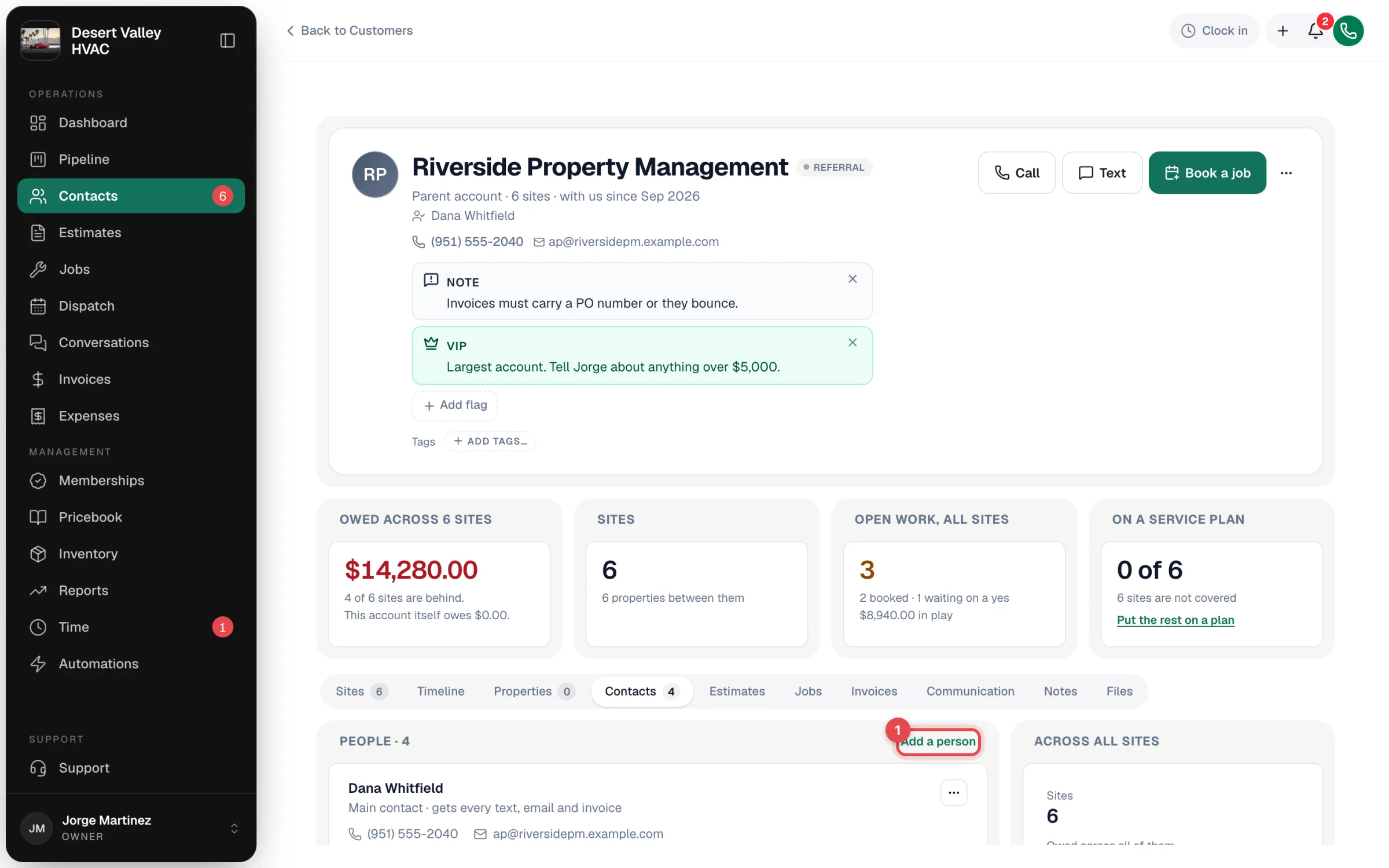
Click Add a person
Fill in their details
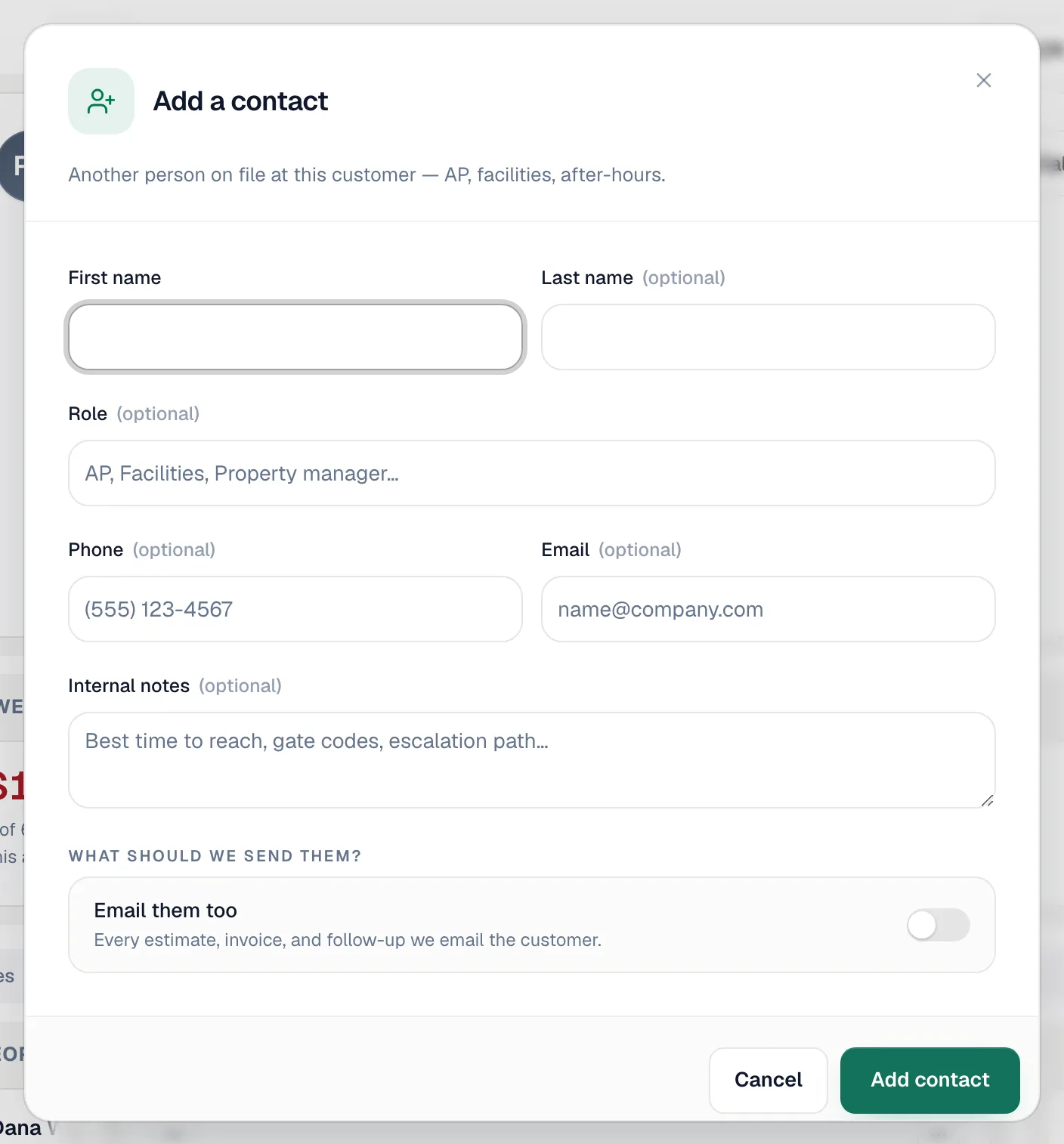
| Field | What to enter |
|---|---|
| First name | Required. |
| Last name | Optional. |
| Role | Optional — AP, Facilities, Property manager, Tenant. |
| Property | Only shown when the customer has two or more active addresses. Leave every address unticked for someone who covers the whole account, or tick one or several addresses to make this person the site contact there (see below). |
| Phone, Email | At least one is required. |
| Internal notes | Optional — best time to reach them, gate codes, escalation path. Never shown to the customer. |
| Email them too | Turn on to copy this person on every estimate, invoice, and follow-up we email the customer. |
Click Add contact.
<!-- labels: components/customers/contact-form-dialog.tsx:183 ("Property", optional), :201 ("All addresses"), :77 (shown when 2+ active addresses), :139 ("Add a contact"), :146 ("Add contact") -->Email them too copies emails only. Text messages still go to the main contact.
Email them too also decides who is filled in when you email a service report by hand. Send report to customer on a completed job opens with the customer's email and every contact that has the switch on already in the Send to box. See Printing and emailing a service report.
Site contacts for customers with several addresses
A property manager with three buildings usually has a different person at each one, and sometimes one person who looks after two of them. When the customer has two or more active addresses, the Property field on Add a contact lists every address with a tick box: tick the ones this person covers. Leaving all of them unticked keeps the person account-wide. The line under the list confirms it, for example Site contact at 2 addresses.
Where a site contact shows up:
- Contacts tab — their row says at [address], for example at the Annex, or at the Annex, 200 Court Sq for two addresses and at 4 addresses beyond that.
- Properties tab — open the address and the tray lists Site contact: [name] · [phone] (or Site contacts: when there are several). A person who covers several addresses is listed under each of them.
- New job form — once you pick the Service address, the Assign to picker lists that address's site contact first, with a Site contact tag. Account-wide people follow, then people at other addresses, tagged with their address. When the address has exactly one site contact, that person is picked for you; choose someone else if you need to, and your pick stays even if you change the address afterwards.
- New estimate form — Assign to shows the same order and tags, but nobody is pre-selected.
The site contact gets the job's texts (on my way, arrived). The invoice created from that job stays with the main contact — the account's billing contact — unless you choose a different contact on the invoice yourself. An account-wide contact assigned to a job does carry over to its invoice.
<!-- shot: Contacts tab with an "at the Annex" tag on a site contact --> <!-- shot: New job form, Assign to picker with the Site contact tag --> <!-- labels (migration 664, multi-property): components/customers/contact-form-dialog.tsx (tick list, hint "Site contact at N addresses." / "Leave all unticked for someone who covers every address."); components/customers/customer-detail-view.tsx ("at A, B" / "at N addresses"); components/customers/profile/address-trays.tsx:229 ("Site contact(s):"); components/jobs/job-create-form.tsx:1010 ("Assign to"), :452-463 (pre-select when exactly one site contact, hand pick never overwritten); lib/customers/contact-ordering.ts:68 (SITE_CONTACT_TAG "Site contact"), :88-90 (order), :126-136 (defaultContactForProperty); components/estimates/estimate-create-form.tsx:2953 ("Assign to", no pre-select); lib/invoices/contact-cascade.ts:4-11 (site contact doesn't cascade to invoice) -->Choosing the contact for a job, estimate or invoice
When a customer has extra contacts:
- Creating a job — the Assign to picker appears after you choose the customer, so you can assign the job to the right person. Site contacts are listed first for the chosen address (see above).
- Creating an estimate — the same Assign to picker, without a pre-selection.
- On an estimate or invoice — click Contact in the header and pick who it's for.
Editing or removing a contact
Click ⋯ on the person's row:
- Edit — change their details or the Email them too switch.
- Remove — takes them off the customer. Their phone and email stop receiving notifications.
If a contact replied STOP to texts or unsubscribed from emails, their row says asked for no texts or asked for no emails.