
Every new job of a given type can start with pricebook items already on it — the classic case is a dispatch or trip fee on every Service call. Set it once per job type and it applies wherever a job of that type is created: the office New job form and dispatch board, a tech booking from the field app, follow-up jobs and the API. Jobs created by an automation, or with Schedule job on an AI receptionist call, are Service jobs, so they pick up your Service defaults.
Set default items for a job type
- Go to Settings → Tags & Job Types and scroll to Job types.
- On the type's row, click Add default items (or Edit default items if it already has some). Owners and admins can do this — in a custom role, it takes the Jobs level Everything, including delete. Dispatchers see the list but not the buttons.
- Search your pricebook (type at least two letters, for example Dispatch fee) and click an item to add it. Adjust Qty if needed.
- Turn on Skip for members for any item that members should not be charged — a trip fee that your maintenance plans waive, for instance. Items flagged as a service-call fee in the pricebook default to skipped. Plans with No trip fees turned on skip the service-call fee item even when this switch is off; see Creating a membership plan.
- Click Save. You'll see New Service jobs will start with 1 item (with your type and count), and the row now reads Starts with … with the combined price.
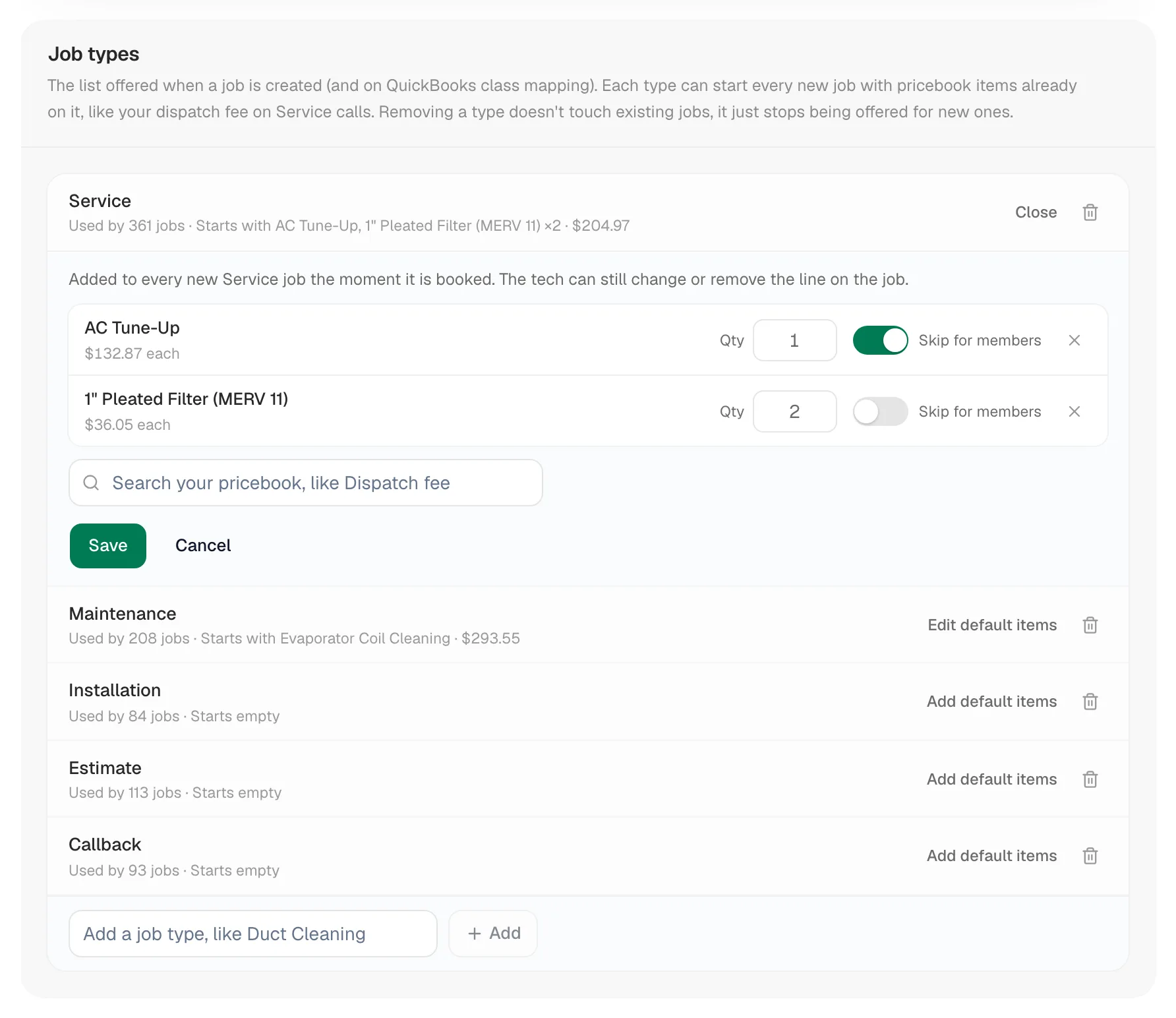
To remove an item, click the X at the end of its line and save. Saving an empty list clears the defaults for that type.
How the items land on a job
- The items are copied onto the job as normal line items at the pricebook price at that moment. A later price change never rewrites an open job.
- The tech or the office can edit, re-price or remove the line on the job like any other.
- Members: when the customer has an active membership (including one set not to renew), items marked Skip for members are left off. Everything else is added as usual.
- Jobs that already carry line items are left alone, so nothing is ever added twice.
Converting an approved estimate into a job does not add default items — the estimate already priced the visit. Sales visits booked to present a quote get none either.
Inactive or removed pricebook items
If an item on the list is later deactivated or removed from the pricebook, it stops landing on jobs. The row shows it as inactive, and the editor leaves it off the list so you can save without it.
Where to see it
Open any new job of that type: the lines are on the Parts & Labor tab in the office and under Parts and labor in the mobile app, with the job total already reflecting them.