
A membership plan is the offer your customers sign up for, such as Bronze, Silver and Gold: what it costs, how many tune-ups it includes, the repair discount and the terms they sign. Build each plan once and enroll as many customers as you like.
Who can do this: owners and admins. Scheduling a price change for existing members is owner-only.
Start a plan
Go to Memberships and click New Plan (or open the Plans tab and click Edit on an existing plan).
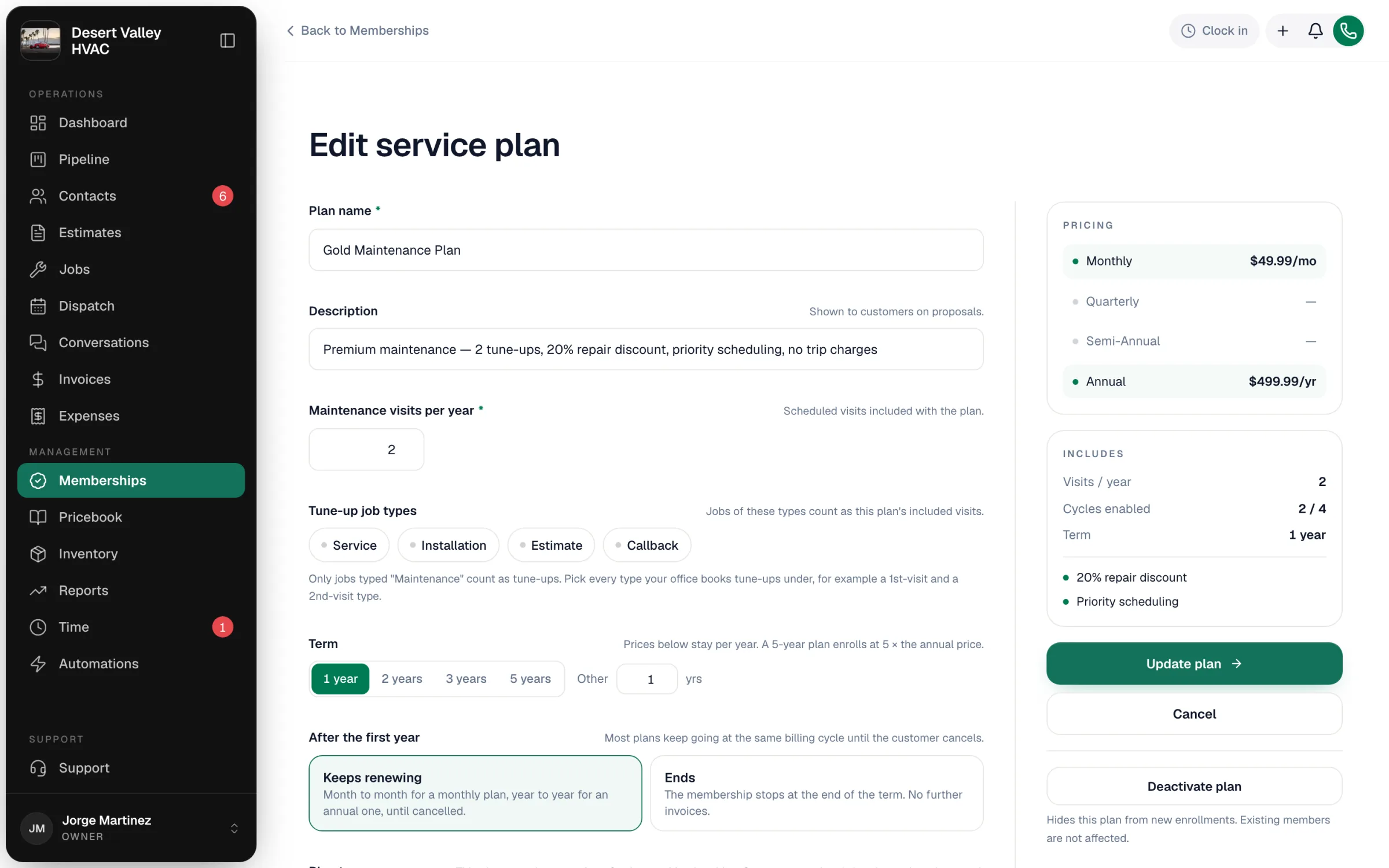
Describe it
| Field | What to enter |
|---|---|
| Plan name | Required. What customers and your team see, such as Gold Maintenance Plan. |
| Description | Shown to customers on proposals, for example 2 tune-ups, 20% off repairs, priority scheduling. |
| Maintenance visits per year | Required. The tune-ups included each year. |
| Tune-up job types | Jobs of these types count as this plan's included visits. Jobs typed Maintenance always count; add others if your office books tune-ups under different types (for example a 1st-visit and 2nd-visit type). |
Set the term
| Setting | Options |
|---|---|
| Term | 1 year, 2 years, 3 years, 5 years, or type another number. Prices stay per year; a multi-year plan can be billed each cycle for the whole term, or paid up front in one invoice (annual price × years). |
| After the first year (or After the first N years) | Keeps renewing (month to month for a monthly plan, year to year for an annual one, until cancelled) or Ends (the membership stops at the end of the term with no further invoices). |
Choose the terms customers sign
Under Plan terms, the plan uses your default terms from Settings → Memberships unless you click Write different terms for this plan. Customers read and sign these terms when they enroll. If no terms are set anywhere, customers sign a one-sentence authorization instead.
Set the price
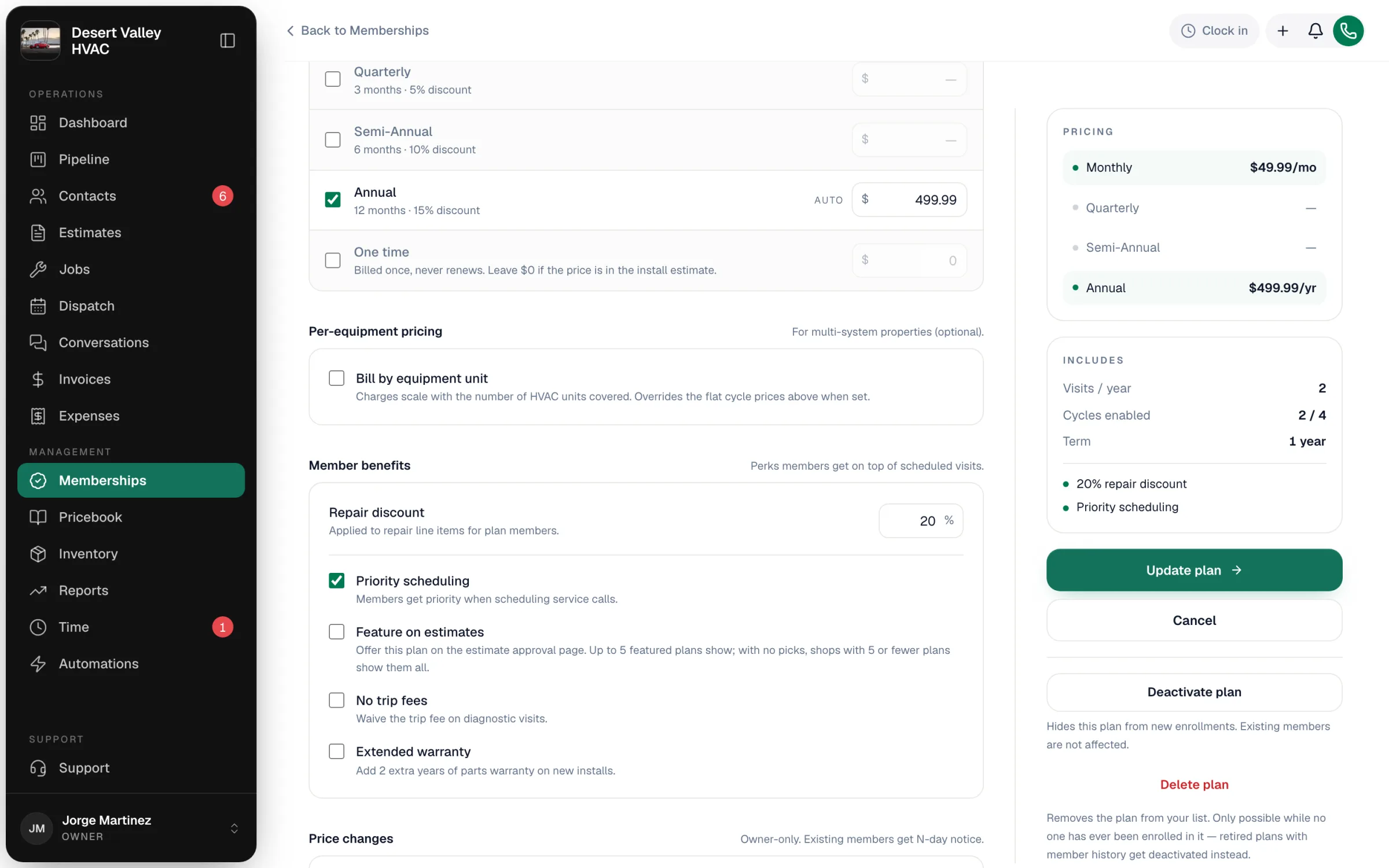
Under Billing cycles, tick each cycle you offer and enter its price: Monthly, Quarterly, Semi-Annual and Annual. Enable at least one. A monthly price fills in the others with a built-in discount (shown under each cycle), which you can overwrite.
One time is for plans sold once, typically bundled into an install: billed once (or never, at $0 when the price is in the install estimate) and never renewed. It can't be combined with the recurring cycles.
Per-equipment pricing (optional)
For homes with several systems, tick Bill by equipment unit and enter a Base price (first unit), Each additional unit and an optional Cap at units, per month or per year. This overrides the flat cycle prices. At enrollment the number of systems is suggested from the customer's equipment.
Add member benefits
| Benefit | What it does |
|---|---|
| Repair discount | The member rate on repairs, as a percentage. See Applying member discounts for how it's used. |
| Priority scheduling | Shown as a plan benefit to customers and techs. |
| Feature on estimates | Picks this plan for the estimate approval page. Up to 5 featured plans show; if you pick none and have 5 or fewer plans, all of them show. Turn the whole offer on or off with Offer plans on estimates on the Plans tab. |
| No trip fees | Members on this plan skip your service-call fee when a job is booked. See below for what counts as the fee. |
How No trip fees works. When a job is booked for a member on the plan, the service-call fee that would normally land on the job from the job type's default line items is left off. Two things have to be true for a fee to be waived:
- The pricebook item is marked This is your service call fee (in the item's pricebook settings).
- It reaches the job as a default line item for that job type. A fee the office or the tech adds to a job by hand is never waived — remove it from the job yourself.
The job type's own Skip for members switch still works on its own: an item is skipped when either the job type says so or the member's plan has No trip fees.
Your own benefits
Click Add a benefit to list a perk of your own, such as Free filter at every visit. Give it a name and, if it helps, a short note (Note (optional), e.g. 1-inch only). A plan can list up to 10. Remove a row you don't need, or give it a name: an empty row can't be saved.
Your own benefits show after the ones above wherever the plan's benefits appear: the customer's page, the incoming call card and the dispatch caller panel, the plans offered on the estimate approval page, the enrollment page, the signed agreement PDF, and the member card in the mobile app.
There is no longer an Extended warranty box on the plan. Add warranty perks as your own benefit, or put them in the plan's Description and terms.
Create the visits when a customer enrolls
Switch on Create the visits when a customer enrolls to have Run a Call make each included visit as an unscheduled job the moment someone joins the plan, labelled Visit 1 of 2, Visit 2 of 2. It's off on every plan until you turn it on. See Visits created at enrollment.
<!-- labels: components/memberships/plan-form.tsx:1277 ("No trip fees"), :1278 (description), :539 (benefit chip); lib/jobs/default-line-items.ts:51-55 (skipped when skip_for_members OR plan waives trip fee AND item is the service-call fee — OR, never AND), :43-44 (is_service_call_fee); components/pricebook/item-form-dialog.tsx:1163 ("This is your service call fee"); components/settings/job-type-default-lines-editor.tsx:189 ("Skip for members"), :116-118 (fee items default to skipped) --> <!-- TODO(lead): verify the location/wording of the "This is your service call fee" switch in the pricebook item form before publishing -->Save
Click Save plan. You're taken to the Plans tab. When editing, the button is Update plan and you stay on the plan so you can keep making changes.
Change a plan later
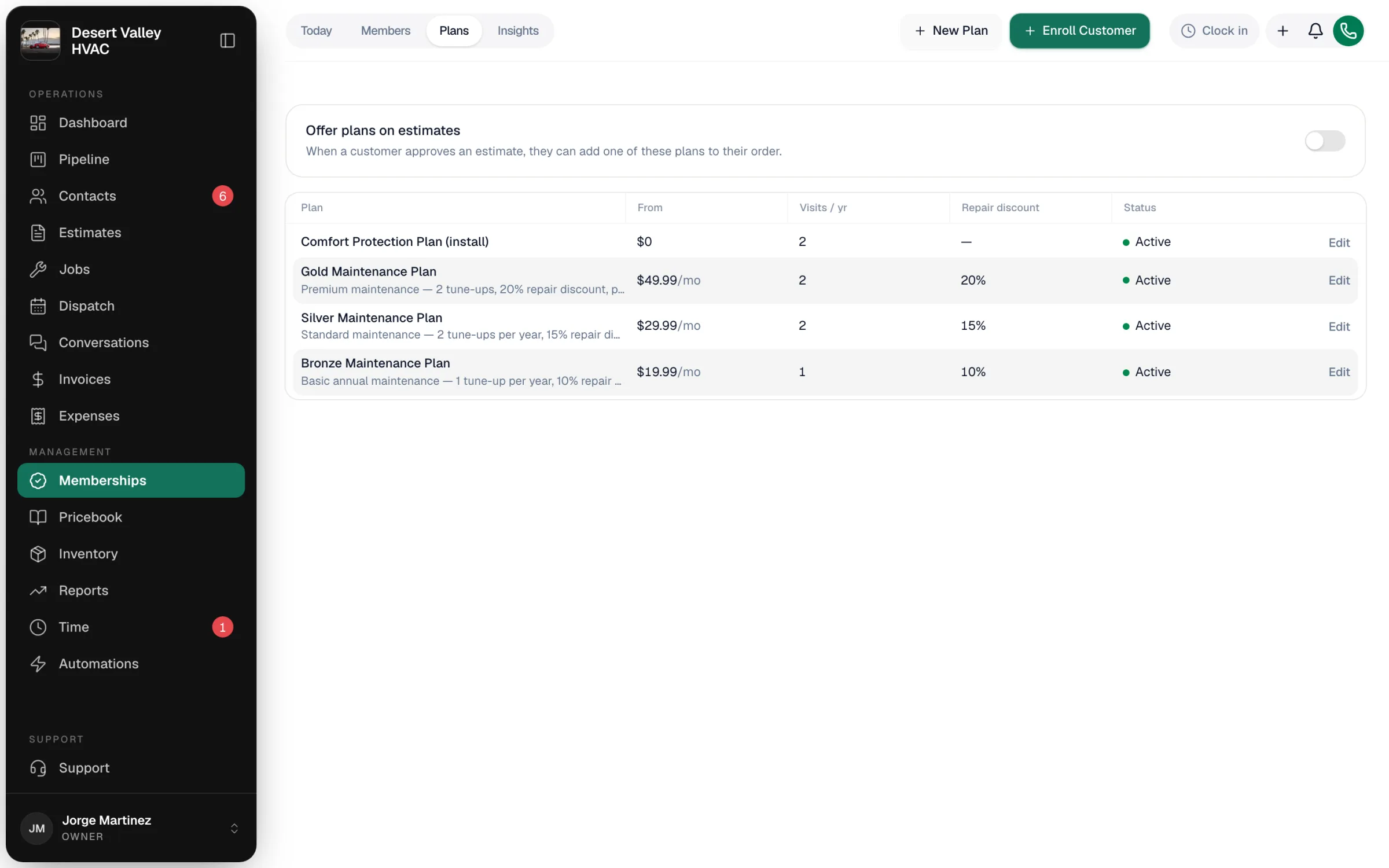
Your plans are listed on Memberships → Plans with their starting price, visits per year, repair discount and status. Click Edit to open one.
- Terms edits apply to new enrollments only; each membership stores its own signed copy of the terms.
- Price edits made directly in the form take effect for everyone on the plan: each member's next renewal invoice uses the new price, with no notice to the member. Renewal invoices that were already created keep their amount. To give existing members notice, schedule the change instead (next point).
- Schedule a price change (owner only, when editing): under Price changes, click Schedule…, set the new prices and a notice period, and click Schedule price change. Members get an email right away, keep their current rate for the notice period, then renew at the new price.
- Deactivate plan hides it from new enrollments; existing members aren't affected. Activate plan brings it back.
- Delete plan is only possible if nobody has ever enrolled in it.
The Maintenance visit templates section on the plan page describes default job details for tune-ups, but it doesn't create jobs. Tune-up jobs are created only when the plan has Create the visits when a customer enrolls on; otherwise you schedule each one from Tune-ups due. See Scheduling membership tune-ups.