
Job types are the list you pick from when you book a job — Service, Maintenance, Installation, or whatever your shop actually does, like Duct Cleaning or Commercial PM. The type shows on the job, the dispatch board and the Jobs list, and each type can start new jobs with default line items.
Who can manage job types
| Action | Who |
|---|---|
| Add a job type | Owners, admins and dispatchers |
| Remove a job type, or set its default line items | Owners and admins |
See your job types
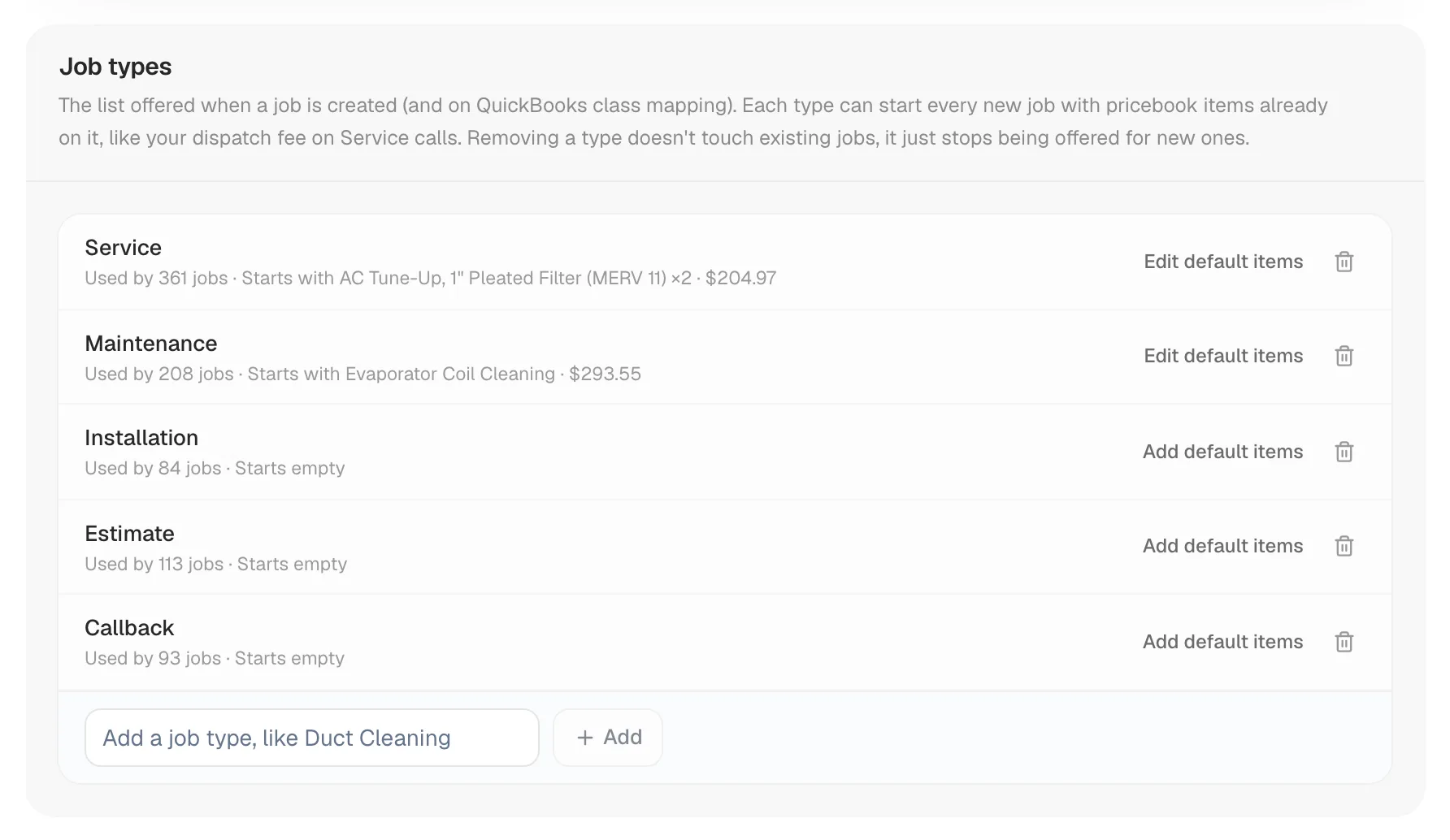
Go to Settings → Tags & Job Types and scroll to Job types. Each row shows the type's name, how many jobs use it (Used by 12 jobs), and what new jobs of that type start with (Starts with Dispatch fee · $89.00, or Starts empty).
Add a job type
- At the bottom of the Job types list, type the name in Add a job type, like Duct Cleaning.
- Click Add (or press Enter).
The new type is available on the New job form right away. You can also add one while booking a job: open Type and choose Add new job type….
Remove a job type
- Click the remove button at the end of the type's row.
- Confirm with Remove job type.
Removing a type doesn't change existing jobs — they keep their type. It just stops being offered for new jobs, and you can add it back any time.
Start jobs with default line items
Click Add default items on a type's row to put pricebook items, like a dispatch fee, on every new job of that type. See Starting every job of a type with default line items.
Where job types are used
- New job form — the Type field.
- Job page — next to the job number; click it to change the type.
- Jobs list — the Type column.
- Dispatch board — job cards can be colored by job type (Board settings → Colors).
- QuickBooks Online — job types can be mapped to QuickBooks classes. See Tracking revenue by QuickBooks class.
Callback is the type used for true callbacks. When you create a follow-up with the reason Callback, the new job gets this type and counts toward your callback rate. See Creating a follow-up job.
Job types vs tags
Use a job type for the kind of work — every job has exactly one. Use tags for extra labels you want to filter or automate on, like Warranty or Commercial — a job can have several. See Adding tags to jobs.