
Built-in messages on the Automations page come with wording that's ready to use. If the wording doesn't sound like your shop, you can rewrite it for these messages:
| Message | What you can change |
|---|---|
| Email a reminder before each appointment | Subject and message |
| Email a receipt after the customer pays | Subject and message |
| Email the customer a visit report when the job's done | Subject and message |
| Email customers when their air filter is due | Subject and message |
| Email a reminder when an invoice is past due | Subject and the reminder message at the top. The invoice details, PDF and pay button below it stay as they are. |
| The customer texts in the Texting folder | The message |
What starts the message and when it goes out stay the same.
The five membership emails and Email you when a customer approves an estimate open in the builder too, but they always go out with Run a Call's standard wording. Changes you save to them aren't used.
Who can do this
Owners, admins and office staff with access to Automations. Editing needs a tablet or computer; on a phone the builder is view-only.
Open the message in the builder
- Open Automations from the sidebar.
- Open the folder the message is in, for example Getting paid.
- Click the pencil icon on the message's row.
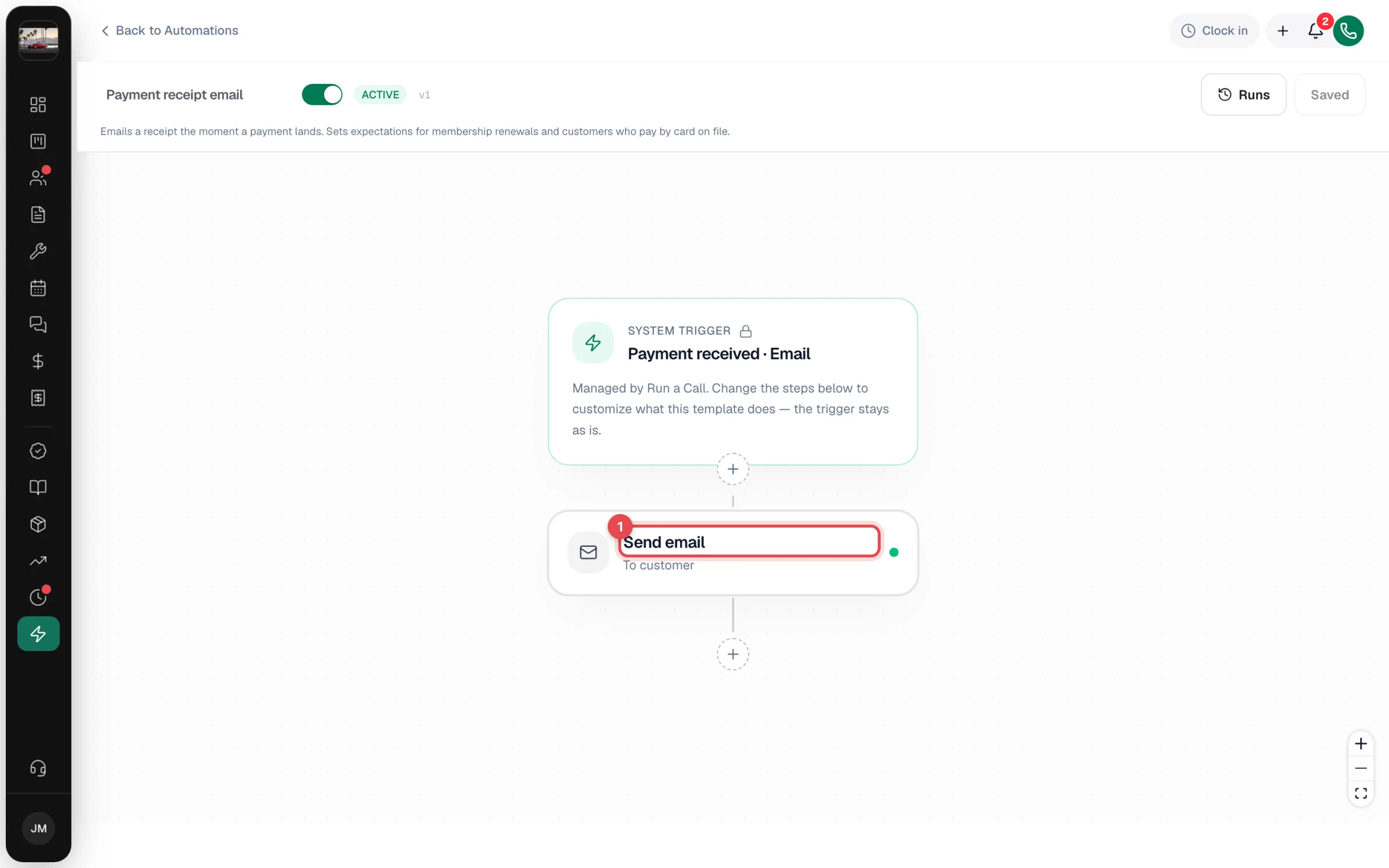
The builder opens. The top card is marked System trigger with a lock and reads Managed by Run a Call: that part can't be changed. Below it is the step that sends the message, Send email or Send SMS.
Open the send step
Click the Send email (or Send SMS) card.
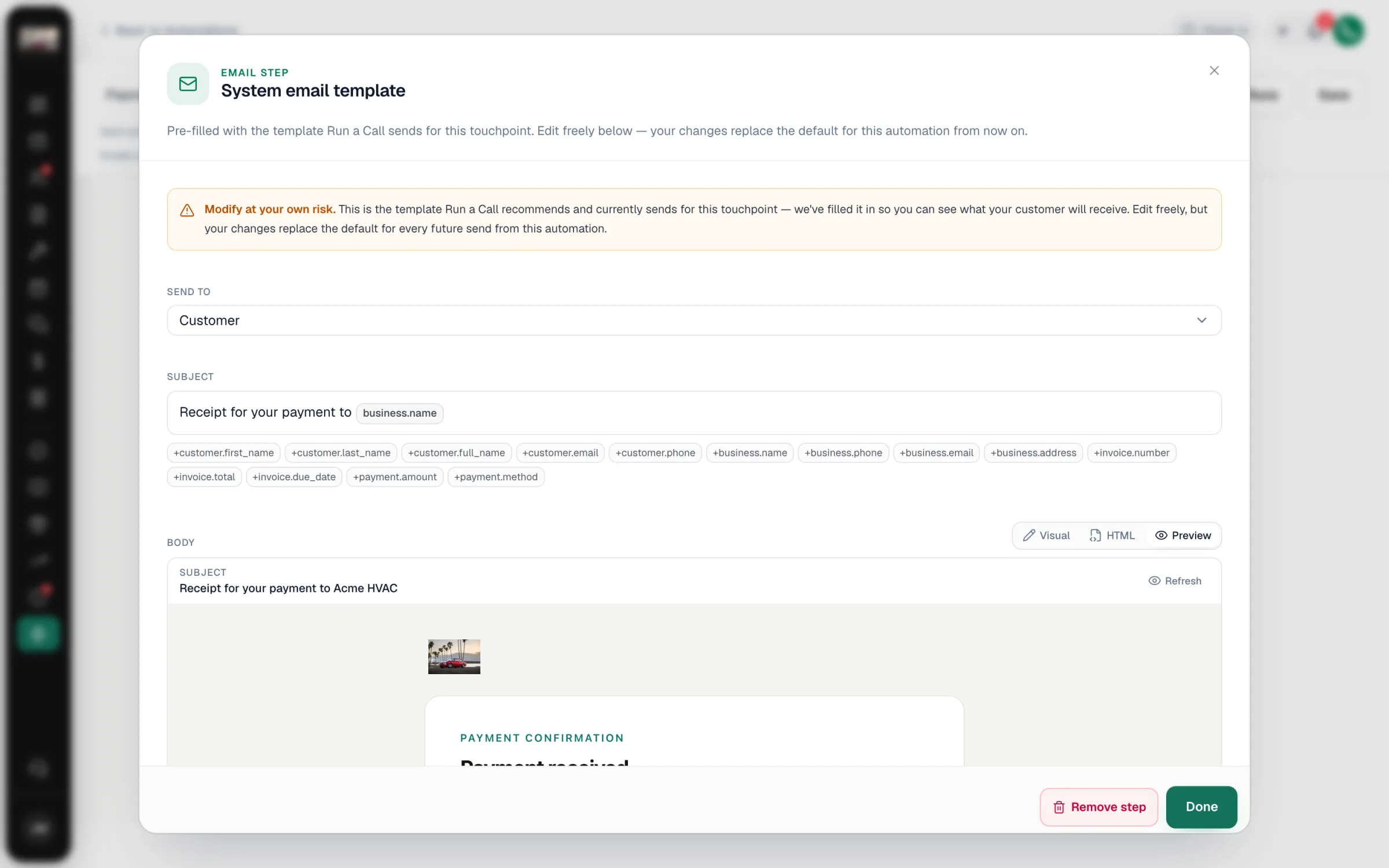
For an email, a window titled System email template opens. It's already filled in with the wording Run a Call sends today, so you can see exactly what your customers get. The Body has three views: Visual to edit the text, HTML for raw markup, and Preview to see the finished email.
For a text, a panel opens on the right with an Override message (optional) box. It shows the default wording. Leave it as-is to keep Run a Call's text, or type your own.
Rewrite it
- Change the Subject (emails) and the message itself.
- To drop in details such as the customer's first name, your business name or the invoice number, click one of the variable buttons (for example +customer.first_name). It shows as a small tag in the text and is filled in with the real detail when the message goes out.
- If a detail isn't available for a particular message, it's simply left out, so a customer never sees a raw
{{…}}tag. - The appointment time (+job.scheduled_time) prints the arrival window when it's 4 hours or less (12:00 PM - 2:00 PM), and the start time otherwise. Written as "at" followed by the time, it reads between 12:00 PM and 2:00 PM for a short window. See How the appointment time is written.
Keep the essentials in your version. If you remove the pay link from an invoice text, or the review link from a review request, customers won't get it. And don't click Remove step: without its send step the message has nothing to send.
Save
Click Done (emails) or close the panel (texts), then click Save in the top bar. You'll see Saved version 2 (or the next number), and the version number next to the status goes up. Every message sent from then on uses your wording.
If you try to leave the builder with unsaved changes, it asks you to confirm before throwing them away.
Good to know
- Your wording is also used for manual sends of the receipt and visit report, as long as that message is turned on. While it's off, those emails use the standard wording.
- Turning the message off doesn't lose your wording. Your version is still there when you turn it back on.
- Timing isn't editable. The day-before reminder still goes out the day before, and the overdue schedule stays at 7, 14 and 30 days. For different timing, build your own automation.
- Texts appear once business texting is live. Before that, the customer texts aren't listed on the Automations page, so there's nothing to edit yet. See Enabling SMS-based automations.
- Estimate and invoice emails aren't here. Those are sent with the Send button on the estimate or invoice.