
Link the units you're working on to the job so each unit's service history stays complete. The office does this from the job page, and techs do it on site in the field app. Both can also update a unit's condition, log refrigerant, add photos, and mark a unit inactive when it's taken out of service.
Who can do this
Office users who can edit jobs can attach equipment on the job page. Field techs can do all of this from their own jobs in the app.
In the office: the job page
Attach units
- Open the job. In the job details, find the Equipment row.
- Click Attach equipment. If units are already attached, click Change, or Manage on job when there's more than one.
- In Equipment on this job, check every unit you're working on this visit.
- Mark the unit the customer originally called about as Primary.
- Click Save.
The dialog lists every unit at the job's address, grouped by system. If the unit isn't on file yet, click Add another unit (or Add equipment when the address has none) to add it without leaving the job.
The primary unit shows in the Equipment row, and any other units appear as chips under it. Click × on a chip to take that unit off the job.
When a job has exactly one unit, line items you add from then on are assigned to that unit automatically. With several units, assign lines yourself. See Assigning job and invoice items to equipment.
Manage everything at the address
Once at least one unit is attached, click Manage equipment under the Equipment row to open Property equipment. It lists every unit at the address (switch between Active and Active + inactive). For each unit you can Edit, open Photos, open Refrigerant (for units that track it), Inactivate or Reactivate. Add equipment at the top adds a new unit.
In the field app
Open the equipment sheet
On the job, use any of these:
- Tap Equipment under This visit. If a unit is already on the job, this opens that unit — tap the back arrow to see the full list.
- Tap the house icon at the top (Property and equipment).
- Tap a unit under About this customer to jump straight to it.
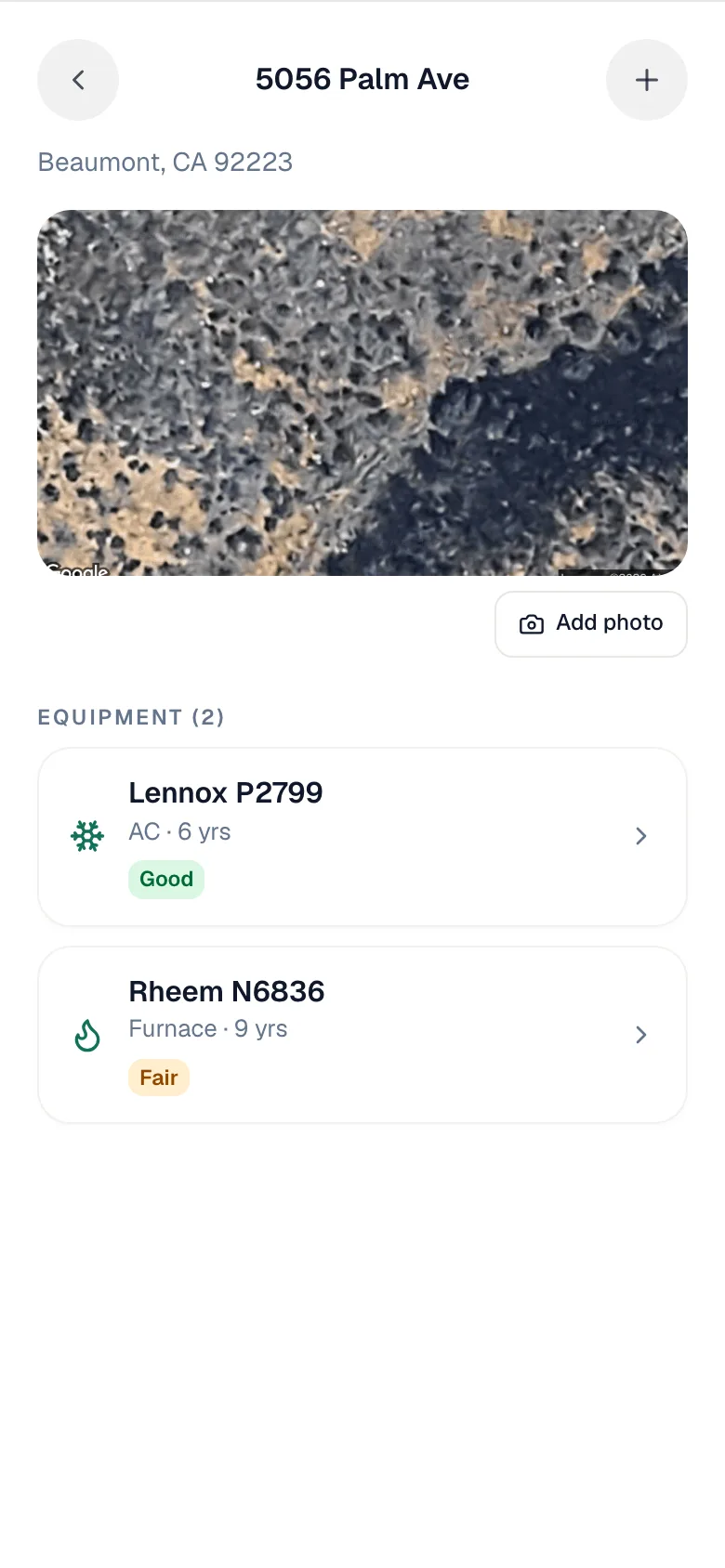
The sheet shows the address, a photo of the property (tap Add photo to add your own), and Equipment (N) with each unit's type, age and condition. Tap + to add a unit.
Work on a unit
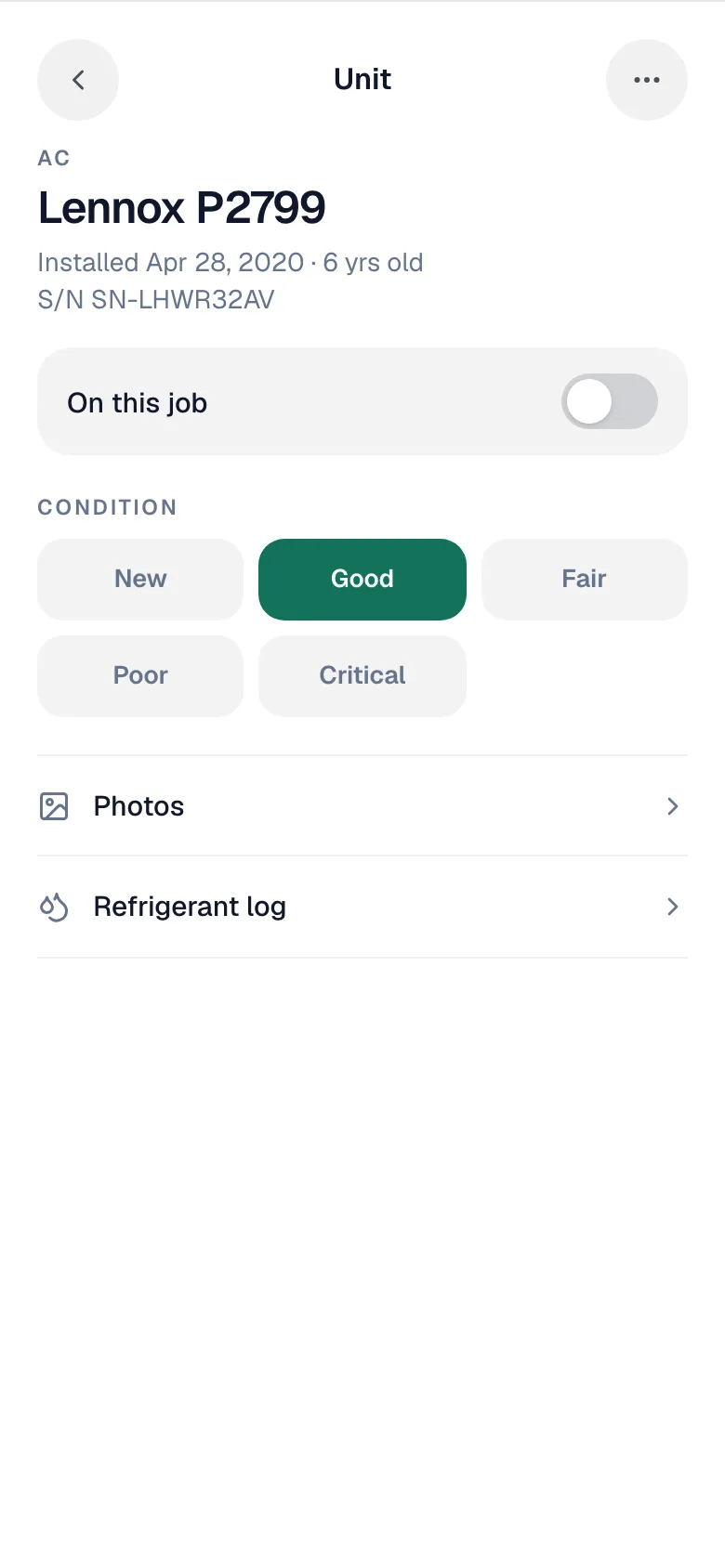
Tap a unit to open its screen:
| Control | What it does |
|---|---|
| On this job | Switch on to attach the unit to this job. Switching it off asks Take off this job? The unit stays on file for the address. |
| Condition | Tap New, Good, Fair, Poor or Critical. It saves right away. |
| Photos | Take or add photos of the unit, such as the data plate, before and after, or damage. |
| Refrigerant log | Only on units that track refrigerant. Shows the log and Log refrigerant on this unit. See Logging refrigerant on mobile. |
Adding units you installed
When a job has line items for equipment from your pricebook (items set up as equipment) and the crew is on site or done, the job page and the field app show a card: N installed units not on the property yet. Tap Add to property.
In Add installed units to the property you get one row per unit — a line for four units shows four rows. Check the type and Location (filled in from the line's description when it can be), add a Serial if you have it, then tap Add N units (for example Add 2 units). The new units are saved to the job's address and marked as installed on this job, so they show an Installed on a job link on the customer's Properties tab.
Custom line items that aren't from your pricebook are never offered here.
Marking a unit inactive
When a unit is removed, replaced or permanently shut down, mark it inactive instead of deleting it:
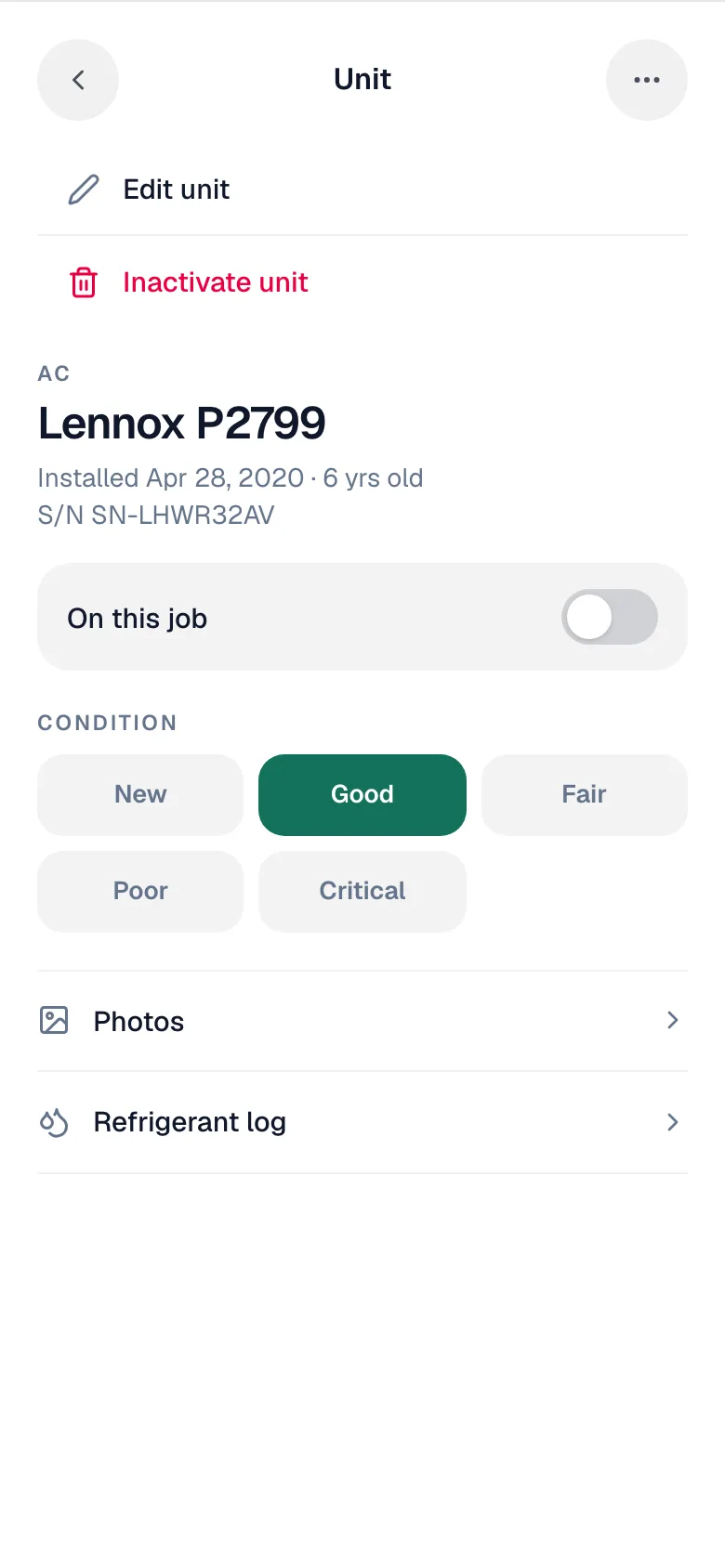
- Field app: open the unit, tap ⋯, then Inactivate unit.
- Office: Manage equipment → the unit → Inactivate.
Confirm Inactivate. The unit is marked retired, keeps its install history, costs and refrigerant log, and moves to the retired list on the customer's Properties tab (Show N retired). It no longer appears in line-item pickers or the Active only view of the Equipment Cost Analysis report.
Made a mistake? Open the unit the same way and choose Reactivate unit (field) or Reactivate (office).
Good to know
- Only units at the job's address can be attached to it.
- Inactivating a unit doesn't remove it from past jobs or invoices.
- Deleting a unit is different: it hides the unit from every list. Use it only for units entered by mistake. See Manually adding new equipment to a client.