
Put a filter size and a change schedule on a unit, and Run a Call does the rest: the customer gets an email a week before the filter is due with the size and an Order button, their portal lists every filter with its next change date, and the office sees the due date on the unit.
Who can do this: anyone who can edit equipment sets the size and schedule (office users and techs). Owners and admins turn the reminder email on.
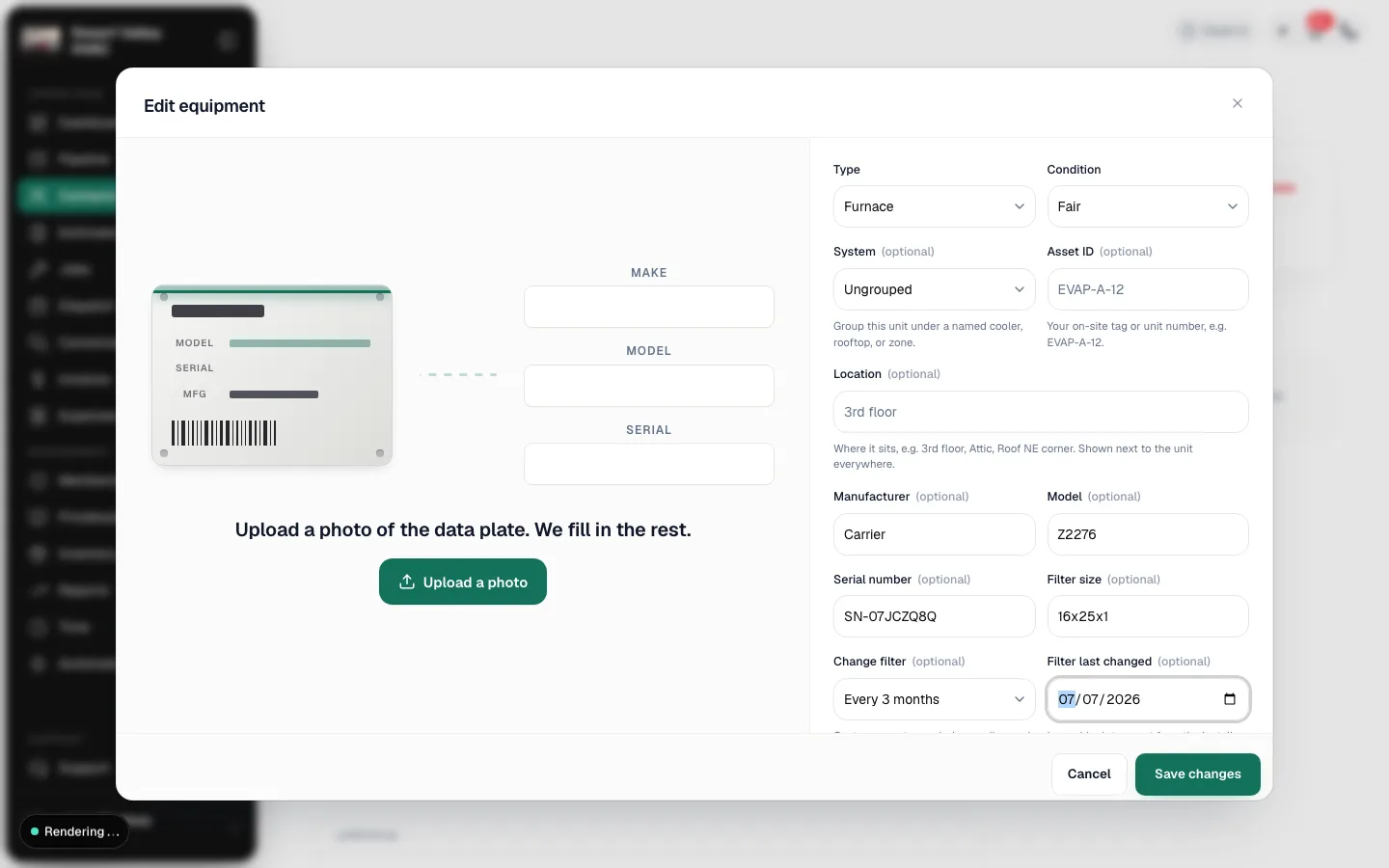
Set the filter size and schedule on the unit
- Open the customer, then the property, then the unit. Click Edit. (Techs: open the job's house button, pick the unit and tap Edit.)
- Fill in Filter size, for example 16x25x1. This alone puts the unit on the customer's portal with an Order button.
- Under Change filter, pick how often: every month, every 2, 3 or 6 months, or once a year. No reminders turns the schedule off.
- Fill in Filter last changed with the date of the last swap. Leave it blank to count from the install date.
- Click Save changes.
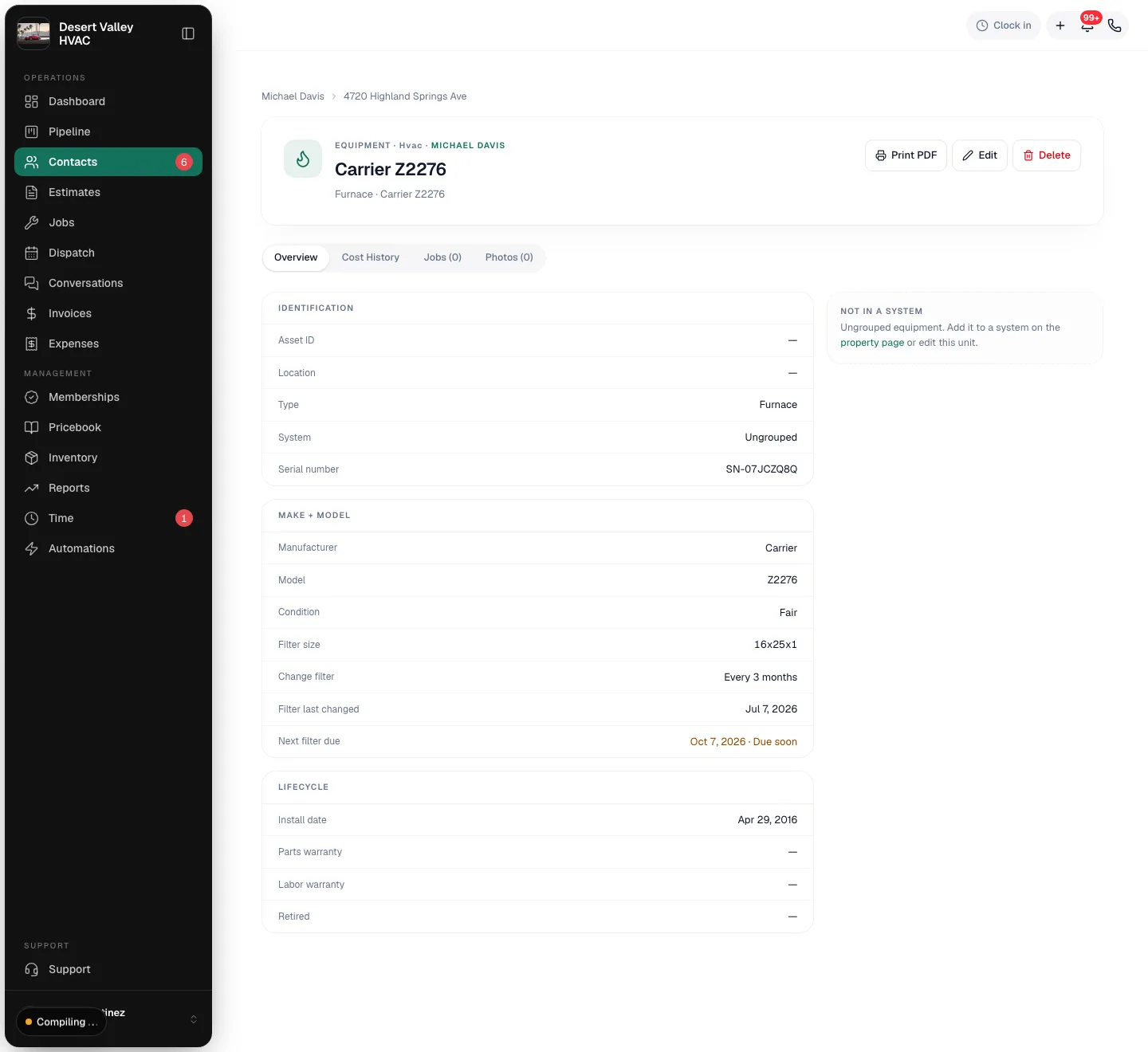
The unit's page then shows Change filter, Filter last changed and Next filter due. The due date turns yellow with Due soon inside the last week and red with Overdue once it passes.
When a tech swaps the filter on a visit, update Filter last changed to that day. The due date moves forward and the next reminder is armed.
Turn on the reminder email (owners and admins)
- Go to Automations and open the Scheduling folder.
- Switch on Email customers when their air filter is due.
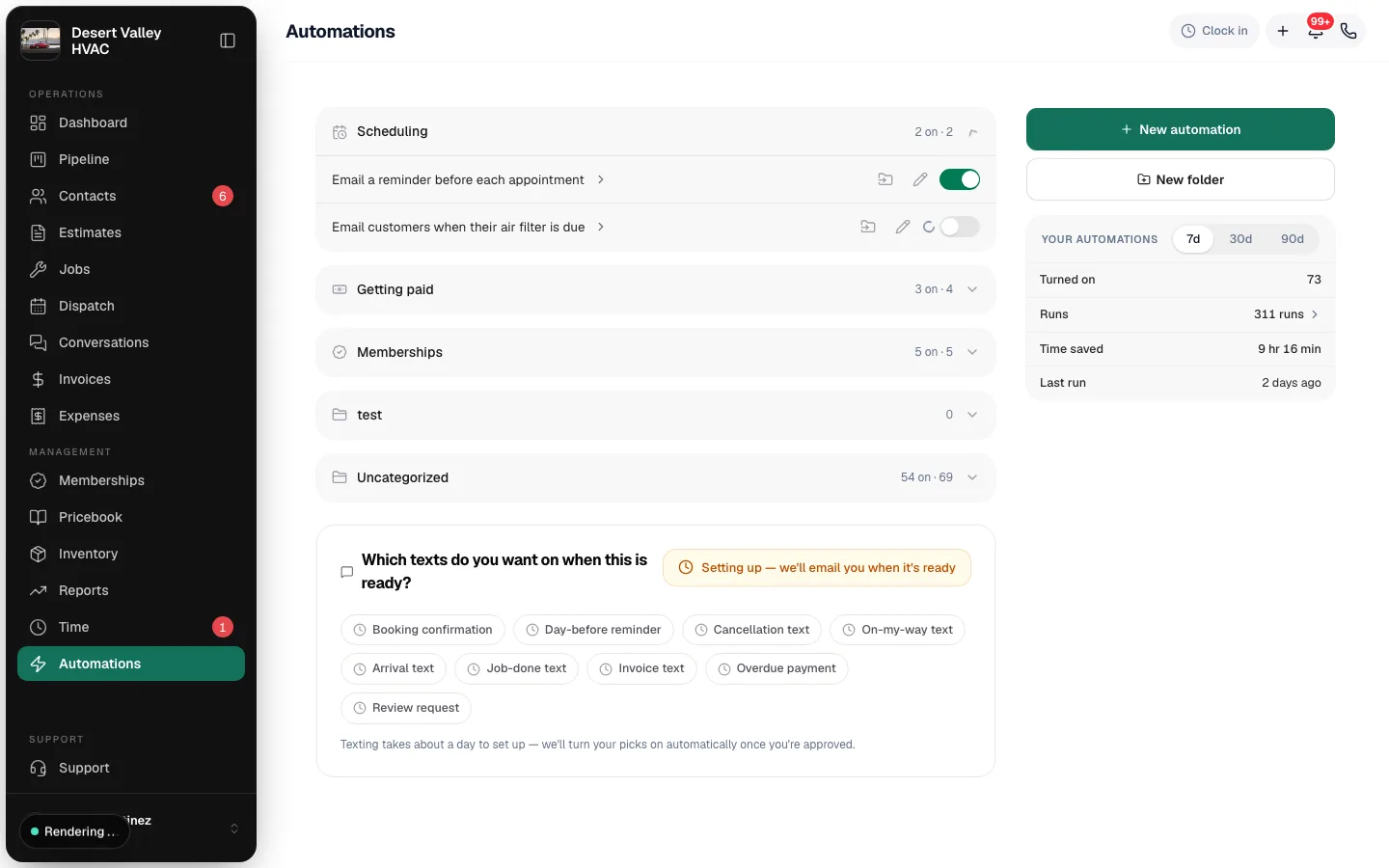
It starts off, like every built-in message. While it's off nothing is sent and nothing is marked as reminded, so turning it on later sends the reminders that are due then.
What the customer receives
Every morning Run a Call checks each unit with a schedule. A week before the due date, or once it's overdue, the customer gets one email per due date:
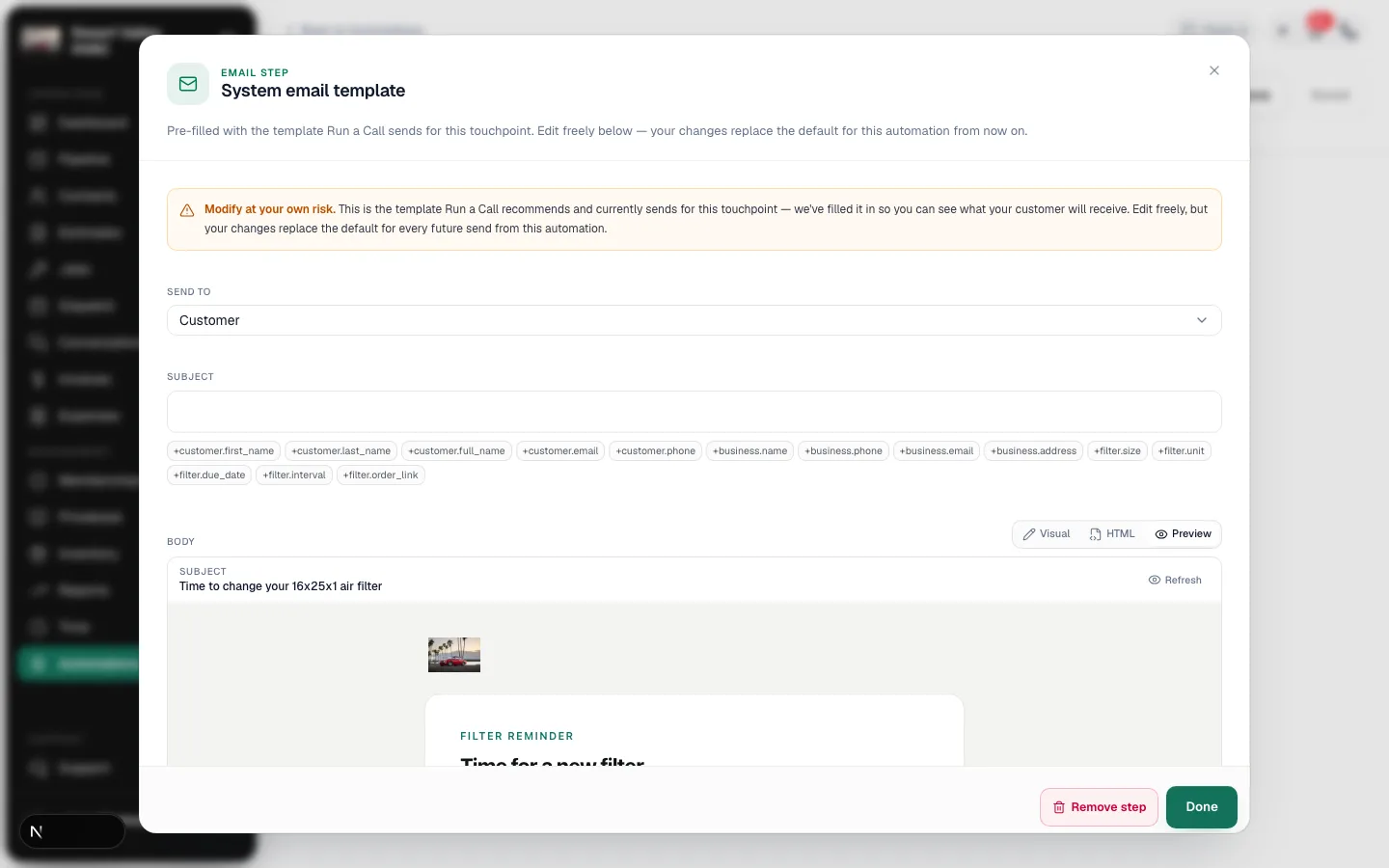
- Subject: Time to change your 16x25x1 air filter
- The size, the unit (for example Furnace · Basement), the due date and how often it's changed.
- Order [size] filters opens a search for that exact size.
- A line inviting them to reply or call so you bring the filter on the next visit, and a link to their customer portal when you have one.
The email goes to the customer's email and to any contacts on their Contacts tab who get emails. Customers with no email on file are skipped.
To change the subject or the wording, open the message in the builder. See Changing the wording of a built-in message. The variables for this email are the filter size, the unit, the due date, how often it's changed and the order link.
In the customer portal
Signed-in customers see a Your air filters card with every unit that has a filter size, its next change date, and the same Order button. See The customer portal.
Good to know
- One email per due date. Updating Filter last changed moves the due date and arms a new reminder; the same due date is never emailed twice.
- No size, no row. A unit without a Filter size doesn't appear in the portal and gets no reminder, even with a schedule.
- Retired units are skipped.
- The Order button is a search, not a store you run. It opens a retailer search for the exact size in a new tab.
- Dates follow your company's time zone.