
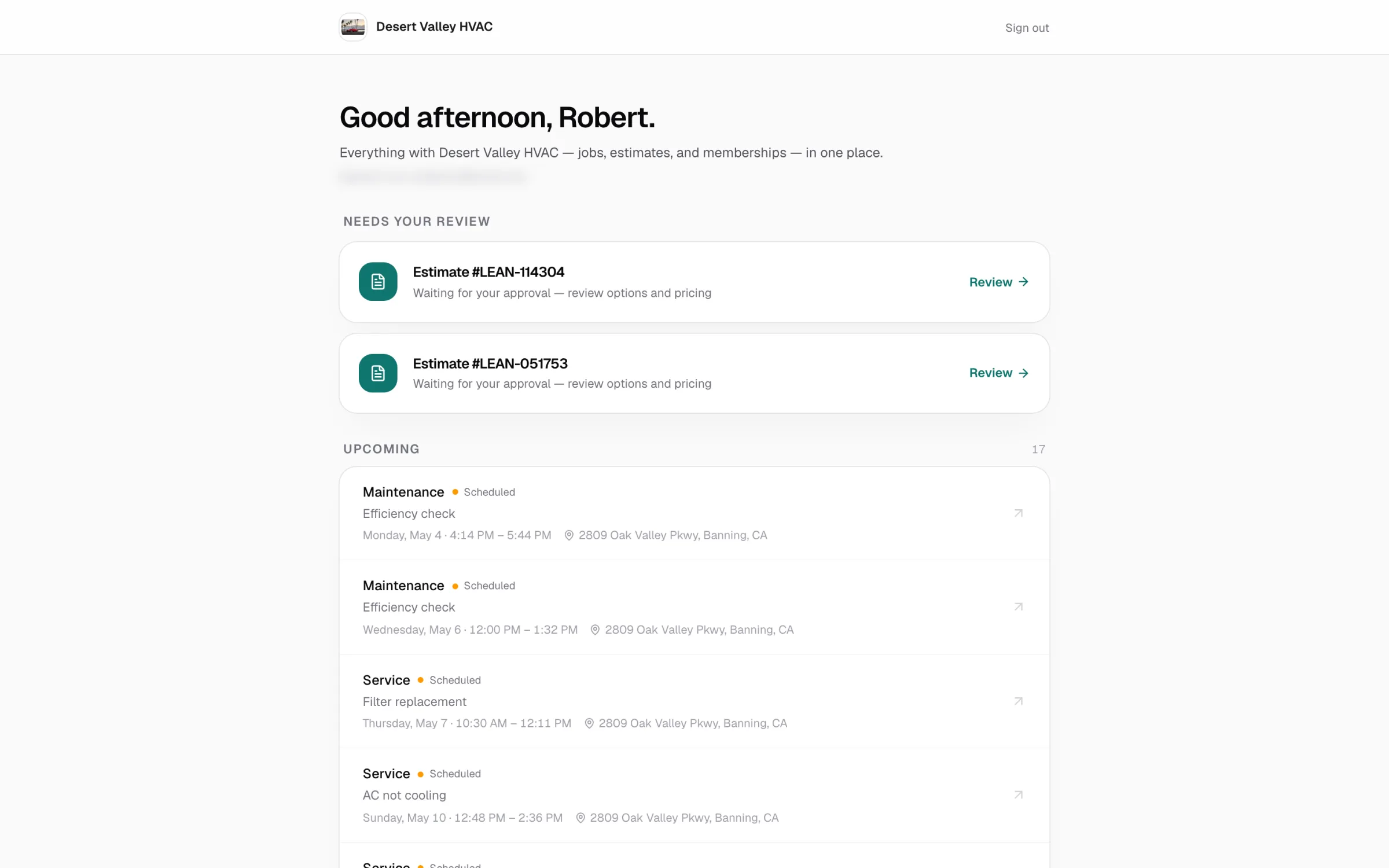
The customer portal is one private page where your customers see everything they have with your company: upcoming and past jobs, estimates waiting for their approval, and their membership. They sign in with a one-time code sent to their email, so there's no password to set up or forget.
What customers can see and do
| Section | What's in it |
|---|---|
| Needs your review | Estimates you've sent that the customer hasn't approved or declined yet (up to 10). Review opens the normal estimate page, where they can compare options, sign and approve. The name follows your estimate label, for example Estimate, Proposal or Quote. |
| In progress | Jobs where the tech is on the way or working (Tech on the way, In progress). |
| Upcoming | Jobs that are booked or waiting to be scheduled (Scheduled, Follow-up), soonest first. |
| Completed | Finished jobs (Completed, Invoiced, Closed), newest first. The list shows the 25 most recent; if there are more, it says Showing your 25 most recent of N completed jobs. |
| Your air filters | Every unit at their addresses that has a filter size on file, with the next change date. See Air filters in the portal. |
| Your membership | The plan, what they've saved this year, their next visit and their renewal payments. See Memberships in the portal. |
| Your service team | Your company name, phone and email, so they can reach you in one tap. |
Each job row shows the job type (for example Maintenance), its status, the job title, the date and arrival window, and the service address. Canceled jobs aren't listed.
Tapping a job opens that job's customer project page. That's where customers see visit details, what was approved, what they owe with a Pay button, and the service report once the work is done. Pages opened from the portal have a Back to your portal link at the bottom.
Customers can't edit anything in the portal itself: no changing their contact details, cards on file, or membership. They make payments and approvals on the invoice, project and estimate pages the portal links to. For anything else they contact you.
How customers sign in
1. Open your portal link
Customers get to the portal from any of these:
- View your full service history at the bottom of a job's project page.
- View your full service history at the bottom of an estimate page. See How customers approve or decline estimates.
- Your portal link, if you've shared it on your website, invoices or email signature. See Find and share your portal link.
Run a Call doesn't send the portal link by email or text on its own.
2. Enter their email
The sign-in page shows your logo and company name. The customer types the email you have on file for them and taps Email me a sign-in code.
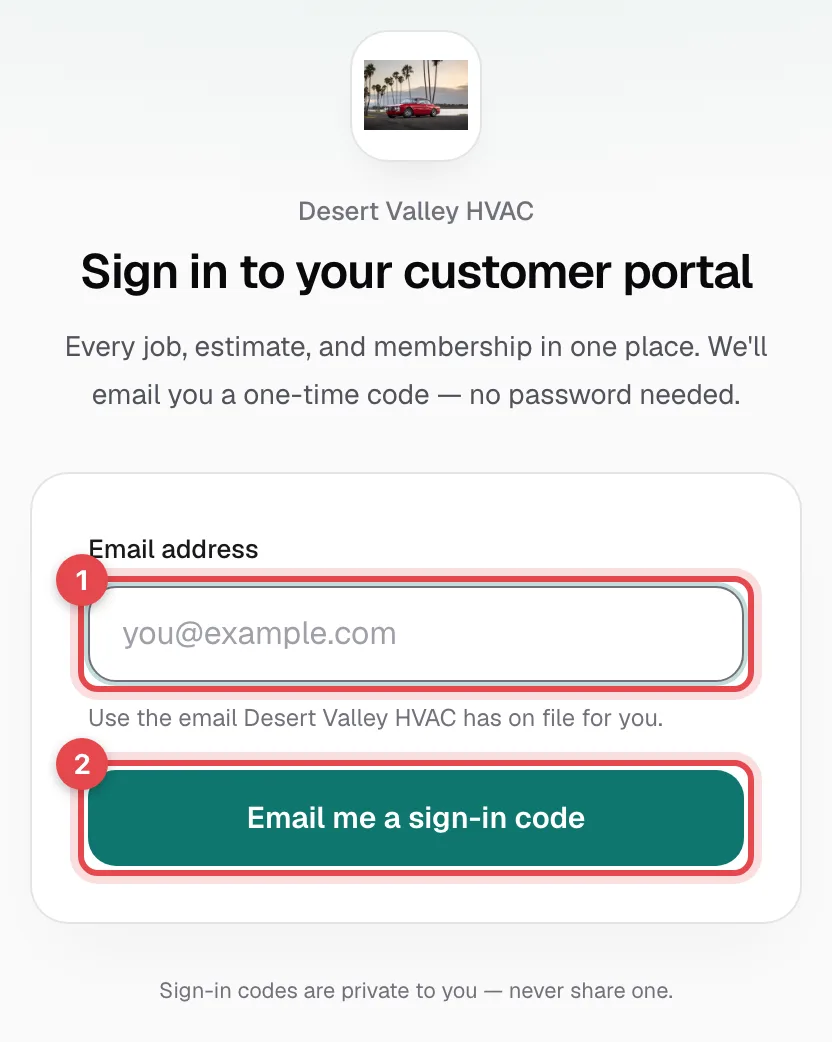
The email works if it's on the customer's profile or on any person on the customer's Contacts tab. See Adding extra contacts to a customer.
3. Type the 6-digit code
An email arrives with the subject [Your company] sign-in code: 123456. The customer types the code on the same page and taps Sign in.
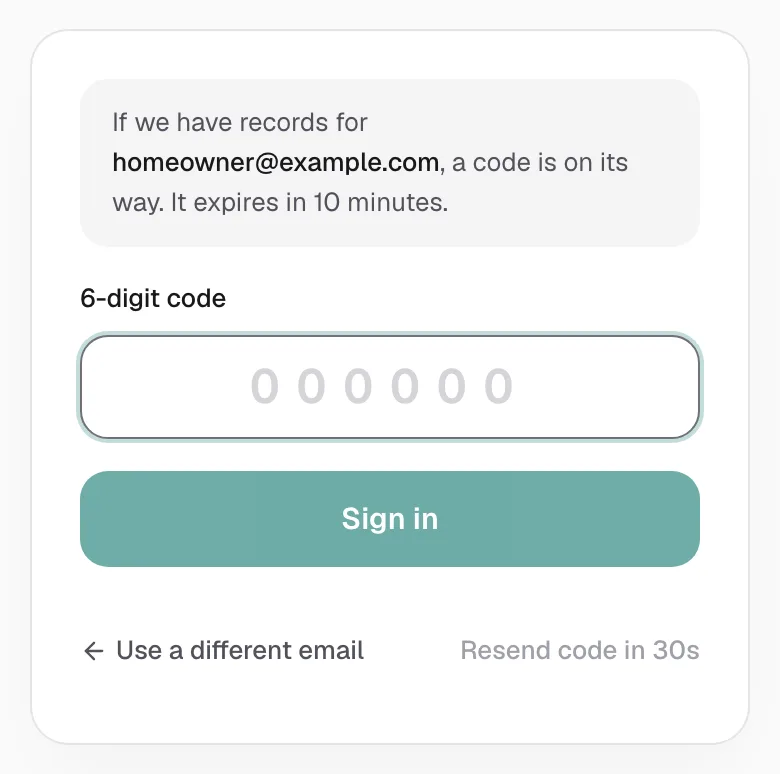
- The code expires in 10 minutes and works only once.
- Resend code becomes available after 30 seconds. After 3 codes for the same email in about 15 minutes, the page shows Resend limit reached — check spam and the customer needs to wait before asking for another.
- A mistyped code shows That code didn't work. Check the digits and try again. Once the 10 minutes are up, or after 5 wrong tries, the page says That code has expired and offers Send a new code.
- For privacy, the page looks the same whether or not the email is on file: If we have records for [email], a code is on its way. If you don't have that email, no code is sent.
4. Stay signed in
Customers stay signed in for 30 days on that phone or computer. Opening your portal link again during that time goes straight to the portal. Sign out is at the top right. After signing out, they open your portal link again to get a new code.
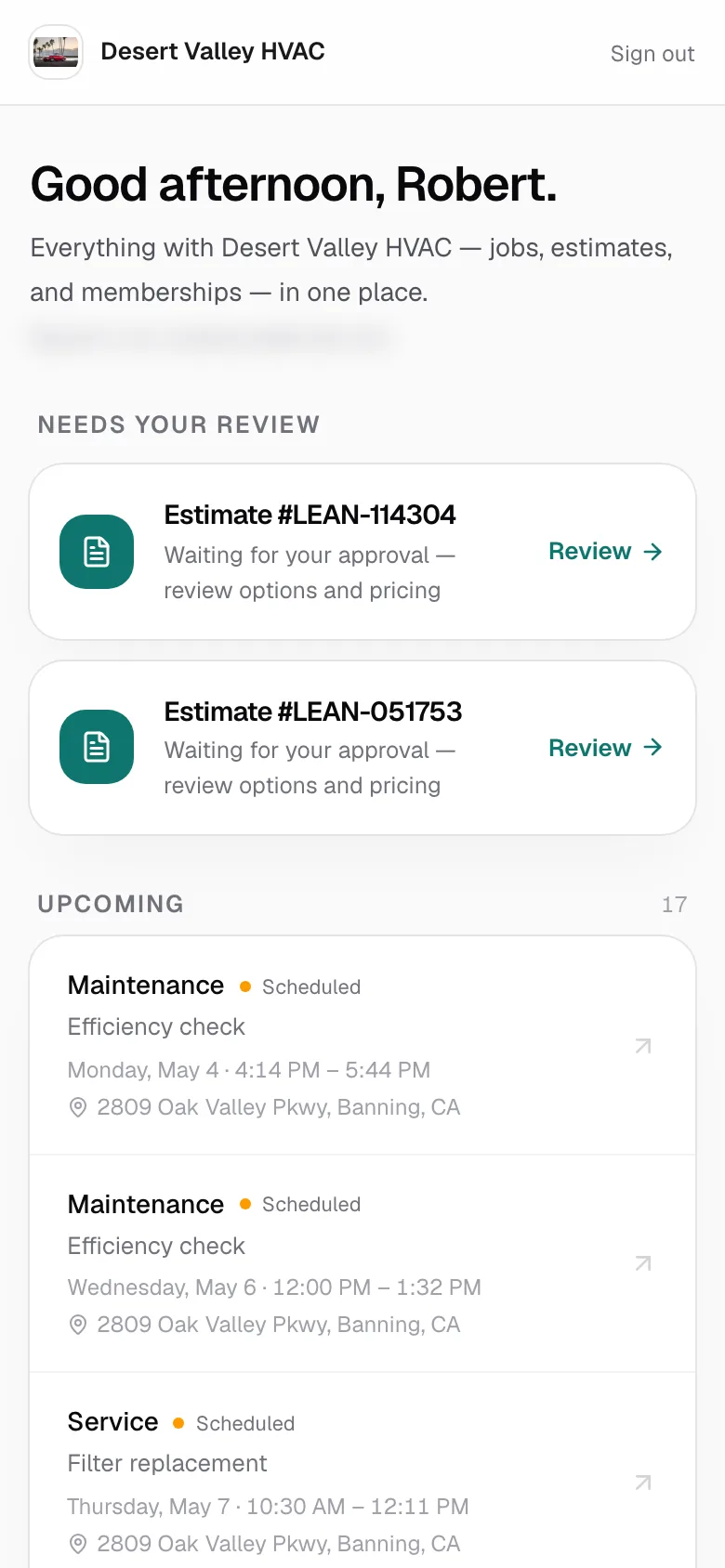
The portal is built for phones first:
Air filters in the portal
If any of the customer's units has a Filter size on its equipment record, the portal shows a Your air filters card: one row per unit with the size, which unit it is (for example Furnace · Basement), and the schedule when you've set one.
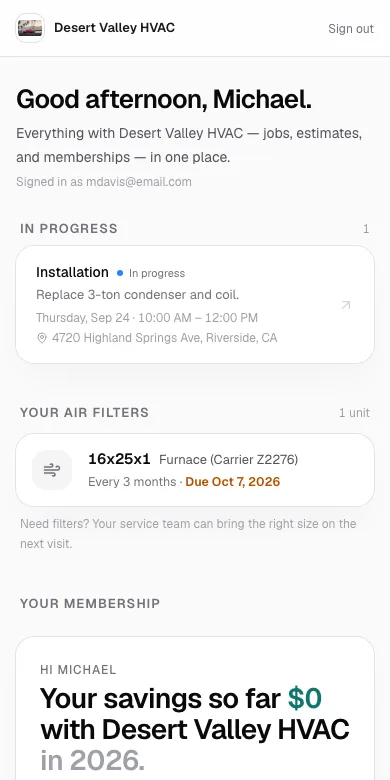
- The size is the exact one to buy, so the customer never has to pull the filter out to measure. Under the card, a line tells them your team can also bring filters on the next visit.
- With a change schedule, the row reads Next change [date], then Due [date] in yellow inside the last week. After that date the next one on the schedule takes over. Units without a schedule say No change schedule yet.
- The filter due soonest is on top. A landlord with several addresses sees the address on each row.
The size, the schedule and the reminder email that goes with it are all set from the unit's equipment record. See Filter change reminders.
Memberships in the portal
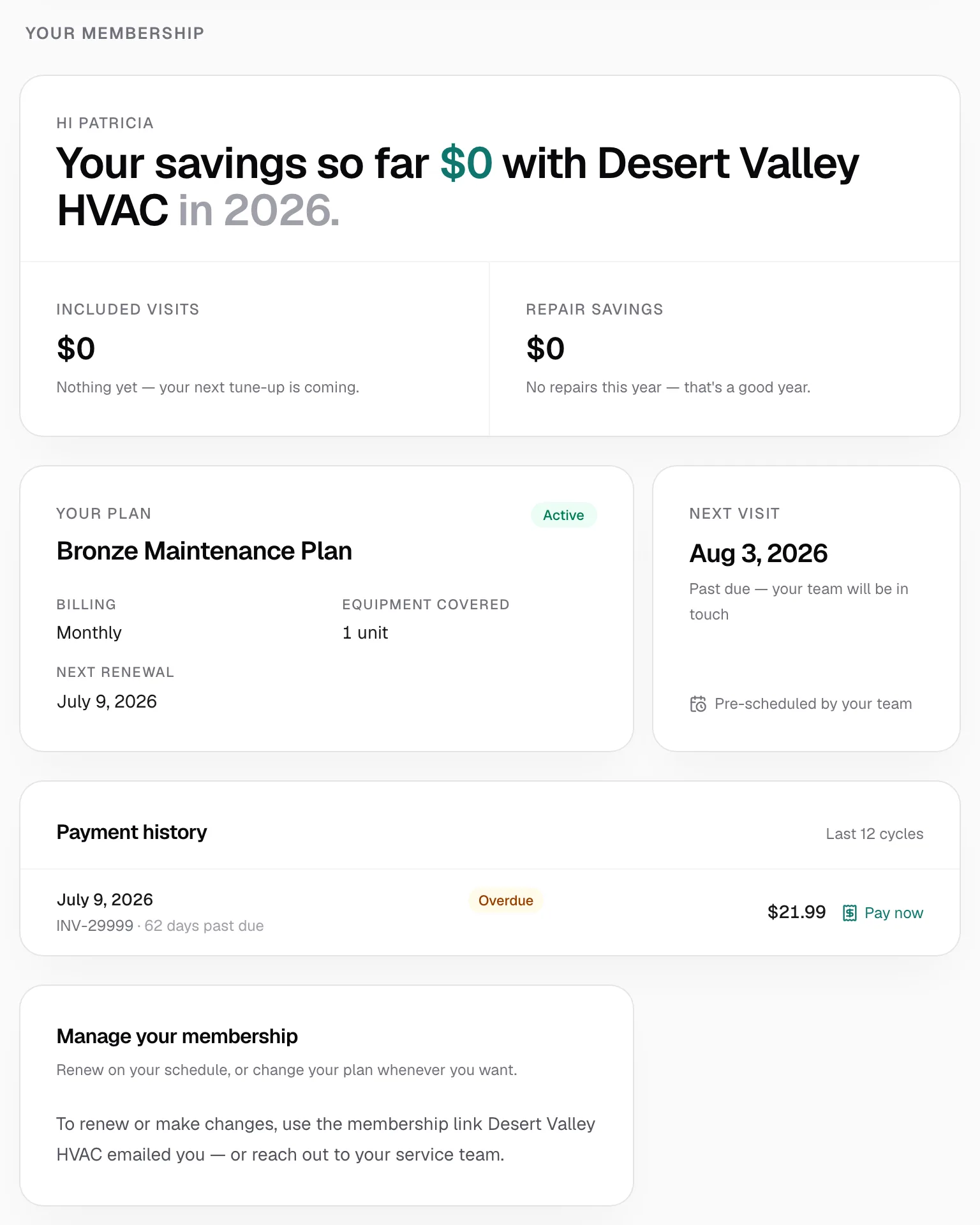
If the customer has a membership, the portal shows it. A customer with more than one membership that is active, not renewing or paused sees a Your memberships heading with a section for each plan. If they have none of those, the portal shows their most recent membership. Each section has:
| Card | What it shows |
|---|---|
| Savings | What they've saved with you this calendar year, split into Included visits and Repair savings (member discounts on repairs). |
| Your plan | Plan name, a status pill (Active, Ending [date], Suspended, Cancelled or Expired), Billing, Equipment covered and Next renewal. |
| Next visit | The next tune-up date, or Not yet scheduled. If the date has passed, it says Past due — your team will be in touch. |
| Payment history | Up to the last 12 renewal invoices with their amount and status, for example Paid or Overdue (the status is hidden on phones). Pay now or Pay opens the invoice's pay page in a new tab. On paid invoices, Receipt opens the same page as a receipt. |
| Manage your membership | Customers can't renew, cancel or change their plan from the portal, so they contact you. To make changes, see Managing a membership. |
Find and share your portal link
Who can do this: Owners and admins.
1. Open Settings → Online Booking
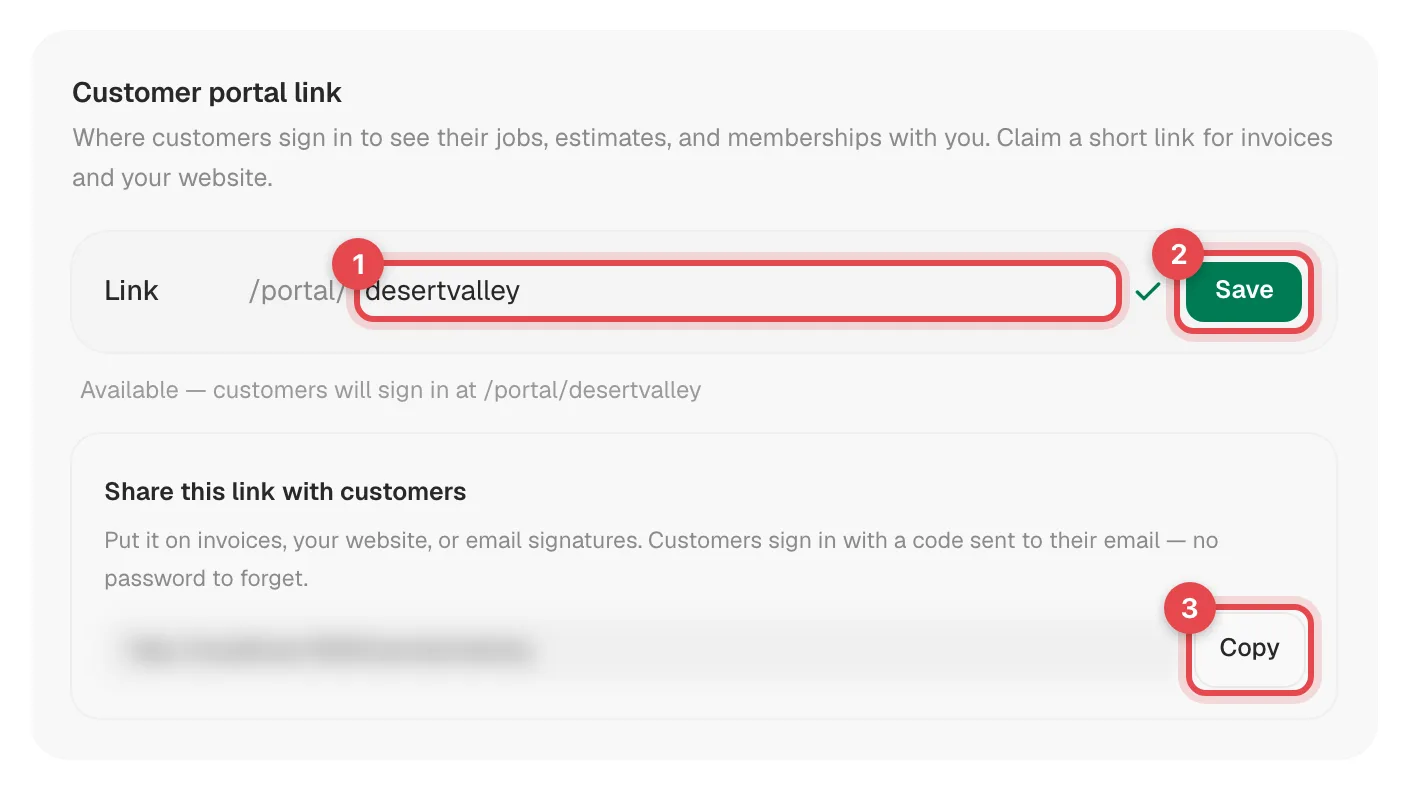
The Customer portal link card is on this page. It's separate from your booking page: turning online booking off doesn't affect the portal.
2. Copy the link
Under Share this link with customers, click Copy. Put the link on your website, invoices or email signature.
3. (Optional) Choose a shorter link
Every company starts with a default link based on your company name. To use a shorter link:
- Type it in the Link field after /portal/. Use lowercase letters, numbers and hyphens, 3 to 60 characters, not starting or ending with a hyphen.
- Wait for Available — customers will sign in at /portal/.... If you see That link is already taken. Try another. or This link is reserved, pick something else.
- Click Save.
Your default link always keeps working, and it's the one used by the View your full service history links on project and estimate pages. If you change or clear a custom link, links you shared with the old custom address stop working. To go back to the default, clear the field and click Reset.
There's no switch to turn the portal off.
What your branding looks like
The portal uses your company's details from your settings:
- Your logo on the sign-in page and in the top bar. If you haven't uploaded one, your initials appear on the sign-in page instead. See Uploading your company logo.
- Your brand color on the buttons and links.
- Your company name, address, phone, email and license number in the footer, plus your phone and email on the Your service team card. See Updating your business info.
- Dates and arrival windows in your company's time zone.
Privacy: who sees what
- Customers only see records that have their email. The portal matches the email they signed in with against each customer's profile email and the emails on their Contacts tab. Nothing from other customers or other companies ever appears.
- Contacts see the whole customer. If you add a tenant, property manager or family member with an email on the Contacts tab, they can sign in and see that customer's jobs, estimates and membership. Leave the email off contacts who shouldn't have that access.
- One email on several customers (for example a landlord with a separate customer per rental) shows all of those customers' jobs in one list, each with its own address.
- Several properties under one customer all show up, with the address on each job. See Adding multiple properties for one customer.
- Commercial sites are separate customers, so a site shows up only if the same email is on that site's profile or contacts. See Commercial accounts with several sites.
- Job titles are visible. Each job in the list shows its title, for example AC not cooling, so keep job titles customer-friendly. Internal notes, costs and dispatch notes are never shown.
Anyone who can open a customer's email inbox can sign in to their portal. Sign-in codes are private, so remind customers never to share one.
Good to know
- No email on file, no sign-in. Customers without an email (or who use a different one) can't get a code. Add the email to their profile or as a contact, then have them try again.
- Changes show up right away. If you add the customer's email to another record, that record's jobs appear the next time the page loads. The customer doesn't need to sign in again.
- "Nothing on file yet" means the signed-in email no longer matches any customer. For example, the email was removed from the profile after they signed in.
- An estimate leaves Needs your review once it's approved, declined or turned into a job. Approved work then shows up as a job.
- "This link isn't valid" on the sign-in page means the link is mistyped, or it's a custom link that was changed. Send the customer your current link from Settings → Online Booking.