
You don't record parts used by hand. When a tracked part is on a job's parts and labor, it comes off stock as soon as the job is under way, and the count stays in step if the lines change afterwards.
When stock comes off
Parts are deducted the first time the job reaches En Route, On site, Completed, Invoiced or Closed, for example when the tech taps On My Way. Parts on a job that's only created or scheduled don't touch stock, so quoting or pre-loading a job never reserves anything.
From then on, the count follows the job's lines:
| You… | Stock |
|---|---|
| Add a tracked part to the job | Goes down by its quantity. |
| Raise a line from 3 to 4 | Goes down by 1 more. |
| Lower a line or remove it | The difference goes back on the shelf. |
| Apply a bundle | Each tracked part in the bundle comes off. |
| Invoice the job | No change. Invoicing is billing, not stock. |
This works the same whether lines are added in the office or by a tech in the mobile app, including changes a tech makes offline once they sync.
Which location it comes off
If you track stock per truck, the parts come off the lead tech's truck: the tech on the job's earliest appointment, or the job's assigned tech if there's no appointment. If that tech has no truck, they come off the default location. A truck's count can go below zero when a tech uses a part the office never loaded; see Track stock per truck for how to fix it.
When a line is lowered or removed, the parts go back to the location they came from.
What doesn't count
- Custom lines typed on the job. Only pricebook parts with tracking on affect stock. If you'll use a part again, add it to the pricebook, or tick Add to pricebook when you add the custom line.
- Services, labor and equipment items.
- Jobs that never got under way. If a job is cancelled before it reached En Route, nothing was deducted.
If a job is cancelled after parts came off
Cancelling a job doesn't put parts back on its own. Either remove the part lines from the job, or record an adjustment with the reason Job cancelled — parts returned to stock. See Making a manual stock adjustment.
Where you see it
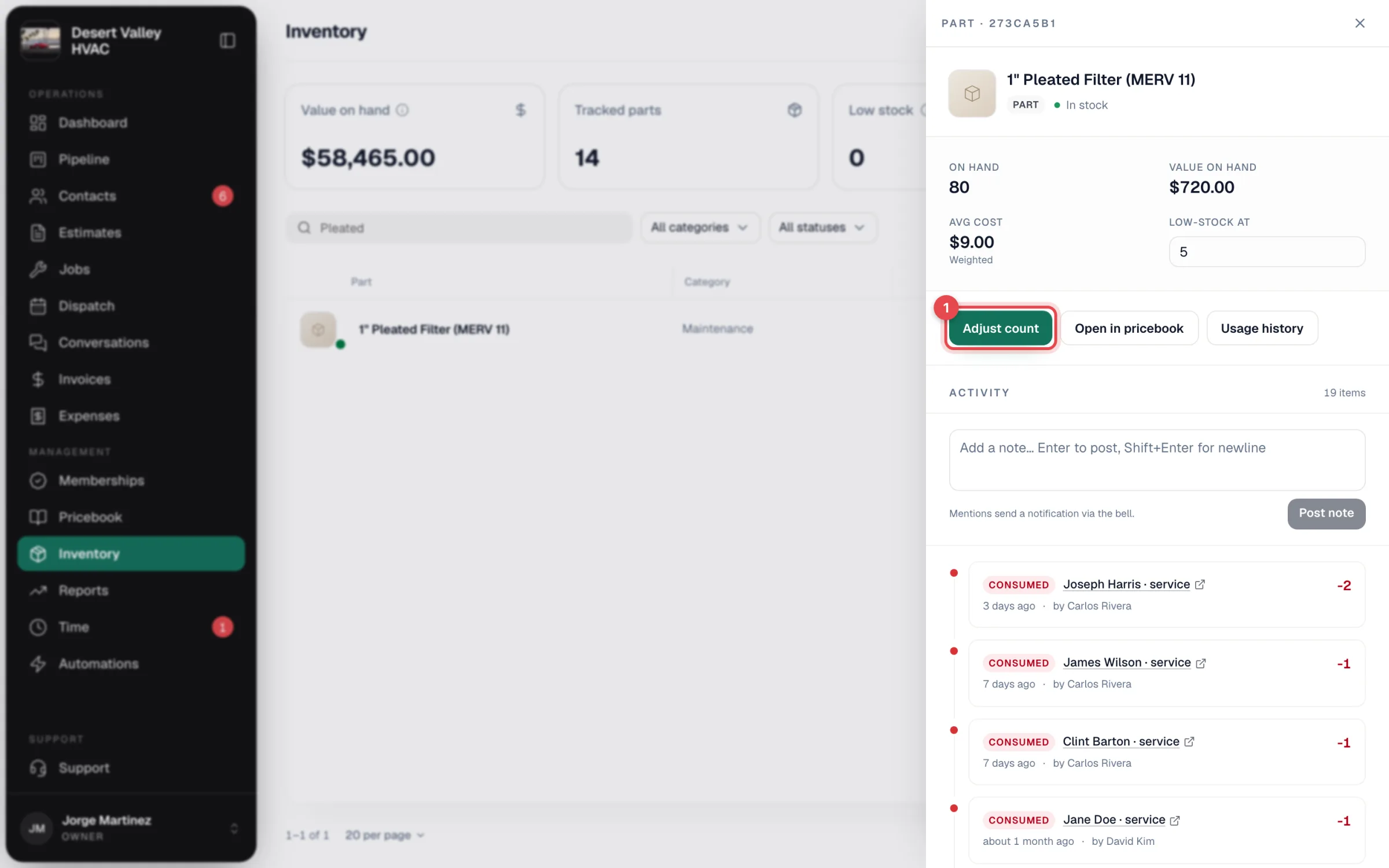
Open the part on the Inventory page. Each deduction is listed under Activity as Consumed, with the job it was used on (click to open it), the quantity, the location it came off and who did it.
Tagged units
If the part has serial-numbered units, you can hold one for the job with Assign unit on its line. The unit is marked Used once the job is under way, and removing the line releases it. The count comes off the same way either way. See Tagging units.