
Every text you send reports back from the carrier, so you can see whether it reached the customer's phone — and when it didn't, why. When a number turns out to be a landline or can't take texts, Run a Call flags it, stops sending automatic texts to it, and tells your tech to call instead.
Delivery checks under each text
Under every text your team or your automations send, a small mark shows where it stands:
| What you see | Meaning |
|---|---|
| One check | Sent. Run a Call handed the text to the carrier. |
| Two checks | Delivered. The carrier confirmed it reached the customer's phone. |
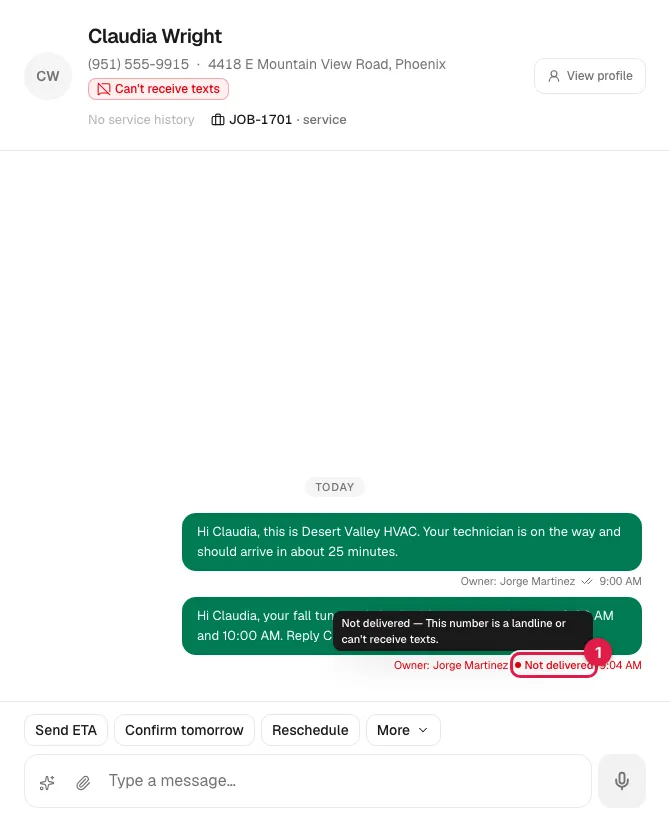
| Red Not delivered | The carrier couldn't deliver it. Hover (or tab to it) for the reason. |
| Red Not sent | An automatic text that Run a Call skipped on purpose. Hover for the reason. |
A text usually moves from one check to two within a few seconds. If it stays on one check, the carrier hasn't confirmed delivery yet — that happens with some carriers and with phones that are off.
Why a text wasn't delivered
Hover the red Not delivered mark to read the carrier's reason in plain words:
| Reason | What it means |
|---|---|
| This number is a landline or can't receive texts. | The number can't take texts at all. Run a Call flags it — see below. |
| The phone was off or out of coverage. | Temporary. Try again later, or call. |
| The number blocked texts. | The customer's phone or carrier blocks texts from your number. |
| The number doesn't exist. | Check the number on the customer's profile. |
| The carrier filtered the message. | The carrier treated the text as spam and dropped it. |
| The carrier couldn't deliver it. | The carrier gave no specific reason. |
| This number has opted out (STOP). They need to text START to hear from you again. | The customer opted out — see How customers can opt out of texts. |
| The number isn't valid. | The number is missing digits or isn't a real phone number. |
| Texting to this country isn't enabled on your account. | The number is outside the countries your texting line can reach. |
| Carrier registration (A2P) isn't complete for this number. | Your texting registration is still in progress — see Registering your business for A2P 10DLC. |
If several automatic texts to the same customer fail, a red banner at the top of their conversation says so, with a Check with support → link.
The Can't receive texts flag
Some customers only have a landline, or a work number that can't take texts. Every automatic text to that number would fail, and your team would never know the customer didn't get their reminder.
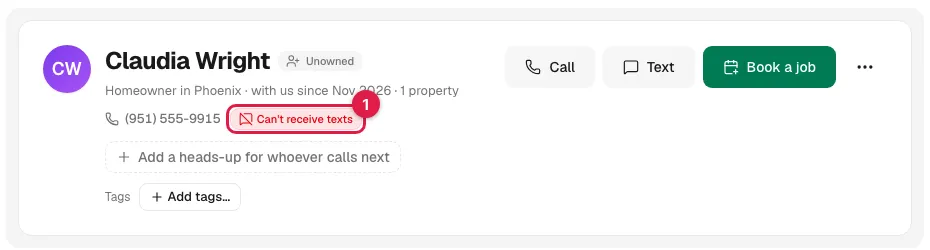
When the carrier reports that a number is a landline or can't receive texts, Run a Call flags the number as Can't receive texts. From then on:
- A red Can't receive texts badge appears next to the phone number at the top of the customer's page, and at the top of their conversation in Conversations → Messages. Hover it to see the carrier's error code and the date it was flagged.
- Automatic texts to that number — booking confirmations, day-before reminders, on-my-way and arrival texts, job-done texts, invoice and payment texts, review requests, and texts from automations you built — are skipped. Each skipped text still appears in the conversation marked Not sent, with the reason This number can't receive texts, so the automatic text was skipped. Nothing disappears silently.
- Texts a person types in the message box still go through. The Text button on the customer's page stays active; hovering it reminds you the number can't receive texts and that calling is the better option.
- Calls and emails aren't affected.
The flag is on the phone number, not the customer. If two customer records share the same landline, both show the badge.
This is different from an opt-out. A customer who replies STOP has asked not to be texted, and nothing — manual or automatic — goes to them until they text START. A number that can't receive texts simply can't take texts; your team can still try by hand, and the office can clear the flag at any time.
Flag a number by hand
If a customer tells you their number is a landline, you don't have to wait for a failed text:
- Open the customer in Contacts.
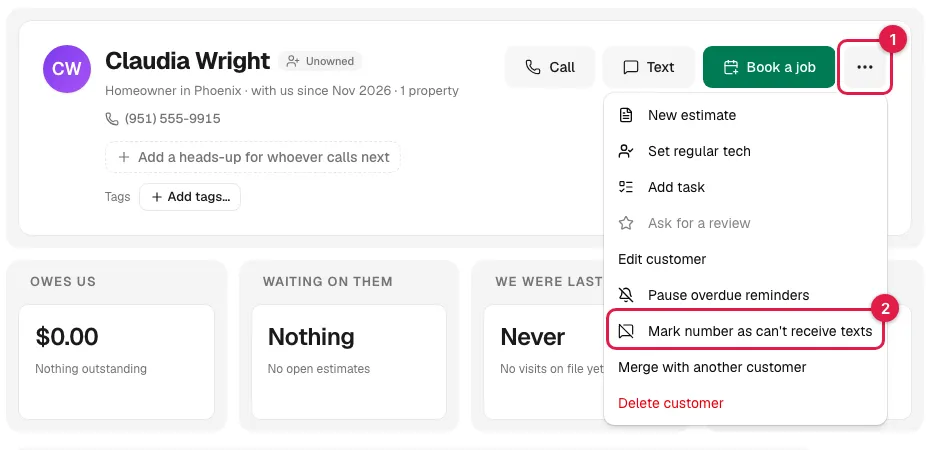
- Click the ⋯ button at the top of their page (More customer actions).
- Click Mark number as can't receive texts.
- Read the confirmation and click Mark number.
You see Number marked as can't receive texts, and the badge appears right away. Hovering a badge set by hand shows Marked by the office on and the date.
This needs permission to edit customers — the same permission as merging customers. See Roles and permissions.
Clear the flag
Got a new mobile number from the customer, or the carrier was wrong? Update the number on their profile if it changed, then:
- Click the ⋯ button at the top of the customer's page (More customer actions).
- Click Clear can't-receive-texts.
You see Automatic texts to this number are back on, the badge goes away, and automatic texts resume with the next one that's due. There's no confirmation step for clearing.
The flag doesn't clear itself — not even when a text typed by hand gets through. If the carrier reports the number as a landline again later, the flag comes back.
What the tech sees
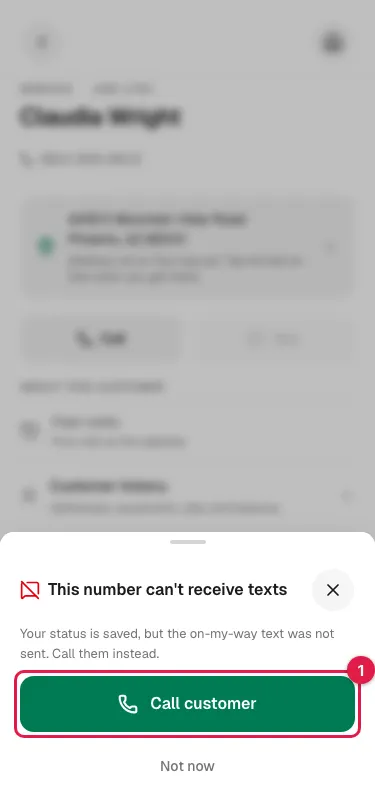
When a technician taps On My Way on a job whose customer number is flagged, the status is saved as usual, and a notice slides up:
This number can't receive texts Your status is saved, but the on-my-way text was not sent. Call them instead.
The tech taps Call customer to dial right from the notice, or Not now to close it. Techs can't set or clear the flag — that's done from the office.
Good to know
- A text can fail without flagging the number. Only the landline / can't-receive-texts reason sets the flag. A phone that was off or a filtered message just shows Not delivered on that one text.
- The first failed text still fails. The flag is set when the carrier reports back, so the text that revealed the landline shows Not delivered; every automatic text after it shows Not sent.
- Not included yet: Run a Call doesn't place an automatic voice call in place of a skipped text, and it doesn't check whether a number is a landline when you type it in. A gap we know about.