
Most flat-rate service prices include the trip: the drive, the truck, the first half hour on site. When a tech sells a second service on the same visit, the customer shouldn't pay for that trip twice. An add-on price is the same service without the trip built in. Set it once on the item, and Run a Call uses it automatically whenever the service is added to a job, estimate or invoice that already has another service on it.
Who can do this
Anyone who can edit the pricebook — owners and admins by default. Anyone who builds jobs, estimates or invoices can switch a line between the two prices.
Set an add-on price on a service
- Go to Pricebook and open the service (or click New item).
- Under Price/Cost, fill in Add-on price ($). It must be the same as or lower than the Price. Leave it blank for none.
- Save.
Only services and bundles have this field. Parts, equipment and labor don't.
<!-- screenshot: item form with the Add-on price ($) field under Price/Cost -->What happens on a job, estimate or invoice
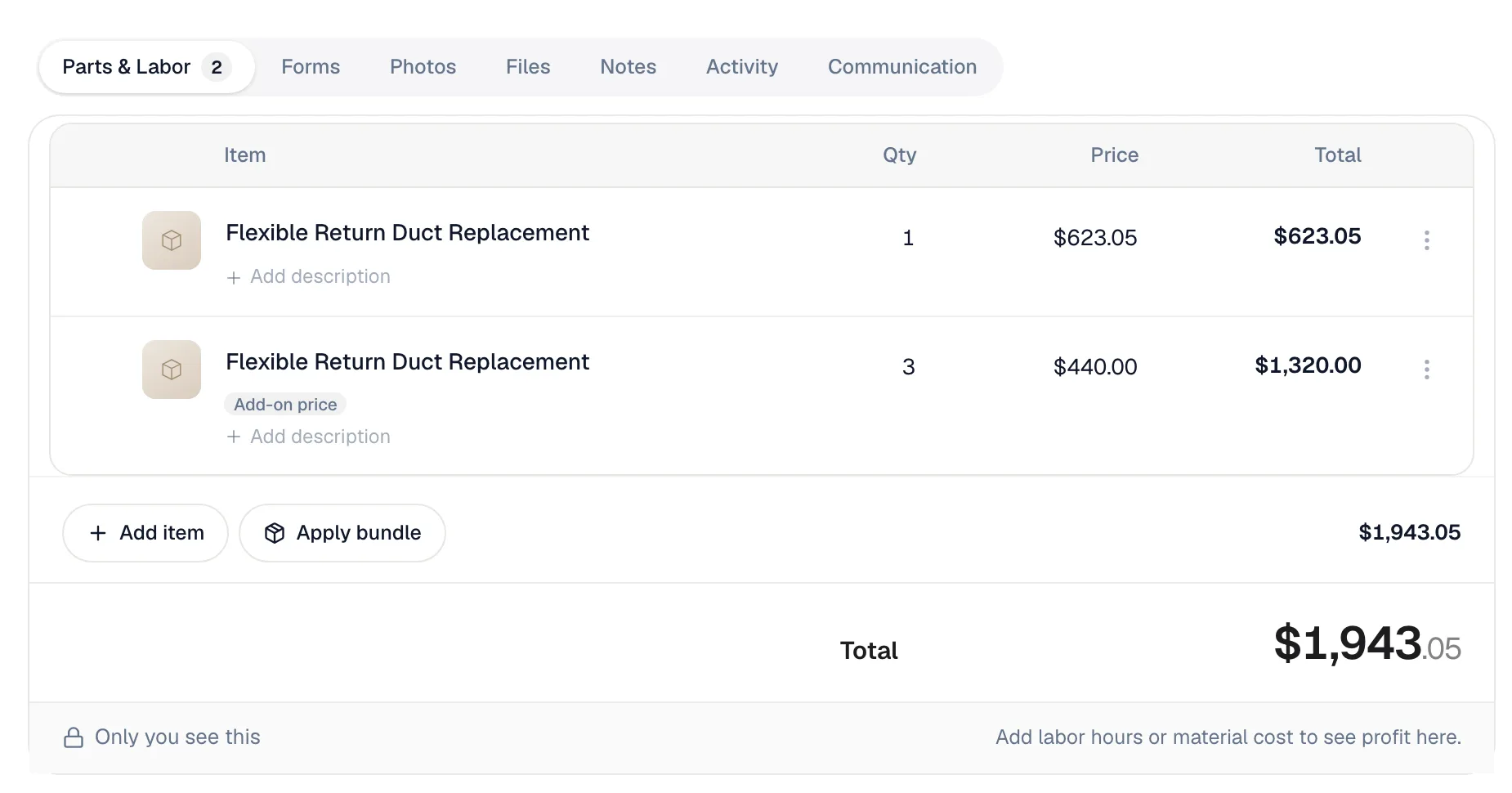
When you add a service that has an add-on price to a document that already has another service on it, the line is priced at the add-on price and shows an Add-on price chip.
<!-- screenshot: invoice line items with a second service showing the Add-on price chip -->Three kinds of lines don't count as "another service", so they never trigger the add-on price on their own:
- The dispatch or service-call fee.
- The components inside a package.
- A financing fee line.
So a job with just a service-call fee and one tune-up bills the tune-up at full price. Add a second tune-up, and that one gets the add-on price.
Adding the same service more than once
When you add a service that's already on the document, the repeat doesn't raise the quantity of the full-price line. It lands on its own line at the add-on price. Add it again and that add-on line goes up in quantity.
For four duct replacements at $623.05 with a $440.00 add-on price, you end up with two lines: 1 × $623.05 and 3 × $440.00. You can also set the add-on line's quantity yourself.
This works the same on jobs, estimates and invoices, and when a tech adds the service in the mobile app.
Switching a line by hand
Open the ⋯ menu on the line:
| Option | What it does |
|---|---|
| Charge full price | Puts the line back to the item's normal price and removes the chip. |
| Use add-on price | Applies the add-on price. Only available when another service is already on the document. |
Typing a price into the line by hand also clears the chip; the line then keeps whatever you typed.
Bulk tools and imports
- Adjust prices scales add-on prices together with prices, so the gap between the two stays the same. See Adjusting prices in bulk.
- CSV import accepts an
addon_pricecolumn. Leave a cell blank to keep the item's existing add-on price. See Importing the pricebook. - API — the field is
addon_priceon pricebook items. See API overview.
Good to know
- The add-on price only applies to lines you add from now on. Existing jobs, estimates and invoices keep the prices they were built with.
- Order matters. The first service on a document is priced in full; every service added after it that has an add-on price uses it, including the same service added again.
- Bundles can carry an add-on price too, under the same rule: same as or lower than the price.