The best moment to ask for a Google review is right after a customer pays. Run a Call can put the ask where they already are: on the payment confirmation page, on the receipt email, and, if you want, on the invoice email and the invoice PDF. It's off until you turn it on.
Who can do this
Owners and admins. Anyone who can change company settings sees the Invoice settings gear.
Before you start: save your review link
The ask uses your Google review link — the same link you can edit under Settings → Reviews or from the Reviews page gear, under Invites. Paste the full link to your Google review page, starting with https://. It's the same link the review-request text uses. See Updating your business info.
Until a link is saved, the options below are greyed out and the section reads Add your review link in Settings → Reviews first.
Turn it on
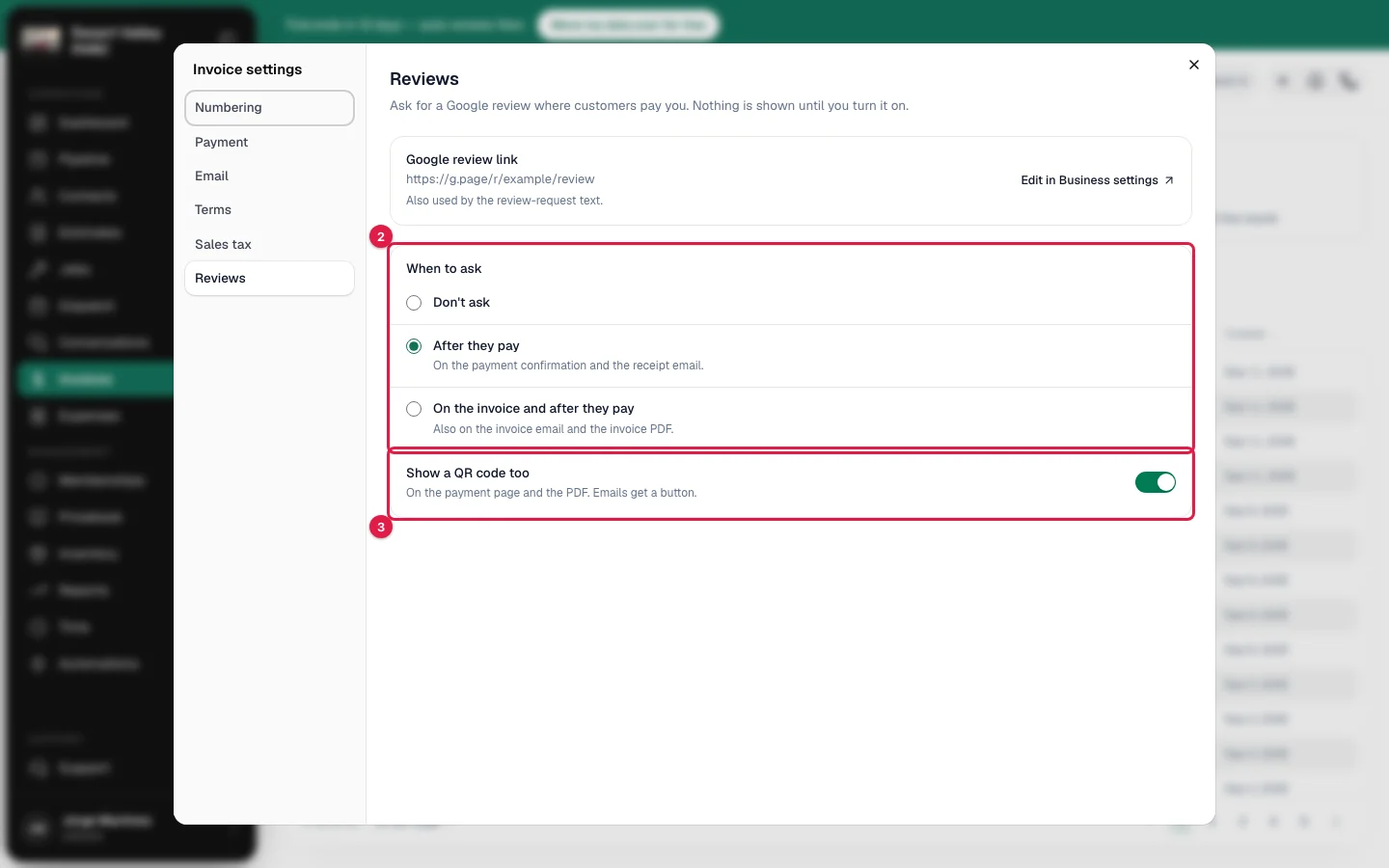
- Go to Invoices and click the gear at the top of the page (Invoice settings).
- Open the Reviews section.
- Check Google review link. It shows the link that will be used. To change it, click Edit in Reviews settings.
- Choose where the ask shows:
| Option | Where the customer sees it |
|---|---|
| Don't ask | Nowhere. This is the default. |
| After they pay | On the payment confirmation and the receipt email. |
| On the invoice and after they pay | The two places above, and also on the invoice email and the invoice PDF. |
- Turn on Show a QR code too if you want a code customers can scan with their phone. It shows on the payment page and the PDF. Emails get a button.
Changes save on their own. You see Saved when it's done.
What the customer sees
| Where | What it looks like |
|---|---|
| Payment page | Under Payment received (or Paid in full), a How did we do? heading, a short line and a Leave a review button. With the QR code on, the code sits next to it with Or scan with your phone. |
| Receipt email | How did we do? with a Leave a review button. |
| Invoice email | Happy with our work? with a Leave a review button. It's quieter than the pay button, and the wording doesn't assume the customer has paid yet. |
| Invoice PDF | A last line under the terms: Happy with our work? Leave us a review: followed by your link, and the QR code if it's on. |
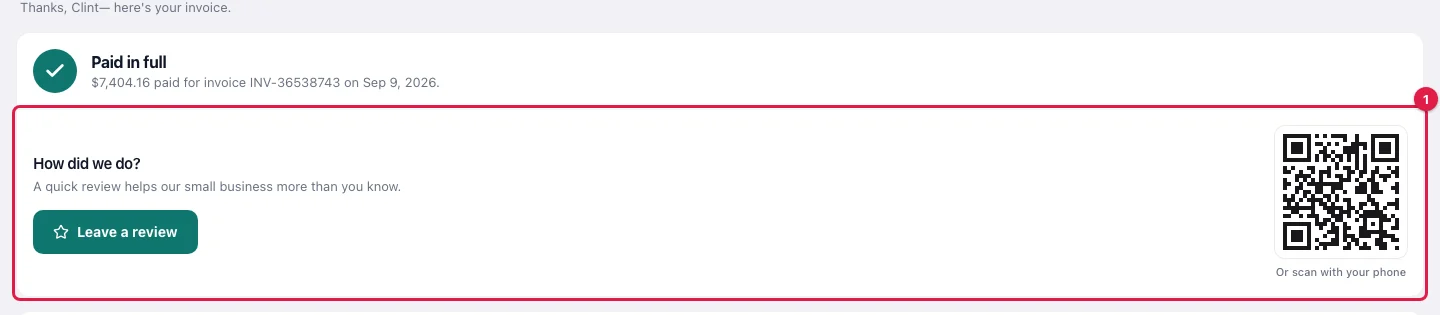
The button and the code both open your Google review page.
Good to know
- Only paid invoices get the after-payment ask. On the payment page and the receipt email, the ask appears once the invoice is paid in full. A partial payment doesn't show it.
- The link must start with
https://. If the saved link doesn't, the section reads Customers only see links that start with https://. Update it in Business settings. and nothing is shown to customers until you update it. - Emails never carry a QR code. Most inboxes block embedded codes, so emails always use the button.
- Choosing Don't ask switches the QR code off as well.
- The review-request text is separate. Text a review request after the job under Automations keeps working the same way, whatever you choose here. If both are on, a customer can get the text and also see the ask when they pay. See Enabling SMS-based automations.
- Jobs with a payment schedule also show How did we do? on the customer's project page once the job is closed and paid. See The customer project page.