
You don't have to type your pricebook from scratch. New accounts can start with a set of common HVAC services and parts, and the Catalog tab holds a much larger library you can copy from whenever you need more.
Who can do this: owners and admins use the Catalog tab and Clear starter items. Only the owner can replace the whole pricebook. Owners, admins and dispatchers also see catalog suggestions while adding items to a job or estimate.
Starter items
When your account was created, your pricebook may have been filled with a starter set of common services and parts. They're ordinary items: edit their prices, rename them, hide them or delete them like anything else.
Starter prices aren't your prices. Check them against your own rates before your team sends estimates.
Remove the starter items
If you'd rather build your own list, open More actions (the ... next to New item) on the Items tab and choose Clear starter items (N). This removes every starter item, including ones you've edited. Items you added yourself stay. The option disappears once no starter items are left.
Add items from the Catalog
-
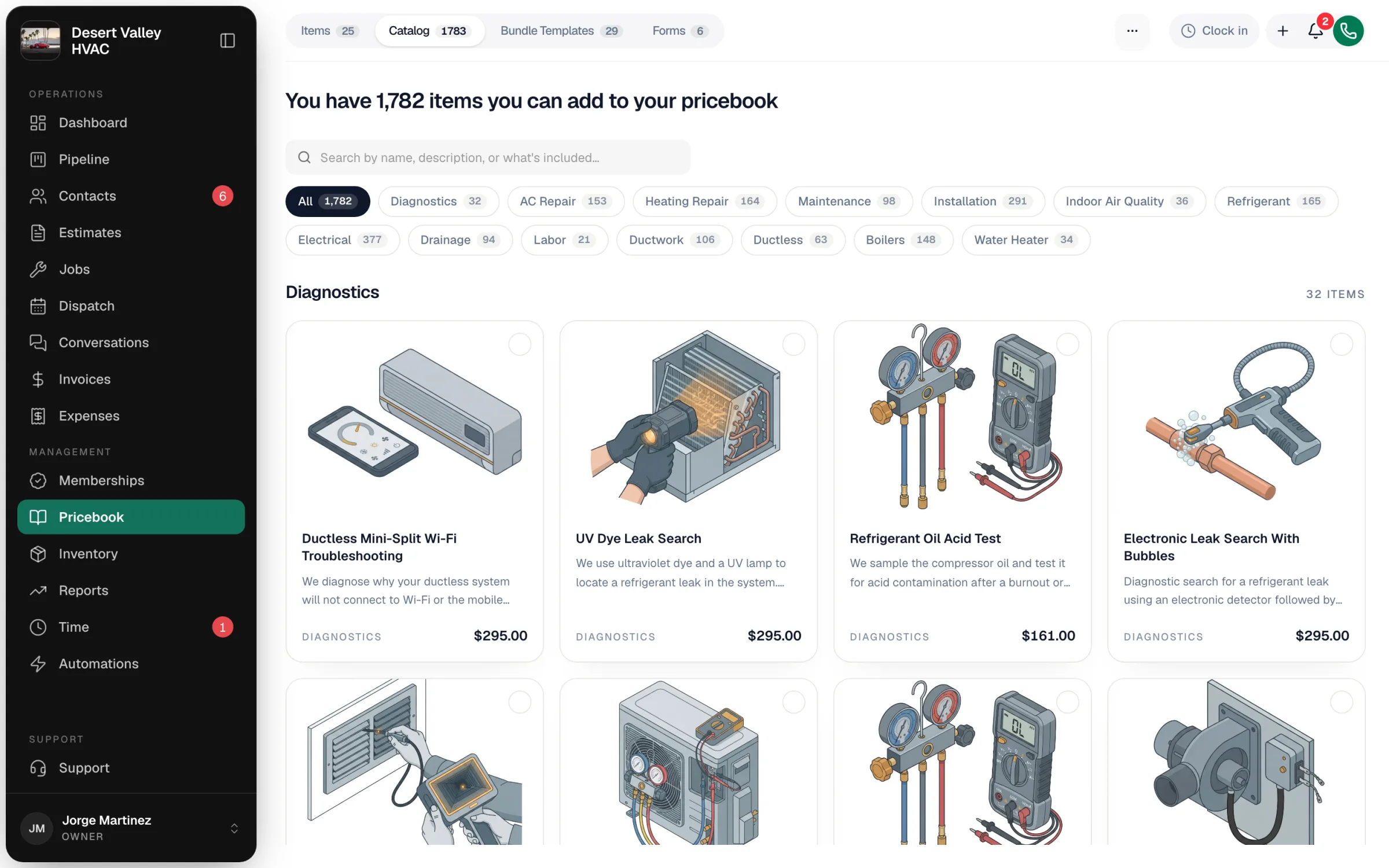
Go to Pricebook and click the Catalog tab. The header tells you how many catalog items you don't have yet.
-
Search (Search by name, description, or what's included…) or tap a category pill such as AC Repair or Maintenance.
-
Click a card to read the details, including what's included and what isn't. From there you can Add to pricebook right away, or Select for import and keep browsing.
-
To add several at once, tick the circle on each card. A bar appears at the bottom with the count.
-
Click Import N items.
The items are copied into your pricebook with their descriptions and illustrations, and any category they need is created for you. Once copied, they're yours: editing a copy never affects the catalog, and the catalog never changes your copy.
Catalog prices are national medians. Review them for your market after importing.
Catalog suggestions while you work
When you search in the Add item picker on a job, estimate or invoice, catalog items that match appear under From the catalog. Tapping one copies it into your pricebook and adds the line in one step. See Adding items to jobs, estimates, and invoices.
Start over with the starter set
If an imported pricebook isn't the one you want, the owner can wipe it and start from the starter set:
- On the Catalog tab, scroll to Start over with the starter set and click Start over.
- Type REPLACE to confirm and click Replace pricebook.
This removes every item in your pricebook, including ones you created yourself, and it can't be undone from the app. Estimates, jobs and invoices you've already built keep their line items.