
Reviews in the left menu is where every Google review of your shop lands, where you reply to them, and where you ask customers for one. Connect your Google Business Profile once and the page keeps itself up to date.
Who can do this
- Owners and admins connect Google and change the settings behind the gear.
- Anyone who can open Reviews can read reviews and see who left them.
- Replies are always posted by a person. Nothing goes to Google on its own.
Connect your Google Business Profile
- Go to Settings → Integrations and click Connect Google.
- Sign in with the Google account that manages your Business Profile. Use the account your listing lives on, not a personal one.
- If that account manages several locations, pick the one for this shop.
That's it. Open Reviews and your listing appears at the top: photo, star rating, address and hours. Every Google review you've received is listed underneath.
Not connected yet? Reviews still works. You see the Invites view (below) and a Connect Google card instead of the listing.
Read your reviews
Reviews sync on their own every few hours. Click Sync now at the top of the page to pull the latest ones right away. A new review rings the bell for your team.
Each review card shows:
| What you see | What it means |
|---|---|
| Stars and the review text | Straight from Google. |
| A customer name and job | Run a Call matched the reviewer to a customer: same first name and last initial, within 14 days of a completed job. Click the name to open the customer. |
| Suggested | The match is a guess. Check it before you rely on it. |
| Link to a job / Change | Pick the right job yourself, or fix a wrong match. |
Linking reviews to jobs is what gives technicians credit for them on Reports → Tech scorecard.
Filters and search
Use the filters above the list to work through what matters: All, Needs reply, 1–3 stars and Not linked. Search by the reviewer's name or words in the review.
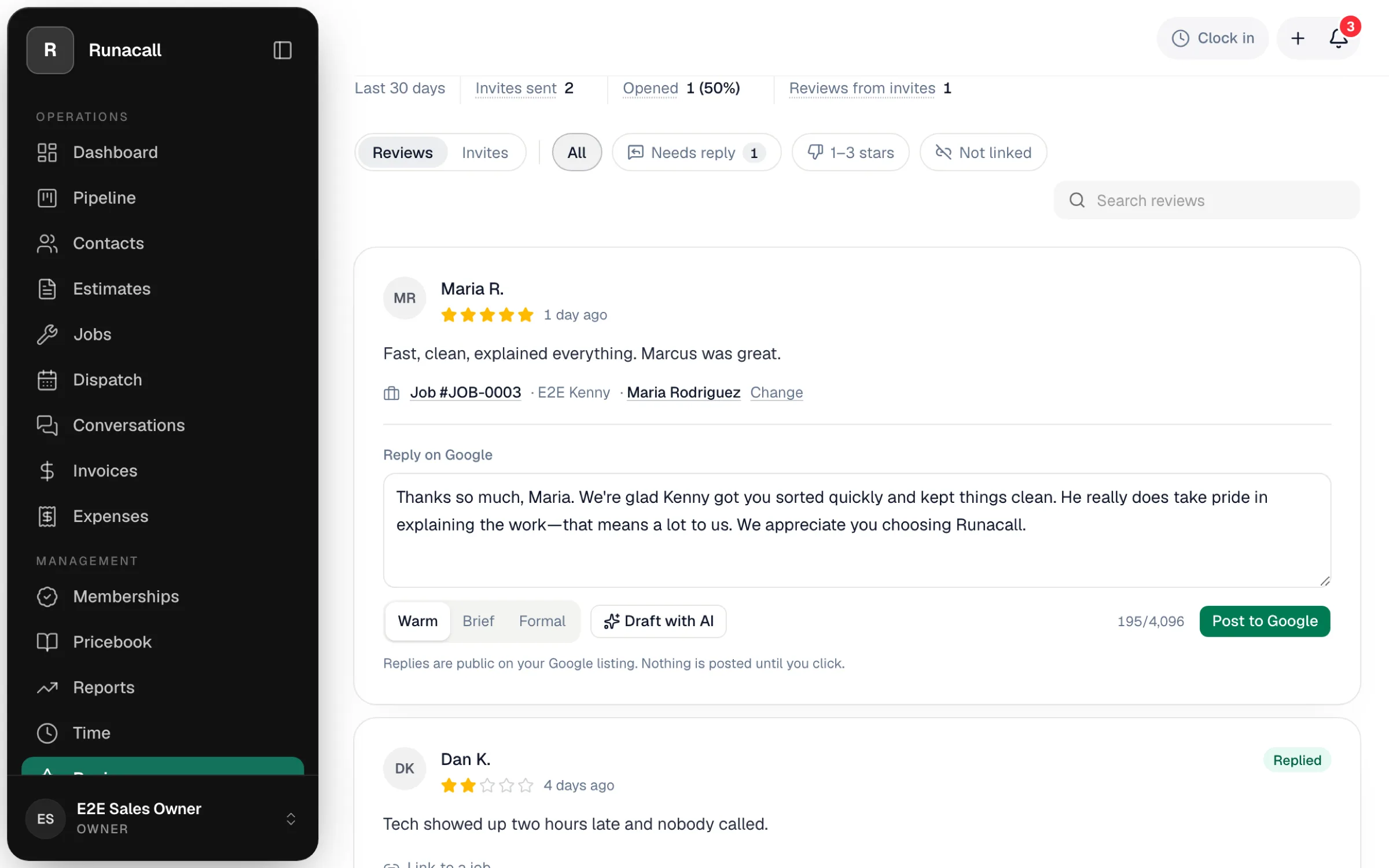
Reply on Google
Every review has a Reply on Google box.
- Write the reply yourself, or click Draft with AI to have one written from your playbook (see How AI writes, below). Edit it as much as you like.
- Click post and confirm. The reply appears on your Google listing under the review.
- Change your mind later with Edit or Remove reply on the same card.
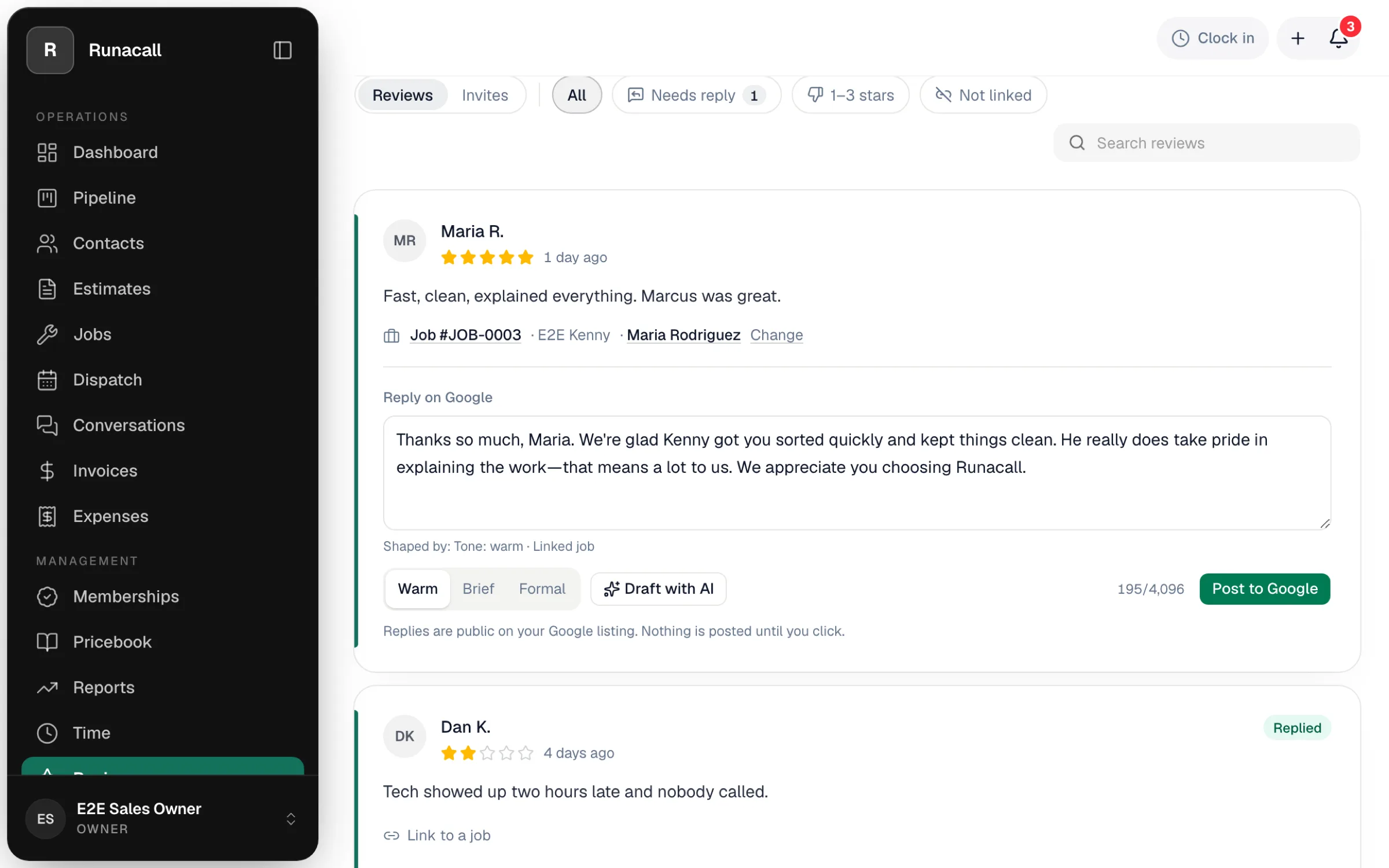
A reply is only posted when a person clicks post and confirms. Run a Call never posts a reply automatically, even when the AI drafted it.
Ask customers for reviews
There are two ways to invite a customer, and both send a tracked link so you can see what happened to it.
- Automatically. The Text a review request after the job text goes out once a job is completed. Turn it on under Automations → Texting — see Enabling SMS-based automations.
- One tap. Click Ask for a review on a job, on a customer's page, or in their conversation in the inbox.
A customer gets at most one invite every 30 days, whichever way it's sent. If they haven't opened the link after 48 hours, Run a Call sends one reminder; switch that off behind the gear if you'd rather not.
The Invites view
Click Invites on the Reviews page to see every invite you've sent and what happened to it: sent, reminder sent, link opened, review posted. Filter by All, Opened, Not opened or Reviewed.
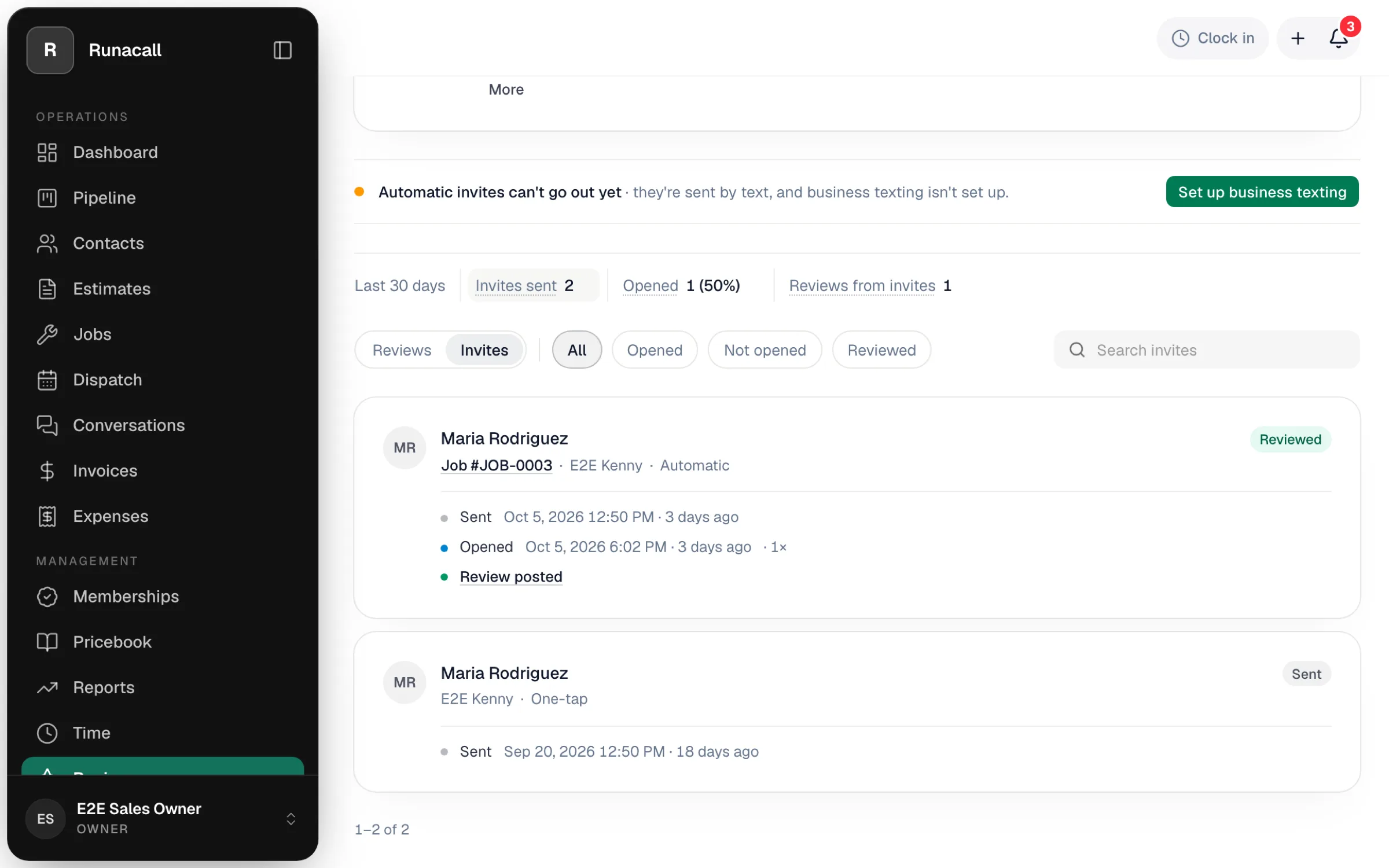
The status line under your listing tells you whether automatic invites are on and when the last one went out.
The gear: settings
| Tab | What's in it |
|---|---|
| Invites | The 48-hour reminder switch and the Google review link your invites send customers to. |
| How AI writes | The playbook Draft with AI follows: the name it signs off with, a tone (warm, brief or formal), your standards, words it must never use, and your business facts (hours, service area, warranties, prices you're happy to state). |
| Cases | Instructions for specific situations, by star band or by a keyword in the review. For example: on a 1-star review that mentions pricing, offer a call from the owner; on a 5-star review, thank them and name the technician. |
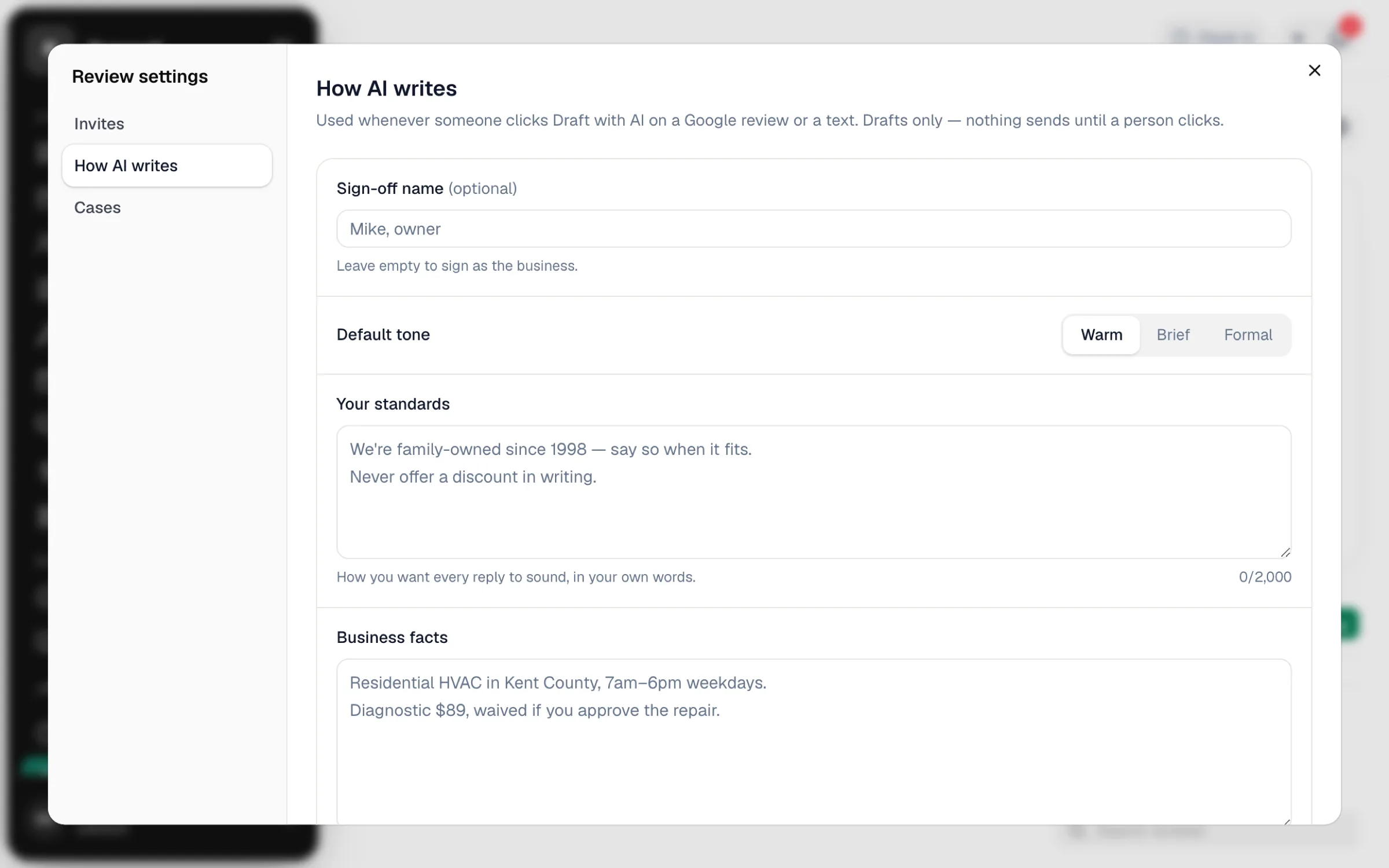
The same playbook is used when the AI answers customer texts. See AI text replies.
Good to know
- Customers who opted out of texts don't get invites. See How customers can opt out of texts.
- Invites need business texting. The invite is a text, so texting has to be set up and registered first. See Registering your business for A2P 10DLC.
- You can also ask on invoices. A Leave a review button on the payment page and receipt is a separate setting. See Asking for a Google review on invoices and receipts.
- Google is the source of truth. Reviews you delete or flag on Google disappear here on the next sync.