
Forms are reusable checklists your techs fill out on a job: tick-boxes, short answers and readings. Build one for each kind of visit (AC maintenance, furnace safety check, install sign-off) and you know every step got done the same way.
Who can do this: owners and admins build and edit forms. Anyone who can open the job in the office can assign a form to it, and techs fill it out in the mobile app.
Create a form
- Go to Pricebook and click the Forms tab.
- Click New form.
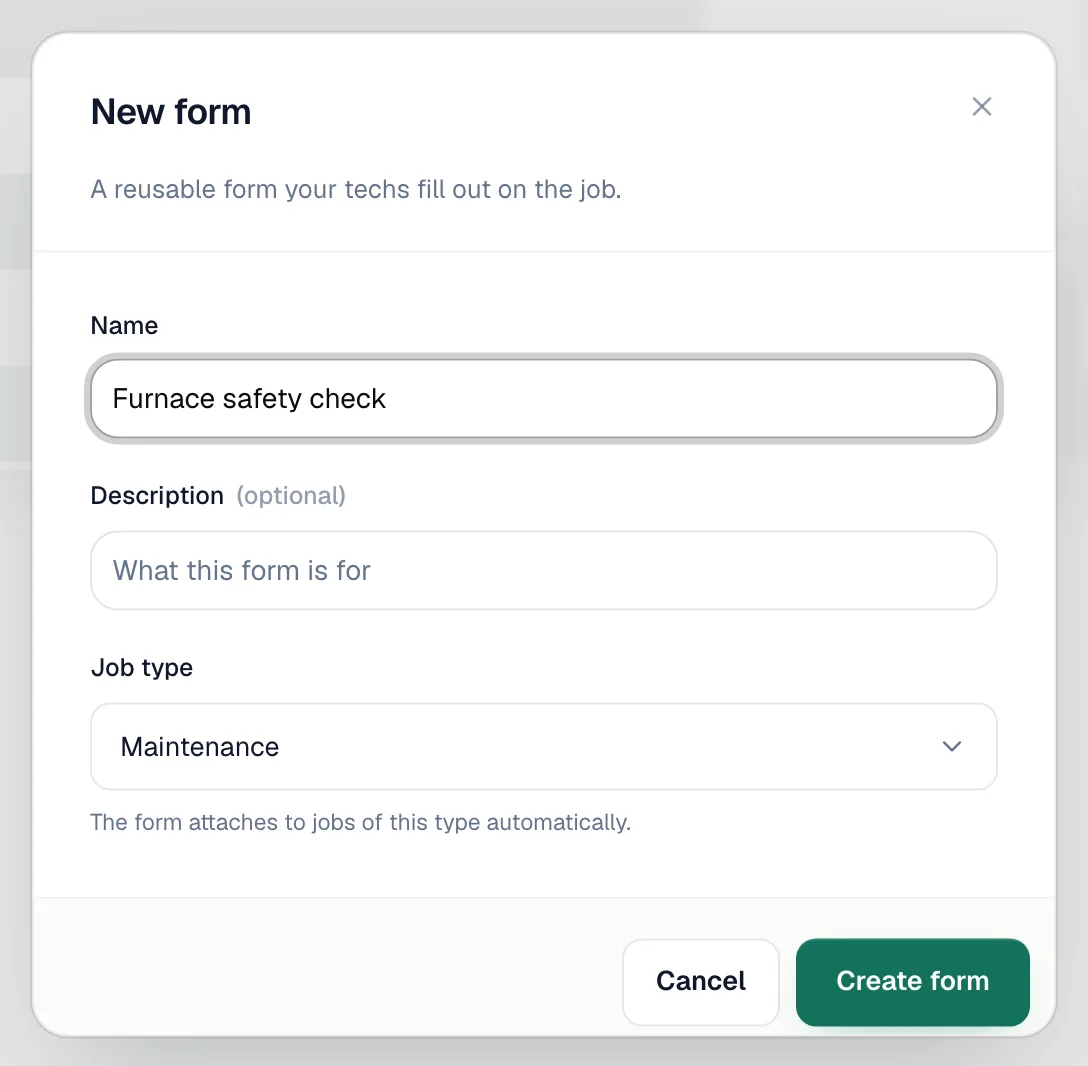
- Enter a Name (for example Furnace safety check), an optional Description, and the Job type it's for.
- Click Create form.
The Job type helper says the form attaches to jobs of that type automatically. Forms you create here aren't attached on their own: assign the form to each job as shown in step 3.
Add the steps
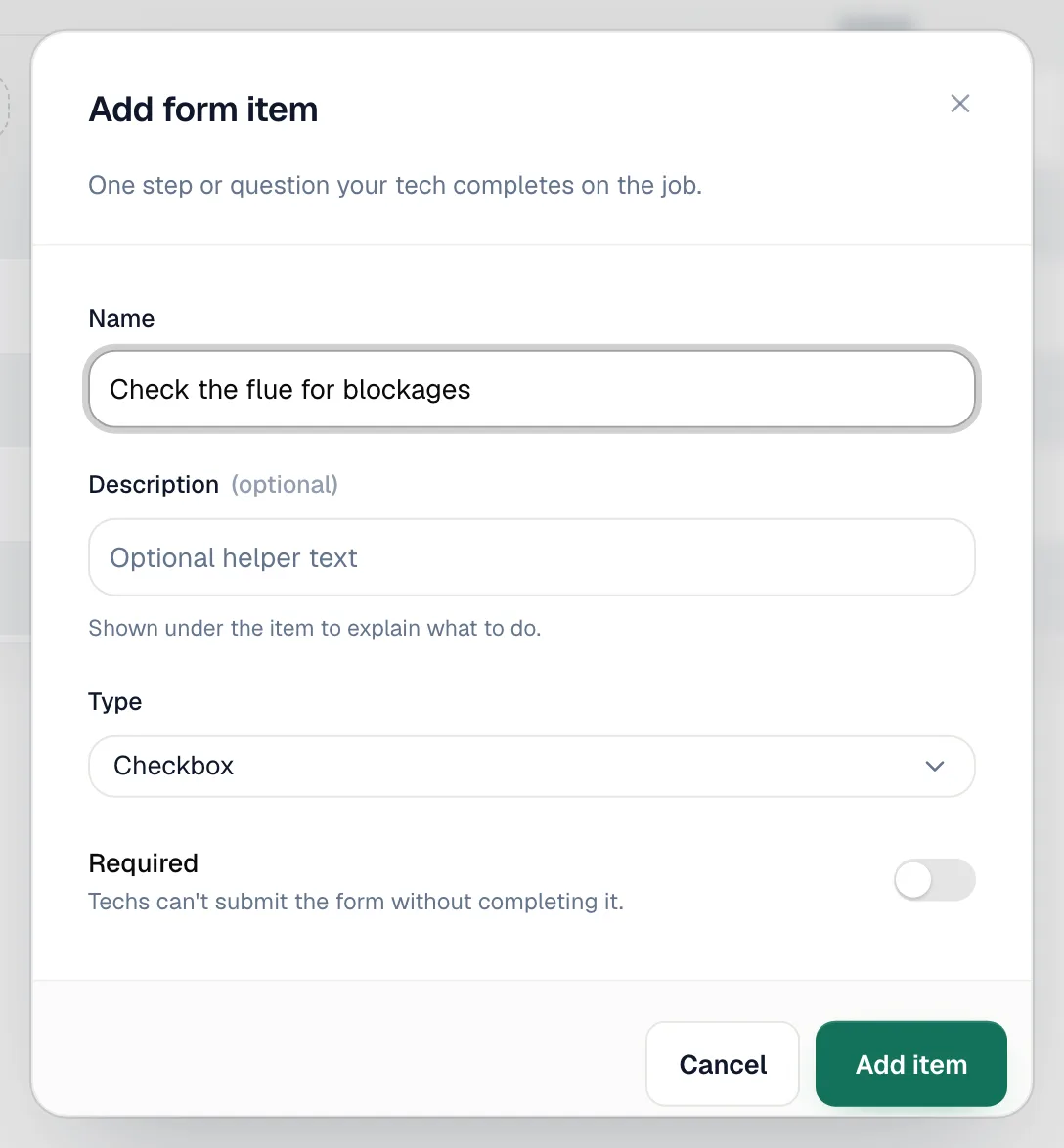
Click the form's row to open it, then click Add form item for each step.
| Field | What it does |
|---|---|
| Name | The step the tech sees, such as Check the flue for blockages. |
| Description | Optional helper text shown under the step. |
| Type | Checkbox (tap to tick), Text (short answer), Number (a reading such as static pressure), or Photo. |
| Required | The tech can't complete the form until this step is done. |
Click Add item. Drag steps by their handle to reorder them.
The mobile app has no way to attach a photo to a form step, so a Photo step can't be completed. Don't mark a Photo step as Required, or the form can't be finished. Ask techs to take the photo in the job's Photos and video section instead.
Assign the form to a job
Forms are added to jobs one at a time:
- Open the job in the office and click the Forms tab.
- Click Assign form and pick the form. You'll see Form assigned.
A form needs at least one step before it can be assigned. Assign form also offers Create new form (owners and admins) if you need one on the spot. A job can have several forms; each one can be assigned once.
The tech fills it out
In the mobile app, the job's This visit list has a Forms row. It shows how many required steps are still open (for example 2 required).
- The tech taps Forms and works through the steps: tapping check boxes, typing answers and readings, and adding a note to any step if needed. Required steps are marked with a red asterisk.
- When everything required is done, they tap Complete Form. The form is marked Done and can no longer be changed.
Ticking steps works offline; changes sync when the phone reconnects.
Where the answers end up
- The office sees progress and answers on the job's Forms tab (the tab shows done / total).
- Completed forms are included in the job's service report.
Edit or delete a form
On the Forms tab, use the pencil to rename a form or change its job type, and the trash icon to delete it (Delete form removes the form and every step on it). To remove one step, open the form and remove the item.