
A job that was finished before the customer joined a plan can still count as one of their covered visits. Link to membership puts a completed job on one of the customer's memberships and credits the visit on the day the work was done.
Typical case: the tech does the tune-up, the customer signs up for the maintenance plan while the tech is there, and the job is already complete. Without the link, the plan would show the visit as still owed.
Who can do this: owners, admins and anyone who can edit jobs.
Before you start
- The job must be Completed, Invoiced or Closed. An open job can't be linked; finish it first.
- The job must not already be on a membership. A job booked from Tune-ups due or created by a plan is already linked.
- The customer needs a membership that is Active or Not renewing. If they don't have one yet, enroll them first. See Enrolling customers in a membership.
Open the job
Open the finished job from Jobs, the customer's page or the dispatch board.
Choose Link to membership
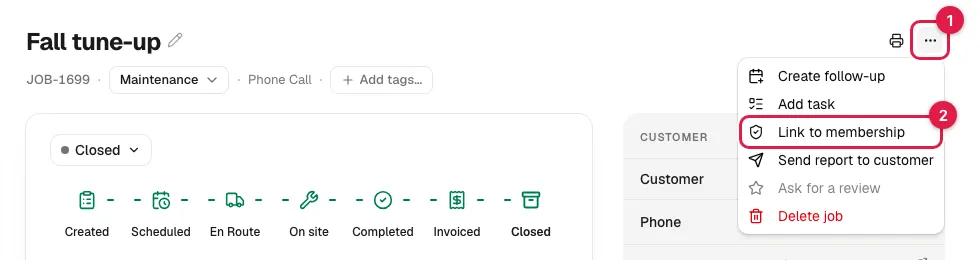
Click the ⋯ button (More) at the top of the job and choose Link to membership. The option only appears on a finished job that isn't on a membership yet.
Pick the membership
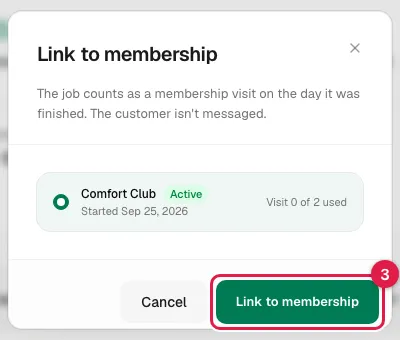
The Link to membership window lists the customer's current memberships (Active or Not renewing): the plan name, its status, when it started (Started Mar 1, 2026) and how many visits are used this year (Visit 1 of 2 used). Most customers have one. Pick it and click Link to membership.
What happens
- The job is now a visit on that plan, dated the day the job was finished, not the day you linked it. A toast confirms: Linked to Gold Maintenance Plan. Counted as a visit on Oct 14, 2026.
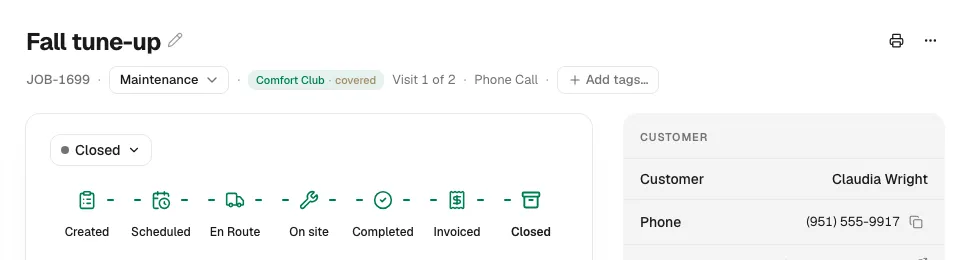
- The job header now shows the plan next to the job type, marked covered, and the visit number on the plan, for example Visit 1 of 2.
- On the membership page, Tune-ups used goes up and the job appears on the Lifecycle timeline and in the service history.
- On Memberships → Members, Last visit shows the day the job was finished.
- If the linked visit was the one that was due, the membership's Next tune-up date moves forward by the plan's interval, as it would for a visit completed today. If the date is already set for a later visit, it stays where it is. To change it by hand, see Change when a tune-up is due.
- The job itself doesn't change: same status, same invoice, same notes. The customer gets no text, email or review request.
Two cases to know about
| If… | Then… |
|---|---|
| The job was finished before the membership's start date | It links, with the note The visit was before this membership started, so it doesn't count toward this year. The job shows on the plan's history but doesn't use one of this year's visits. |
| The job's type isn't one of the plan's tune-up job types (for example a repair) | It links as a member job, with the note …isn't a maintenance visit on this plan, so it doesn't use a visit. Good for keeping the plan's history complete; the member's remaining tune-ups stay as they were. |
A job typed Maintenance always counts as a tune-up. See Covered visits vs repair visits.
Good to know
- It's one way. Once linked, the job stays on the membership. Link carefully if the customer has more than one plan; the window shows each plan's name and start date to help you pick. See More than one membership for the same customer.
- Paused, cancelled and expired memberships aren't offered. If the window says This customer doesn't have an active membership, reactivate or re-enroll first; Open the customer takes you to their page.
- The job's invoice isn't affected. Lines already billed stay billed. If you want to show the member rate on future work, see Applying member discounts.