
After a customer enrolls, their membership page is where you handle everything that changes: the next tune-up date, billing date, billing cycle, autopay, pauses, cancellations and moving the plan to a new homeowner.
Who can do this: owners, admins and dispatchers. Transfer and Cancel immediately are for owners and admins.
Open a membership
Go to Memberships → Members and click the customer (search by name, or filter by Active, Expiring or Suspended). You can also open it from a worklist on the Today tab or from the Membership card on the customer's page.
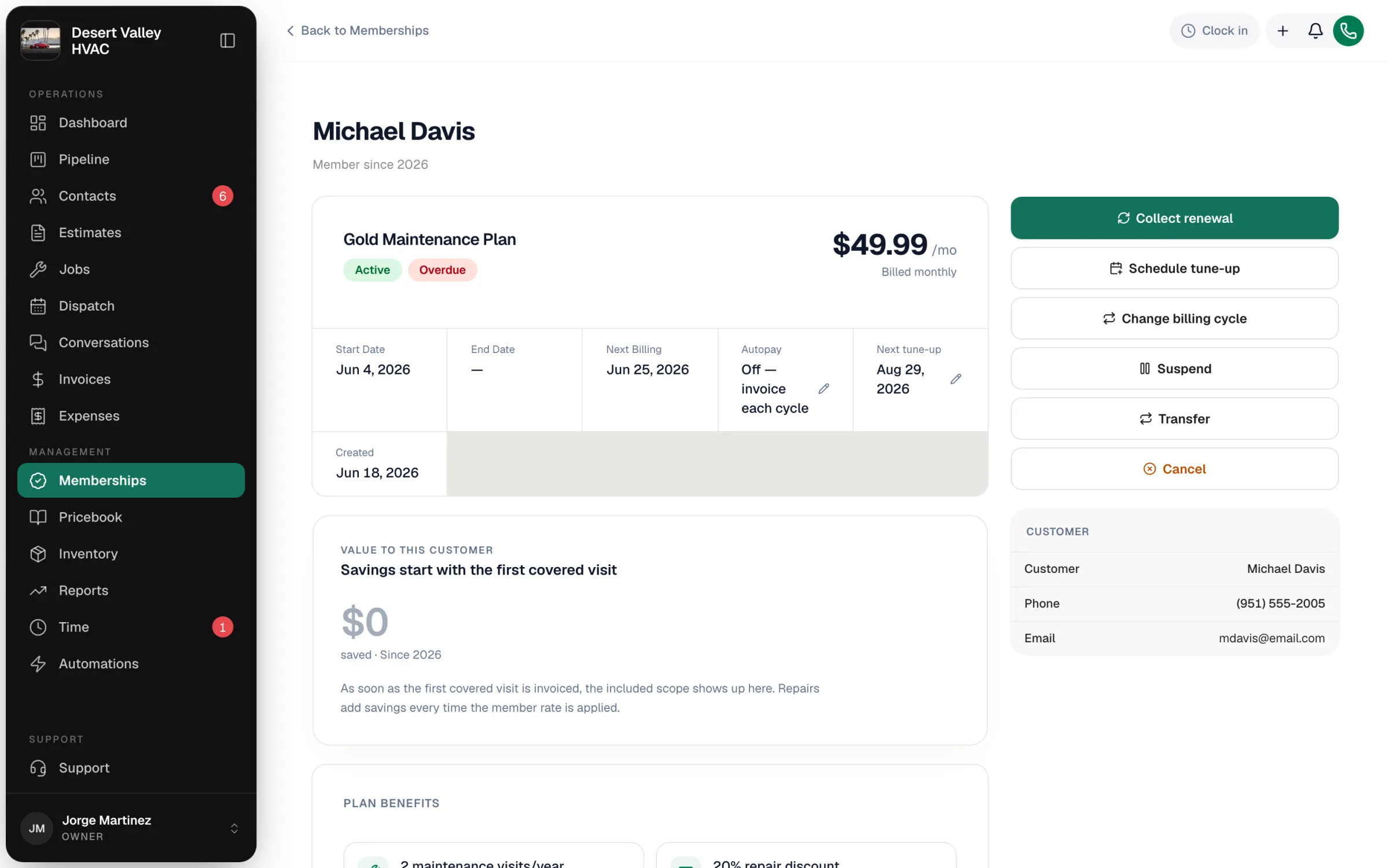
The page shows the plan and price, status badges, Start Date, End Date, Next Billing, Autopay, Next tune-up, the value the customer has received, plan benefits, tune-ups used, covered systems, the signed Agreement, a Lifecycle timeline and service history.
What you can do
| Action | What happens |
|---|---|
| Collect renewal | Opens the renewal invoice for the next billing date (creating it if needed) so you can send it or take payment now. |
| Schedule tune-up | Opens a new job for this member using the plan's tune-up job type. See Scheduling membership tune-ups. |
| Next tune-up (pencil) | Change when the next tune-up is due, then Save date. |
| Next Billing (pencil) | Move the date the membership bills on. See Change the billing date. |
| Autopay (pencil) | Turn charging the card on file on or off. See Renewals and autopay. |
| Change billing cycle | Switch between the cycles the plan offers. |
| Extend term | Add one to three covered years at no charge, such as a free year with a new install. See Extending a membership's term. |
| Suspend / Reactivate | Pause or resume the membership. |
| Transfer | Move the membership to a new homeowner. |
| Cancel | Stop renewing at the end of the paid period. |
| Cancel immediately | End a not-renewing membership today. |
| Download agreement | The signed agreement as a PDF: plan, price, terms, signature, time and IP. |
Change the billing date
Each membership bills on its own date, set when the customer enrolled. Move it to line your members up on the 1st or the 15th, or to fix a start date picked wrong at enrollment.
- Click the pencil next to Next Billing. It shows on active memberships that bill more than once.
- Pick the new date (today or later).
- Click Save date.
What moves with it:
- Coverage runs to the new date too, when it ended on the old billing date.
- Later bills follow from the new date.
- The renewal invoice is created ahead of the new date, on the lead time in Settings → Memberships. If a draft renewal for the old date already existed, it's removed and a new one is created for the new date.
When it won't let you:
- The renewal for the old date is already with the customer (sent, viewed, overdue or partly paid). Void it first, or wait until it's paid.
- The renewal is being collected on a job. Finish or remove it on that job first.
- Autopay is on and the renewal for the old date was already created. The card may already have been charged, so open that invoice and void it first.
- Another invoice is already due on the new date. Pick another date.
- A draft renewal needs removing and you can't delete invoices. Ask someone with full invoice access to make the change.
Change the billing cycle
A member who wants to move from monthly to annual (or back) keeps the same membership.
- Click Change billing cycle.
- Pick a cycle. Only the cycles the plan offers are listed, with the price each one bills.
- Click Change cycle.
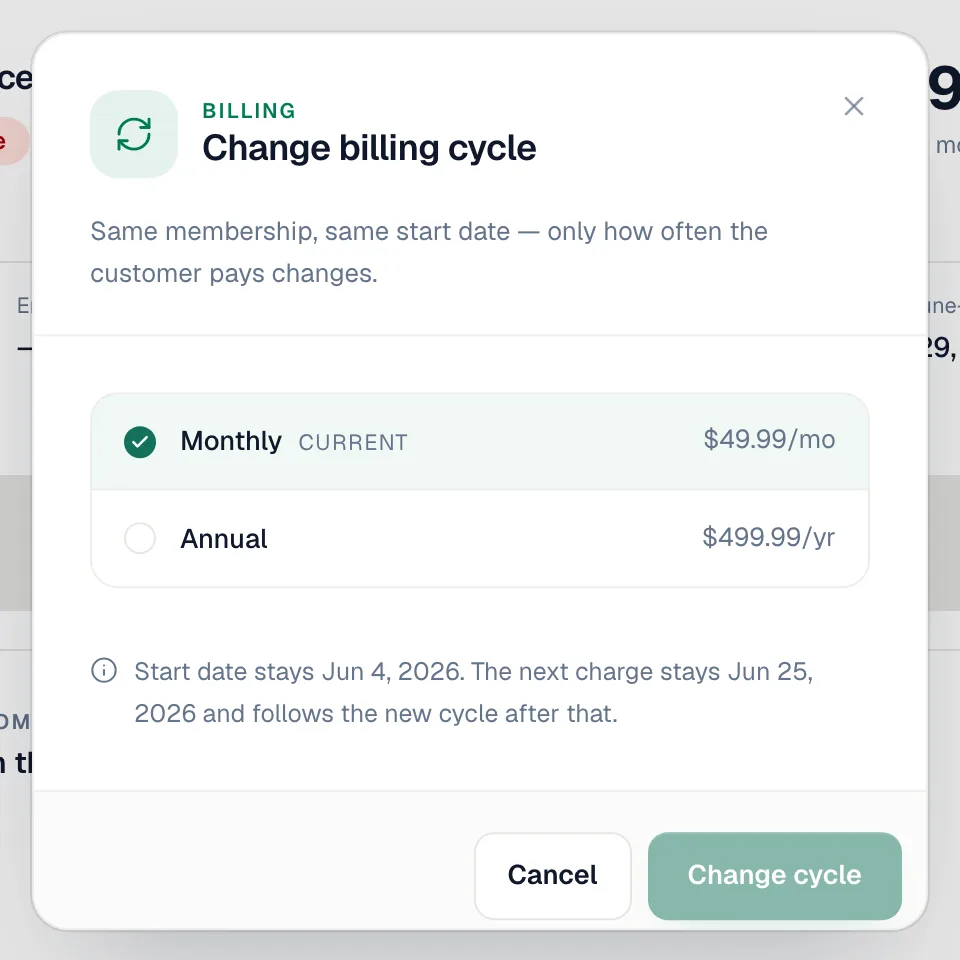
The start date and next charge date don't move; invoices follow the new cycle from the next charge on. If a renewal invoice at the old price was already created, you're told and given a link so you can void it before it goes out.
Suspend and reactivate
Suspend pauses billing and benefits: no renewal invoices are created while it's paused, and the member shows as Paused. Nothing cancels a paused membership by itself. Click Reactivate to resume.
Memberships can also be paused automatically when a renewal stays unpaid too long. See Membership renewal settings and overdue reminders.
Cancel
- Cancel → Cancel renewal: the membership stops renewing. The customer keeps benefits and remaining visits until the end of the paid period, then it ends on its own. No further charges. Its status becomes Not renewing.
- Cancel immediately (not-renewing memberships, owners and admins) → End right now: the customer loses benefits and unused visits today. If appropriate, refund the last payment from its invoice (see Refunds and credits). To restore it, enroll them again.
Transfer to a new homeowner
When a house is sold, click Transfer and follow Transfer membership to a new homeowner to move the plan to the new owner's customer record.
Pause history
The Lifecycle timeline lists enrollment, covered and repair visits, renewal invoices and payments, billing-cycle changes, term extensions, and every pause with how long it lasted and when it was reactivated. The record stays after the membership is active again, which helps if your warranty terms depend on continuous membership.