
A customer can hold more than one membership at the same time: a plan for each unit, or two different plans on the same account. A furnace on one plan and a mini split on another is the typical case. Each membership has its own price, billing date, tune-ups and signed agreement.
Who can do this: owners, admins and dispatchers, from the office. In the mobile app a tech can enroll a customer who has no membership yet; a second plan is added from the office.
Add a second membership
- Go to Memberships and click Enroll Customer.
- Search for the customer and pick them. Under their name you see the plans they already hold, for example Already on Gold Maintenance Plan — this adds a second agreement. Each plan name is a link to that membership.
- Choose the plan under Select Plan and continue through Billing Cycle.
- On the Systems step, tick the systems this membership covers (the list appears when the customer has equipment on file). If a system is already covered by another of the customer's plans, you see a note such as Upstairs heat pump is already covered by Gold Maintenance Plan. You can still add this plan. It's a reminder, not a block.
- Finish the Review and Terms & sign steps as usual.
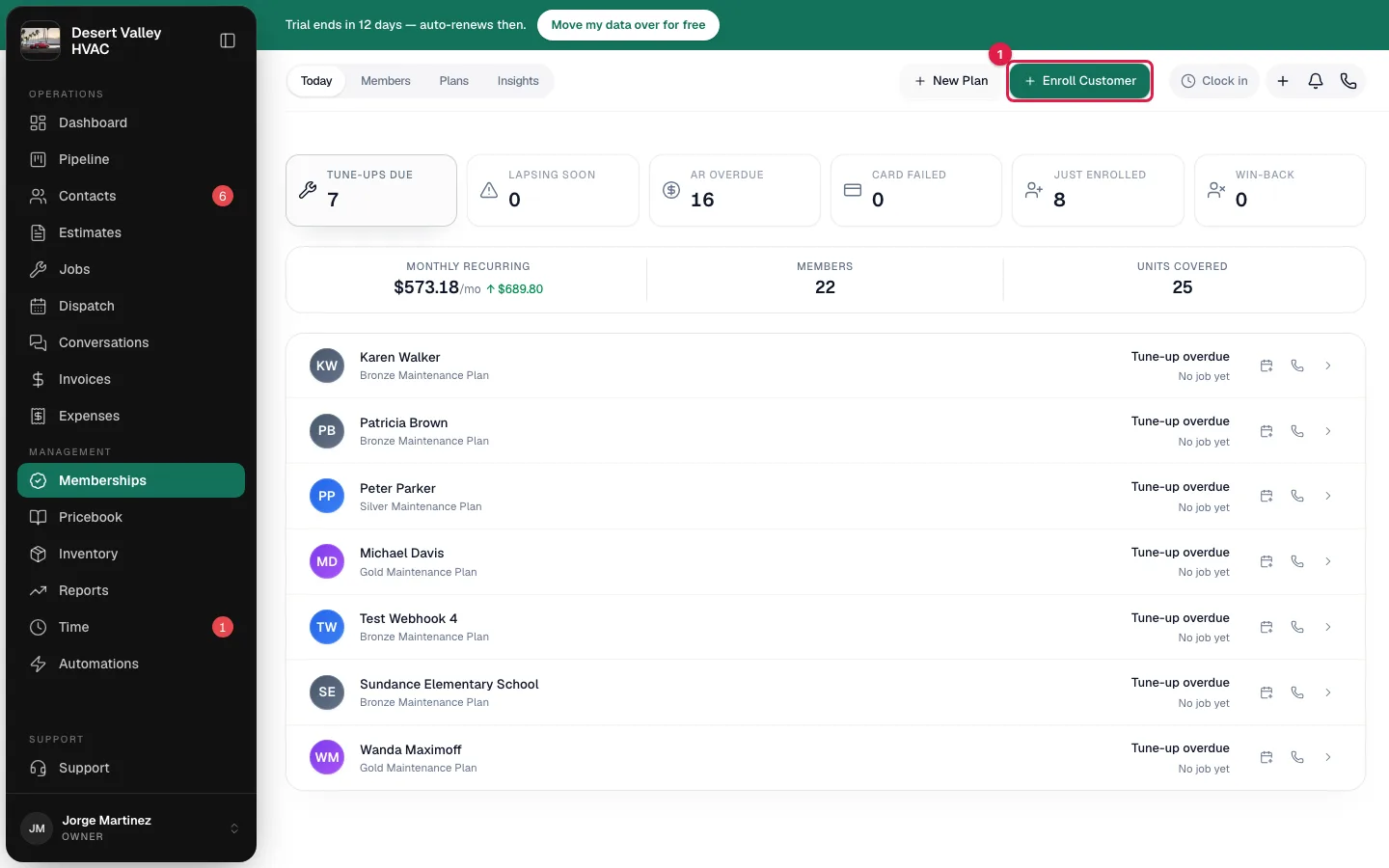
The full enrollment walkthrough is in Enrolling customers in a membership.
The Enroll in a plan link on a customer's page only shows while they have no membership. For a second plan, start from Memberships → Enroll Customer.
What's still refused
| You see | Why |
|---|---|
| This customer already has this plan on the same system. | The same plan can't cover the same system twice. That would bill the customer twice for one agreement. Pick a different system or a different plan. |
| This customer was just enrolled in this plan. | The same enrollment was submitted twice within a couple of minutes. The first one went through. |
A signing link you texted or emailed earlier also stops working if the office enrolls the customer in that same plan in the meantime. The customer sees You're already enrolled in this plan — no need to sign again.
Where the memberships show
| Place | What you see |
|---|---|
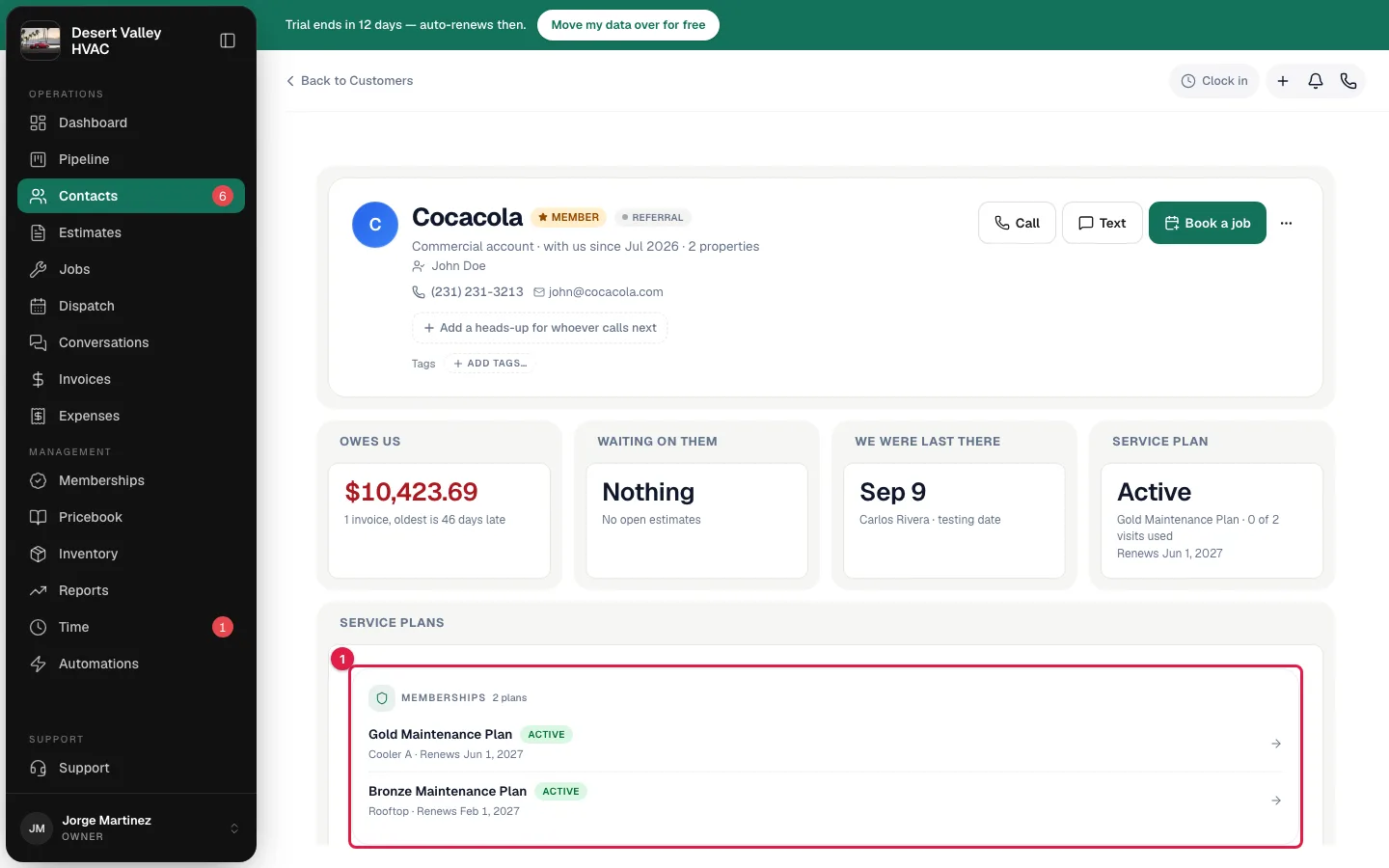
| Customer's page | With two or more memberships, the Membership card becomes Memberships with a row per plan: plan name, status, the systems it covers (or Covers everything on file) and the renewal date. Click a row to open that membership. |
| Memberships → Members | One row per membership, so the customer appears once for each plan. |
| Customer portal | A Your memberships heading with a section for each live plan, each with its own savings, next visit and renewal payments. See The customer portal. |
| Mobile app | The job shows the one plan that applies to that job. Techs don't see a list of plans. |
Which plan applies to a job
Every job is tied to one membership. That decides which plan's repair discount your team sees on the job and which plan a covered tune-up counts against. When a customer has one membership, it's always that one. With two or more, Run a Call picks in this order:
- The plan that covers the job's equipment. If the job has a unit on it and that unit's system is named on one of the memberships, that membership applies.
- A plan that covers everything. If the job's unit isn't named on any membership, a plan with no specific systems ticked (one that covers everything the customer has) applies. A plan that names other systems doesn't cover this one, so it isn't used.
- A plan that covers something at the job's address. When the job has no equipment on it, or the first two steps found nothing, a membership covering a system at that property applies.
- The most recent plan. If nothing above settles it, the membership with the latest start date applies.
When two plans tie at any step, the plan whose tune-up types include the job's type wins. A furnace tune-up goes to the plan that sells furnace tune-ups.
Only Active and Not renewing memberships are considered. Paused, cancelled and expired memberships never apply to a job.
Put the equipment on the job. It's the only thing that tells Run a Call which unit the visit is for. Group units into systems first, and tick those systems when you enroll. See Grouping equipment into systems.
Good to know
- Changing the equipment on a job can change its plan. If you change the unit on an open job and a different membership covers the new one, the job moves to that membership. Jobs that are invoiced, closed or cancelled don't change, and neither does a job booked as a covered tune-up.
- To book a tune-up against a specific plan, open that membership and click Schedule tune-up. The job is tied to that membership from the start.
- Each membership bills on its own. Separate renewal invoices, separate Next Billing dates, separate autopay settings.
- Each membership is managed on its own. Pausing, cancelling, transferring or extending one plan doesn't touch the other.
- Merging two customers who both have memberships leaves the kept record with both. See Finding and merging duplicate customers.