
The + button at the top of every page is the fastest way to start something new — a customer, an estimate, a job, an invoice, or a meeting on the schedule — without first going to that page.
Who can use it: everyone who uses the office app (owners, admins, dispatchers, and custom office roles). Technicians create jobs and estimates from the mobile app instead.
Click +
On a computer, the + sits at the top right, next to the notifications bell. On a phone, tap + at the top of the screen and the menu slides in from the side.
Pick what to create
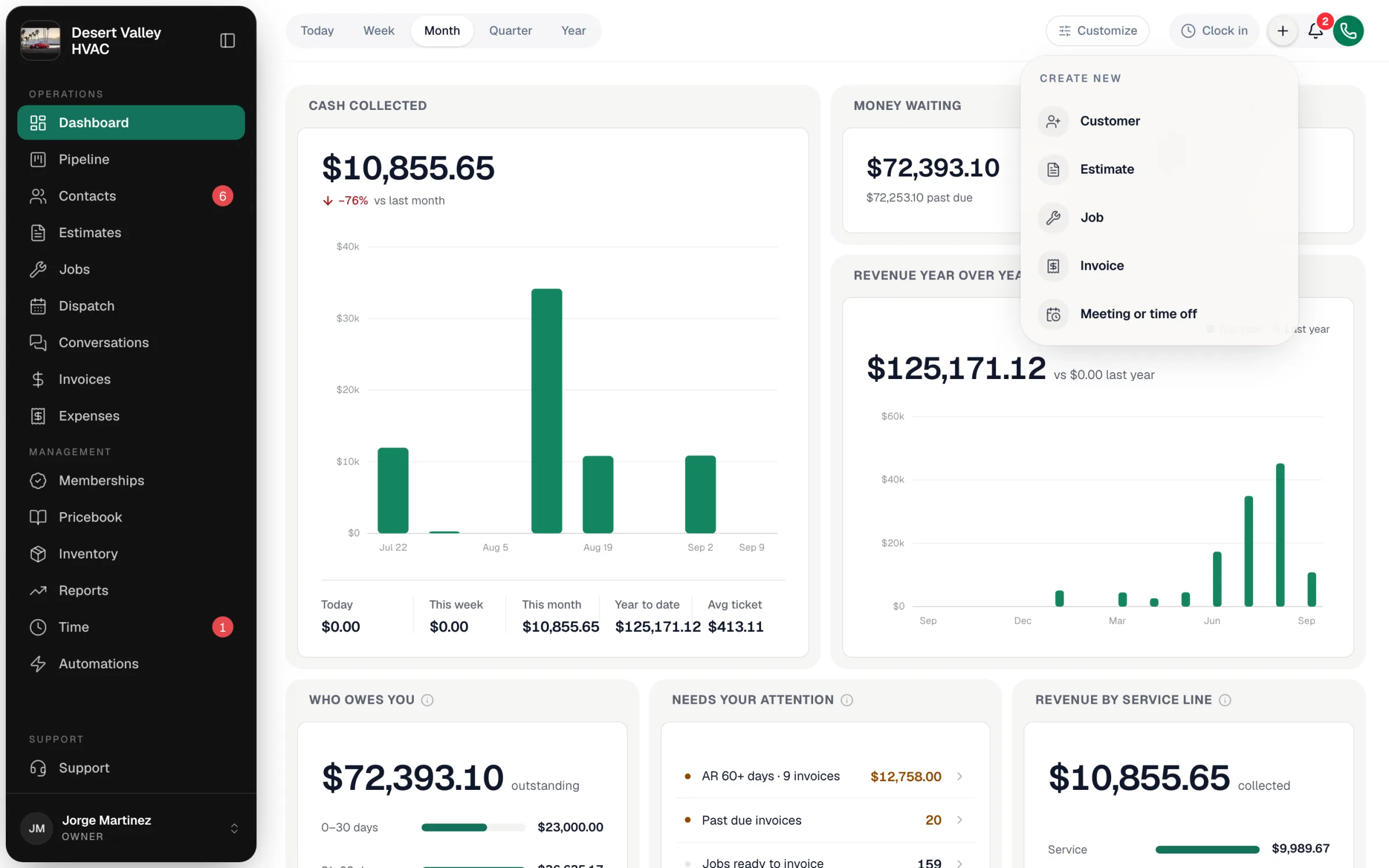
| Menu item | Where it takes you |
|---|---|
| Customer | The new customer form. See How to add a new customer. |
| Estimate | A new estimate. If your company renamed estimates (for example to Proposal), the menu uses that name. See How to create and send an estimate. |
| Job | The new job form. See How to create your first job. |
| Invoice | The Invoices page, where you generate an invoice from a job. See How to create and send an invoice. |
| Meeting or time off | The dispatch board with the event window open (see below) |
Meeting or time off
Use this to put something on the schedule that isn't a job. Pick a kind:
| Kind | Use it for |
|---|---|
| Meeting | A huddle, a training, a vendor stopping by |
| Keep time free | No jobs in this window: shop time, truck stock, paperwork |
| Office closed | Nobody works that day. Everyone gets the day off, and it shows on their Time page too. |
| Day off | Someone is out: a day off, a doctor visit, vacation. It goes on their time off too, so nothing gets booked on them. |
Choose who it's for (or Everyone), All day or Certain hours, and whether it happens Just once or Every week.