
Every tracked part is In stock, Low or Out, based on how many you have and the Low-stock at level you set. Use it as your reorder list: filter to low stock, then place purchase orders.
The three statuses
| Status | When | Dot |
|---|---|---|
| In stock | On hand is above the low-stock level, or no level is set and on hand is above zero. | Green |
| Low | On hand is at or below the low-stock level, and above zero. | Amber |
| Out | On hand is zero or below. | Red |
Examples with Low-stock at set to 5:
| On hand | Status |
|---|---|
| 6 | In stock |
| 5 | Low |
| 0 | Out |
| −2 | Out (more was used than was recorded in stock) |
With no low-stock level, a part is never Low; it goes straight from In stock to Out.
Set the low-stock level
Pick a number that leaves time to reorder before you run out. You can set it in two places:
On the Inventory page: click the part, type the number in Low-stock at and click away. The status updates right away.
In the pricebook: open the part (pencil icon). In its Inventory section, enter Low-stock at. It saves on its own.
Clear the field to remove the level.
Per truck or warehouse
If you track stock per truck, each location can have its own level for the part. In the part panel's By location block, type the number in that location's Low-stock at and click away (Low-stock alert saved for Truck 3). A location at or under its level shows Low; one whose count has gone negative shows Below zero. The part's overall Low-stock at still applies to the total. See Track stock per truck.
Who can do this: owners, admins and dispatchers.
Find parts to reorder
On the Inventory page, open the status filter and choose:
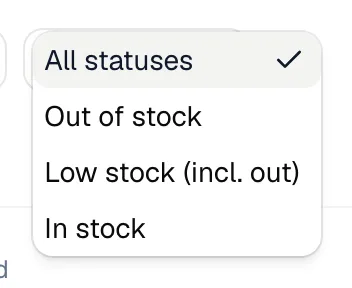
- Low stock (incl. out): everything that needs reordering.
- Out of stock: only parts at zero or below.
Combine it with the category filter to reorder one area at a time. Low and out parts are already sorted to the top of the table.
Good to know
- Warnings appear on the Inventory page only. Run a Call doesn't email you or create purchase orders automatically.
- Receiving a purchase order is how stock goes back up. See How purchase orders receive stock.
- With more than one location, a truck's low-stock level also drives the Short by column of the Truck restock report.