
The Inventory page lists every tracked part with how many you have, what they're worth and which ones need reordering. Open it from Inventory in the sidebar (it appears once inventory tracking is on).
Who can use it: owners, admins and dispatchers.
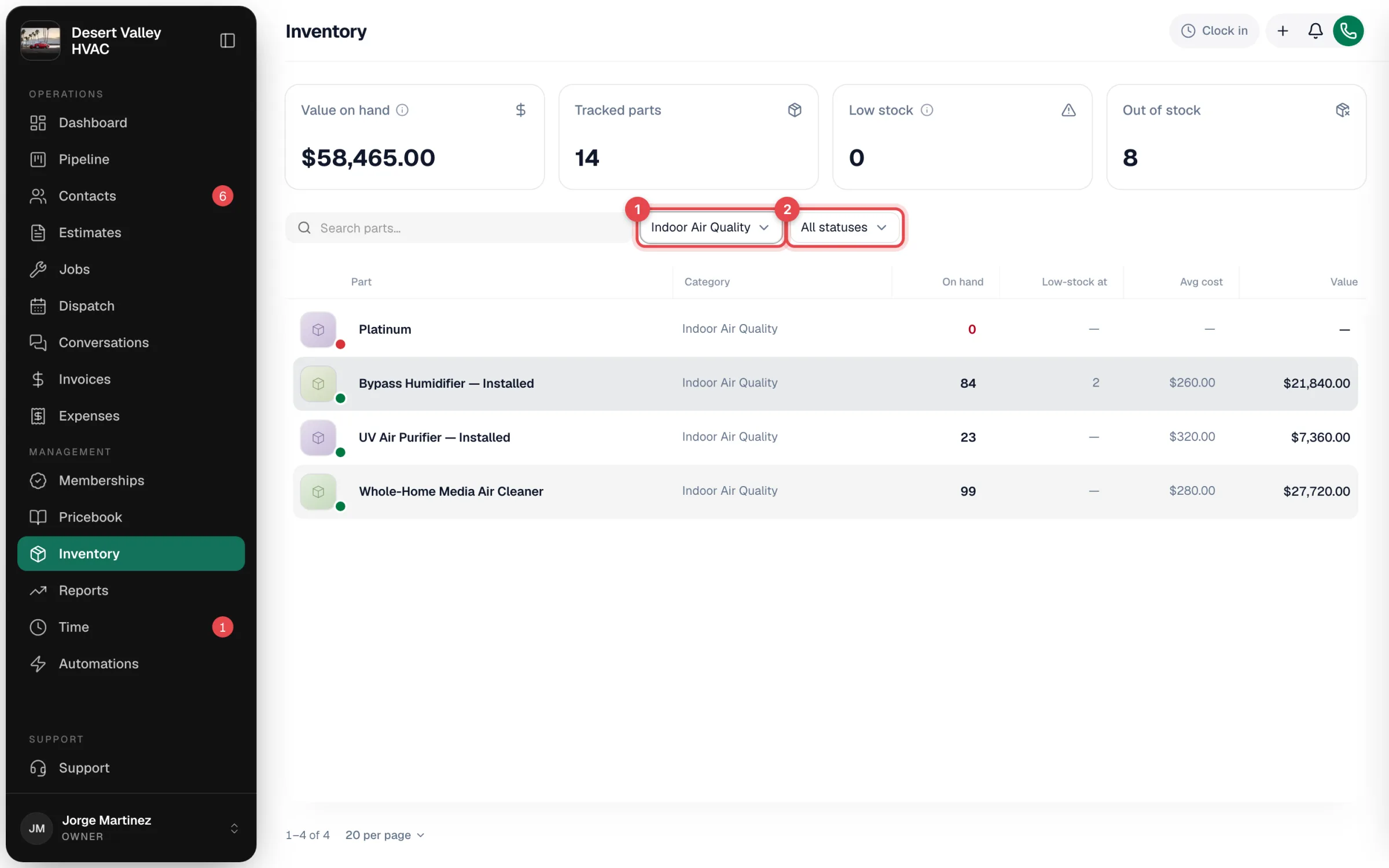
Summary cards
| Card | What it shows |
|---|---|
| Value on hand | On hand × average cost, added up across every tracked part (parts at zero or below add nothing). |
| Tracked parts | How many parts are tracked. |
| Low stock | Parts at or below their low-stock level but not yet out. |
| Out of stock | Parts at zero or below. |
The cards always cover all tracked parts; search and filters only narrow the table. If you track stock per truck, the cards follow the location picked in the switcher (see below).
Search and filters
- Search parts…: type part of a name.
- All categories: show one pricebook category, or Uncategorized.
- All statuses: Out of stock, Low stock (incl. out) or In stock.
- All locations: shown once you have more than one stock location. Pick a truck or warehouse to see only that location's counts in the cards, the On hand column and the status dots. See Track stock per truck.
The Locations button at the top of the page opens the Stock locations window, where you add trucks and warehouses.
<!-- shot: Inventory page header with the Locations button and the location switcher set to a truck -->The parts table
Out-of-stock parts are listed first, then low-stock parts, then everything else, each group A to Z. Twenty rows show per page; change it at the bottom.
| Column | Content |
|---|---|
| Part | Photo, name and a colored dot: green in stock, amber low, red out. |
| Category | The pricebook category. |
| On hand | Current count, in amber or red when low or out. |
| Low-stock at | The part's warning level, or a dash if none is set. |
| Avg cost | Weighted average cost per unit. |
| Value | On hand × average cost. |
The part panel
Click a row to open the part's panel on the right.
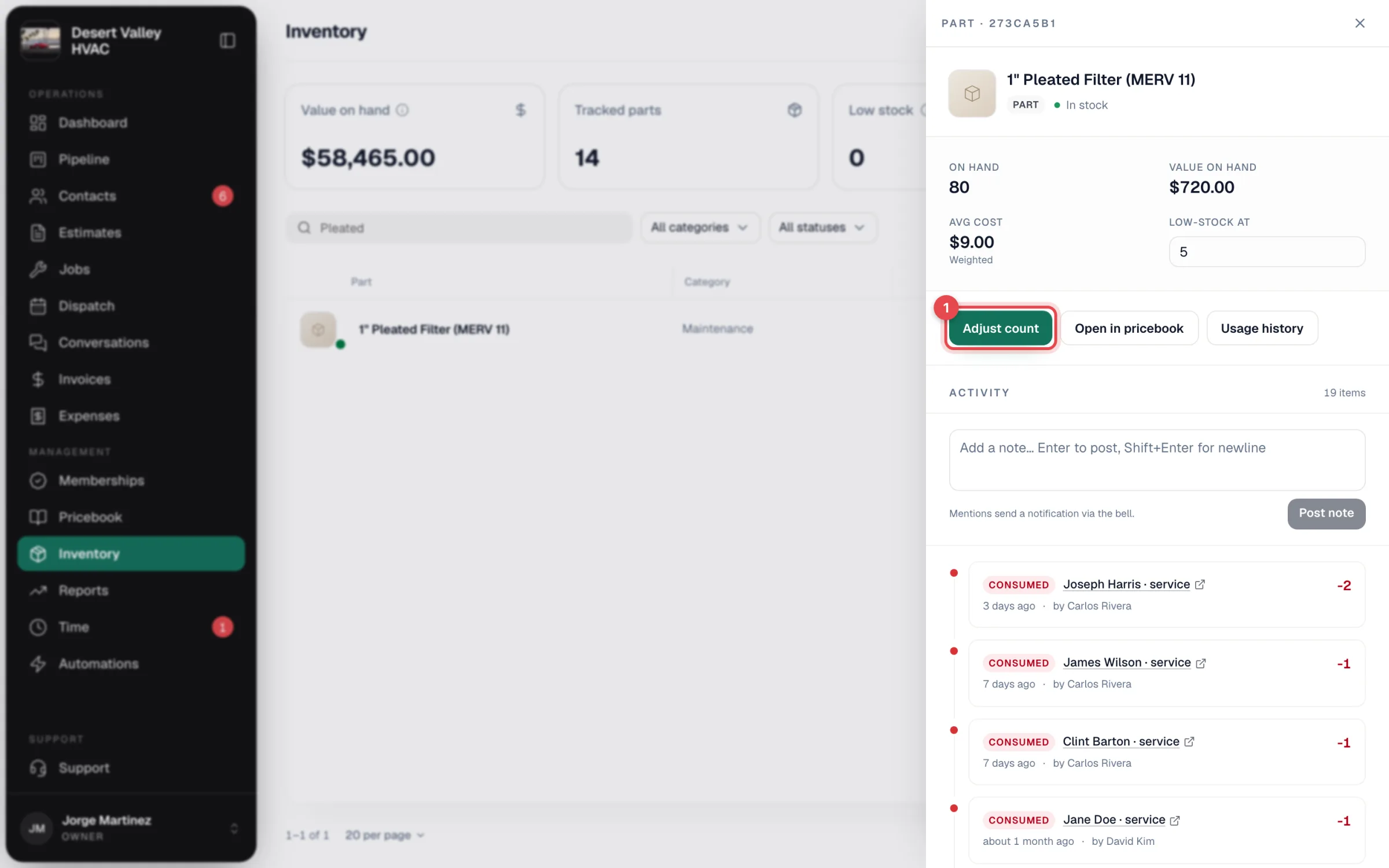
| Section | What you can do |
|---|---|
| On hand, Value on hand, Avg cost | See the part's numbers. |
| Low-stock at | Type a new warning level; it saves when you leave the field. See Stock status and reorder points. |
| By location | With more than one location: each truck and warehouse's On hand and its own Low-stock at, with Low and Below zero markers. See Track stock per truck. |
| Adjust count | Correct the count. See Making a manual stock adjustment. |
| Transfer | Move stock from one location to another. Shown with more than one location. |
| Open in pricebook | Opens the item to edit its price, cost or photos. |
| Usage history | Opens a report of where this part was used (owners and admins, who can see reports). |
| Activity | Notes and every stock change, newest first. Consumed rows link to the job, Received rows to the purchase order, Adjusted rows show the reason and note, Transferred out and Transferred in rows show the two locations. |
| Units | The serial-numbered or tagged units of this part, and which job each one is held for. See Tagging units below. |
Notes on a part
Type in Add a note… and press Enter to post (Shift+Enter for a new line). @mention a teammate to notify them through the bell. Pin a note to keep it at the top.
Tagging units
For parts you track one by one, such as compressors or motors, you can tag each physical unit with its serial number or a warehouse label. Tagging doesn't change the part's count: stock still comes off the way it always does.
Add units
- Open the part and go to the Units tab.
- Click Add units.
- Enter one unit per line as
serial, tag, cost, for example4471, B-2, 412.50. The tag and cost are optional. Cost per unit fills in the cost for any line that has none. - Click Tag units.
Each unit needs a serial number or a tag, and the same serial can't be tagged twice on one part.
Unit statuses
| Status | Meaning |
|---|---|
| In stock | On the shelf, free to use. |
| Held | Set aside for a job. |
| Used | Went into a job. |
| Returned | Came back from a job. |
| Scrapped | Written off. |
Click a status above the list to see only those units.
<!-- shot: Units tab with unit rows, their statuses and the row menu open -->Hold a unit for a job
- From the part: open the unit's … menu, choose Hold for a job…, find the job and confirm.
- From the job: on the part's line under Parts & labor, click Assign unit, pick the unit (search by serial or tag) and click Hold this unit.
The tech sees the unit on the job's Parts and labor row in the app, for example Unit SN 4471 · B-2.
What happens next
- When the job is under way, the held unit is marked Used.
- If you remove the line from the job, the unit is released back to In stock.
- Release in the row menu frees a held unit by hand. Mark used and Mark returned are there too.
- Scrap… asks you to confirm first. A used unit can't be scrapped; mark it returned first. A scrapped or returned unit can go back with Back to stock.