
Out of the box, inventory keeps one count per part. Turn on stock locations and each truck and warehouse keeps its own count: parts a tech uses on a job come off that tech's truck, purchase orders are received to the location you pick, and you move stock between locations with a transfer. The Inventory page, the part panel, the Truck restock report and the tech's app all show the counts by location.
Who can do this: owners, admins and dispatchers. Field techs see their own truck in the mobile app.
How it works
- Every location is a Warehouse or a Truck. One location is the default; until you add others, that's the only one and everything you already counted lives there.
- A truck can have one tech, and a tech can drive only one truck.
- Parts used on a job come off the lead tech's truck. The lead is the tech on the job's earliest appointment (or the job's assigned tech if there's no appointment). If that tech has no truck, the parts come off the default location.
- A location's count can go below zero. That's on purpose: a tech who uses a part the office never loaded onto their truck still gets the job done, and the negative number tells the warehouse what to catch up on.
- Your total on hand is the sum across locations. Average cost and value are still kept per part, not per location.
Add a truck
- Go to Inventory and click Locations at the top of the page. (You can also get there from Settings → Pricing: click Manage in the Inventory section.)
- In the Stock locations window, click Add location.
- Type a Name, such as Truck 3.
- Under Type, pick Truck.
- Under Tech, pick who drives it. Parts this tech uses on jobs come off this truck. If you track vehicles with GPS, you can also pick the Van.
- Click Add location.
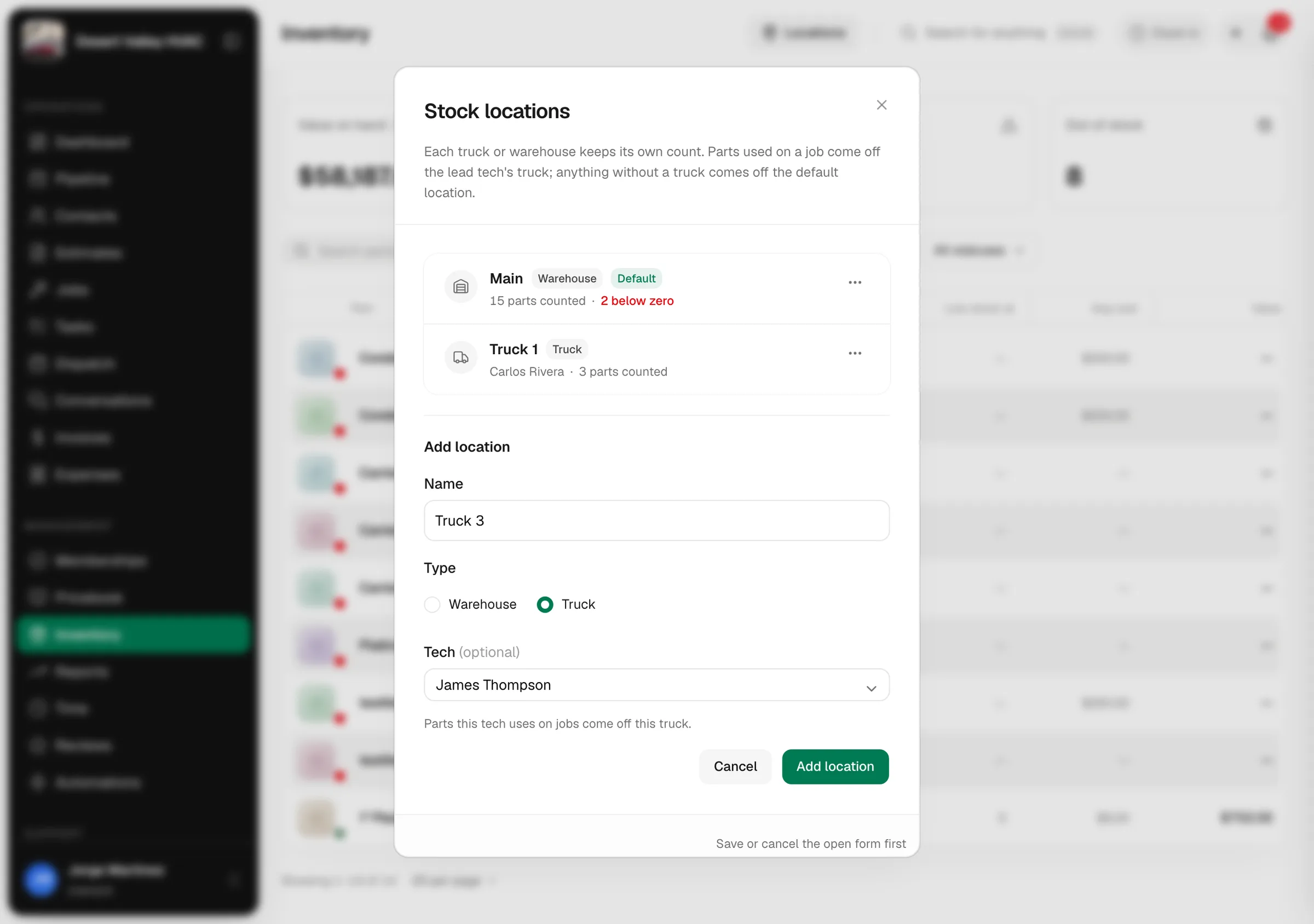
Add a second warehouse the same way with Type set to Warehouse. Each location's row shows its type, its tech (or No tech assigned), how many items it holds and how many are below zero. The Default badge marks the default location.
If you pick a tech who already has a truck, you'll see [Tech] is already assigned to [Truck]. Use Change tech on the other truck first.
Rename, change tech, make default
Open the … menu on a location's row:
| Action | What it does |
|---|---|
| Rename | Change the name. Names must be unique. |
| Change tech | Trucks only. Pick a different tech (or No tech) and, if you have GPS vehicles, a different van. |
| Make default | Make this the location that receives purchase orders by default and takes job usage from techs without a truck. |
| Archive | Retire the location. See Archive a truck below. |
See counts by location
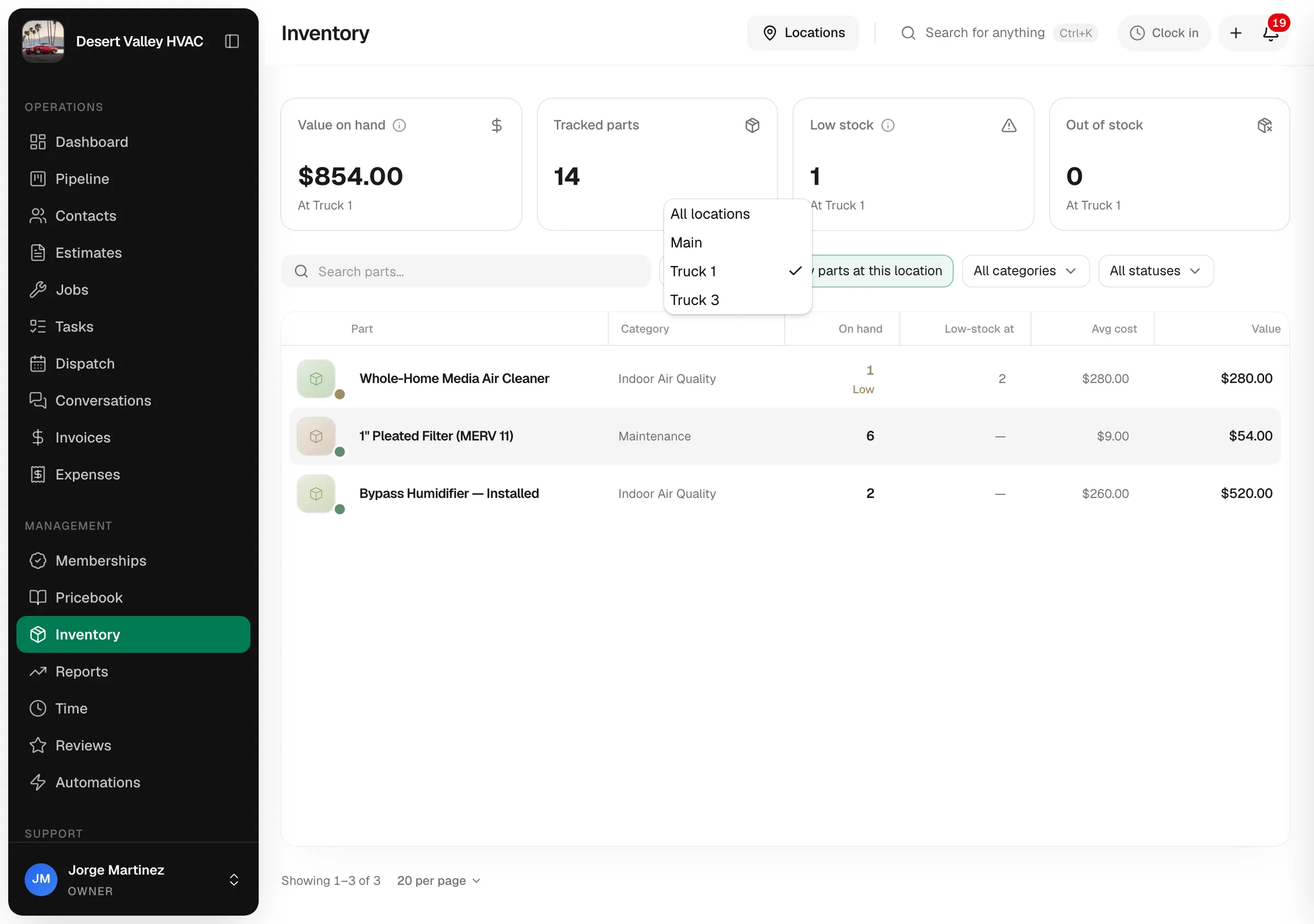
On the Inventory page, the location switcher next to the search box reads All locations. Pick a truck or warehouse to see that location's counts: the summary cards, the On hand column and the status dots all follow your choice. Switch back to All locations for the totals.
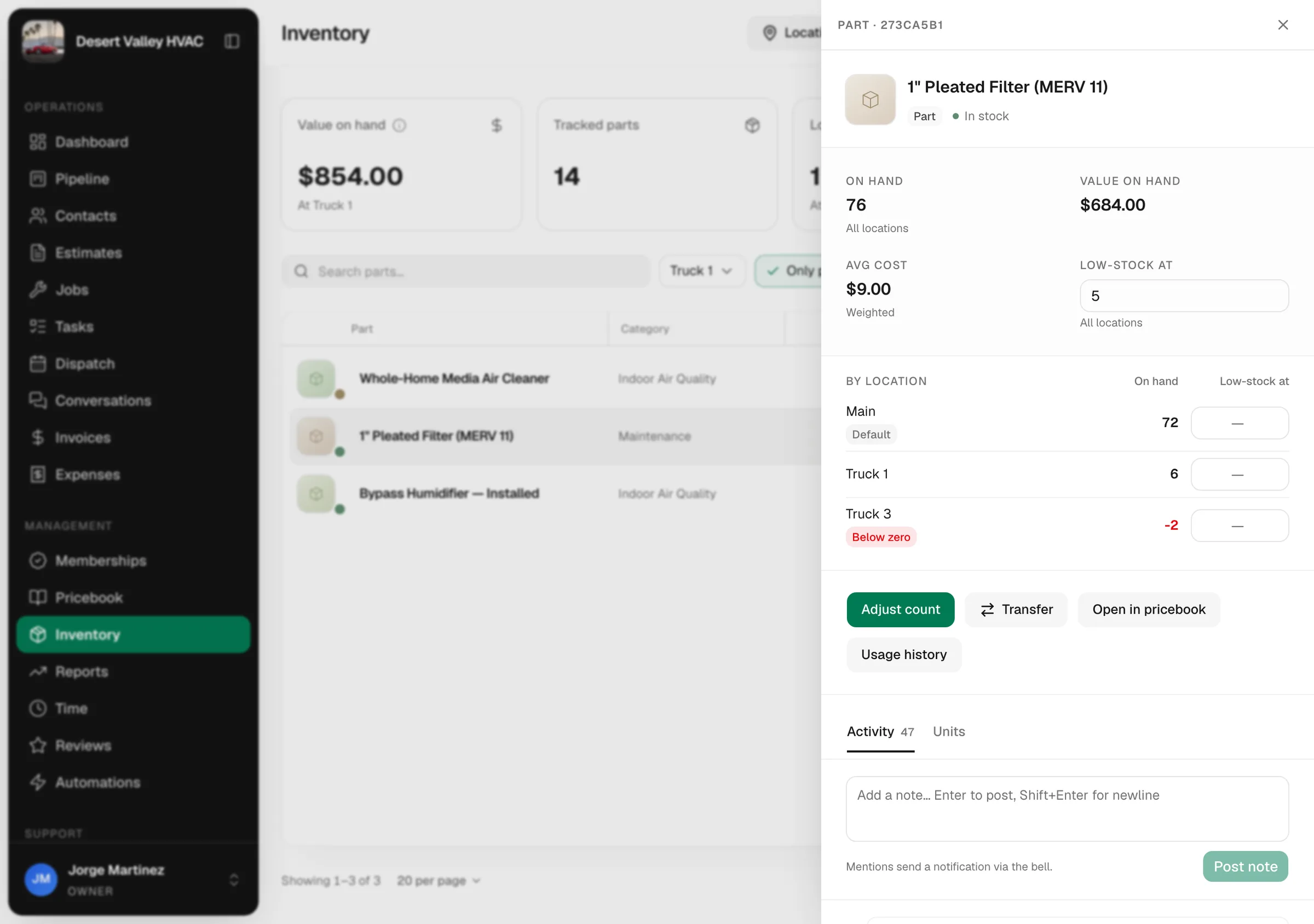
Click a part to open its panel. The By location block lists every location with its On hand and Low-stock at. A location that has more gone out than was counted shows Below zero; one at or under its low-stock level shows Low.
How job usage comes off a truck
Nothing changes in how techs work. When a job is under way (En Route onwards), each tracked part on its parts and labor comes off the lead tech's truck. If the lead tech has no truck, it comes off the default location. See How jobs consume stock.
When a line is lowered or removed, the parts go back to the location they came from, even if the truck's tech has changed since.
Each deduction in the part's Activity shows the location it came off.
Transfer stock between locations
Use a transfer to load a truck from the warehouse, move parts from one truck to another, or bring parts back to the shop. A transfer changes where the stock is, not how much you have.
- Go to Inventory and click the part.
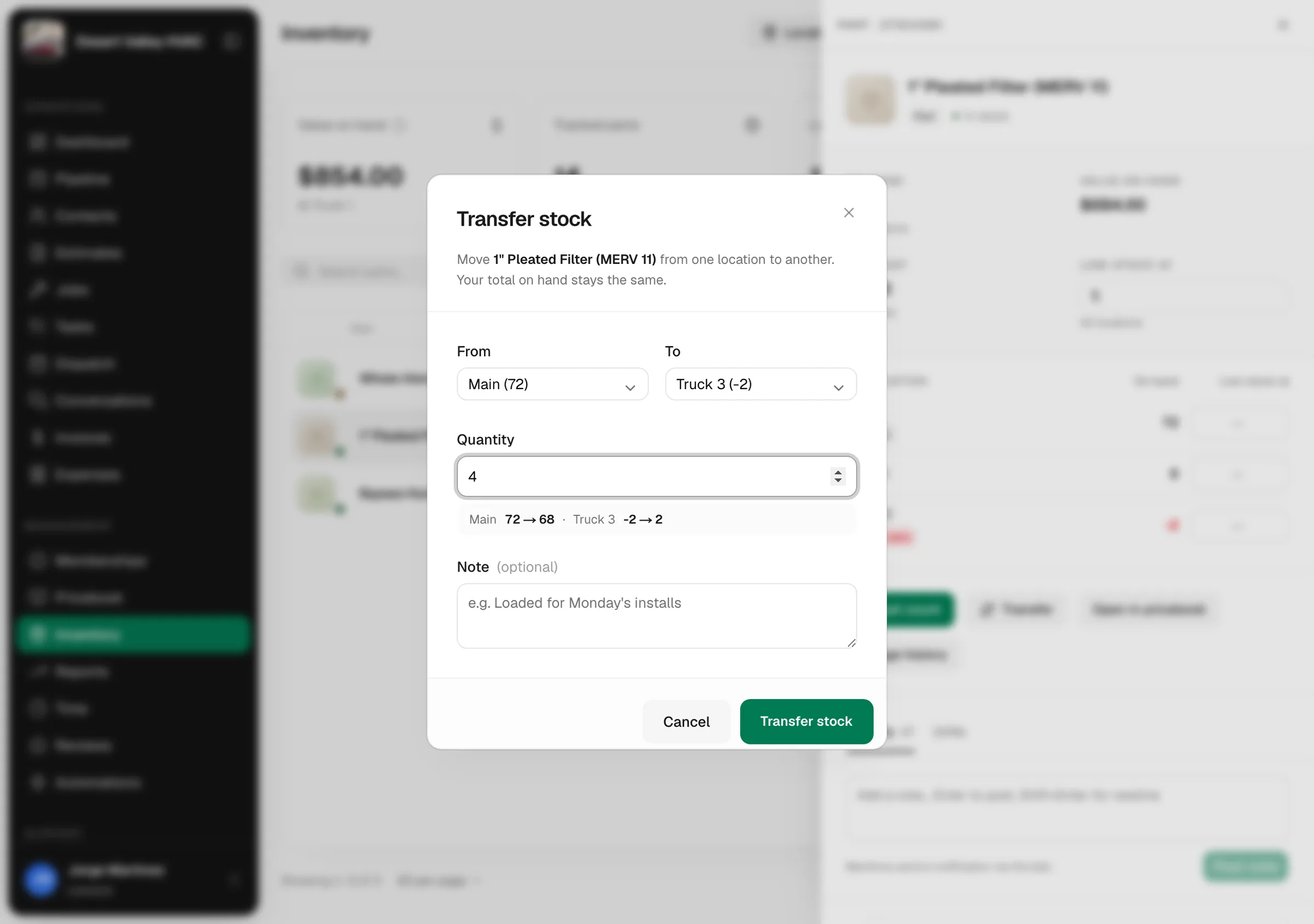
- Click Transfer (next to Adjust count).
- In the Transfer stock window, pick From and To, type the Quantity, and add a Note if it helps, for example Loaded for Monday's installs. The window shows the new count at each location before you confirm.
- Click Transfer. You'll see Moved 4 to Truck 3.
The part's Activity shows the move as Transferred out at the source and Transferred in at the destination.
Transfers move one part at a time, and the From location can go below zero if you move more than it holds. Transfers don't change average cost.
Receive a purchase order to a truck
When you have more than one location, the purchase order form has a Receive to field: Where the parts are counted when this PO is marked Received. It starts on the default location; pick a truck to receive a counter run straight onto it.
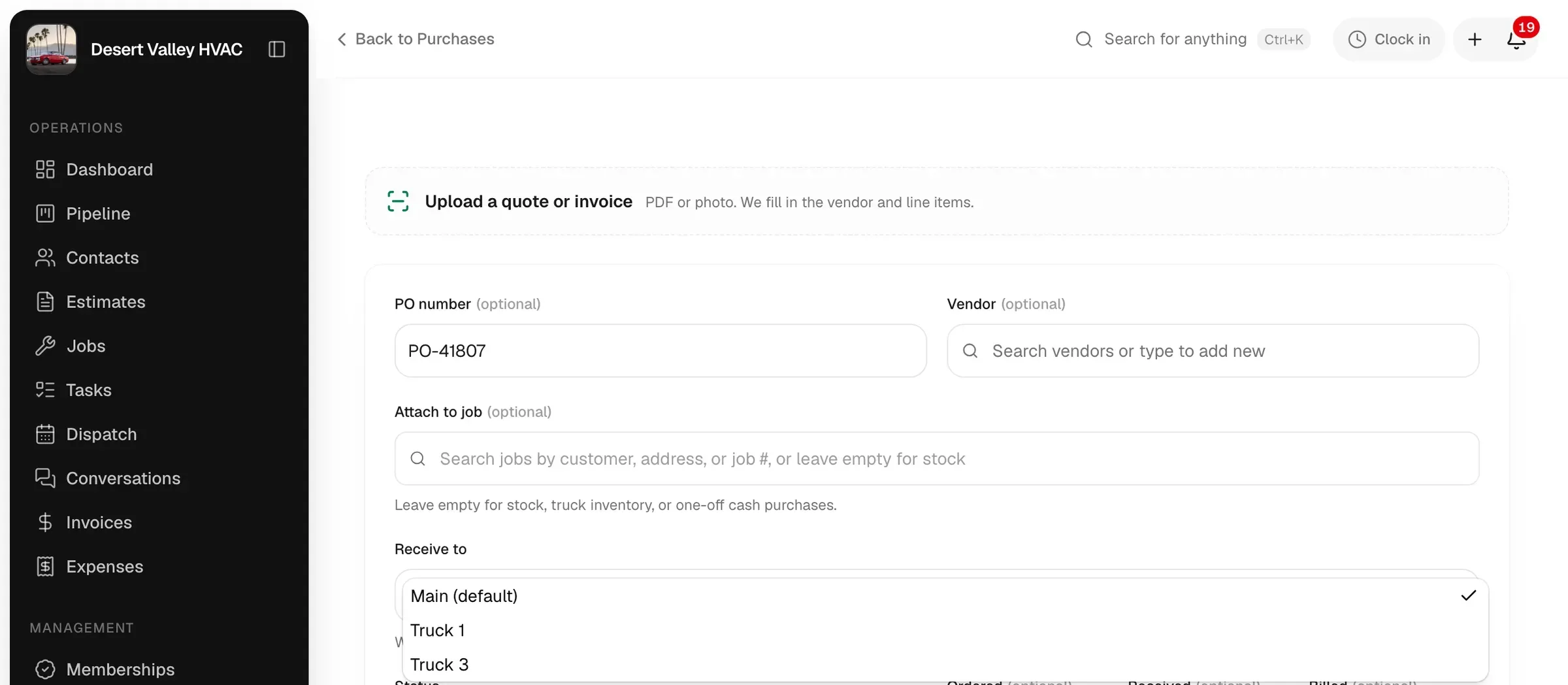
Once the purchase order is Received, the form shows Received to: followed by the location, and it can't be changed. To move the parts afterwards, use a transfer. See How purchase orders receive stock.
Set a low-stock level per truck
Each location can have its own warning level for a part, so a truck that should carry two capacitors warns at two while the warehouse warns at twenty.
- Open the part on the Inventory page.
- In the By location block, type the number in that location's Low-stock at and click away. You'll see Low-stock alert saved for Truck 3.
Clear the field to remove the level (Low-stock alert cleared for Truck 3). The part's overall Low-stock at still applies to the total across locations. See Stock status and reorder points.
The Truck restock report
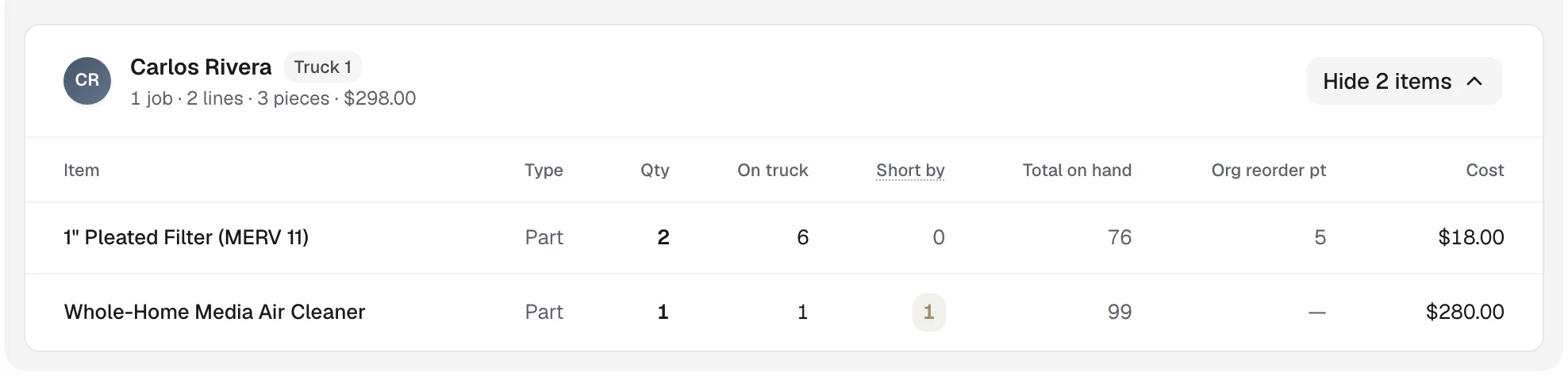
Reports → Team & jobs → Truck restock lists what each tech used by scheduled day. When the tech has a truck, their section is headed with the truck's name and two columns are added:
| Column | What it shows |
|---|---|
| On truck | That truck's count right now. Red when it's below zero. |
| Short by | How many to load. If the truck has a Low-stock at level for the part, it's that level minus what's on the truck. If not, it's only what's needed to bring a below-zero count back to zero. |
| Total on hand | Your count across every location (shown in place of On hand). |
Hand the list to whoever loads the trucks. See Truck restock report.
My truck in the mobile app
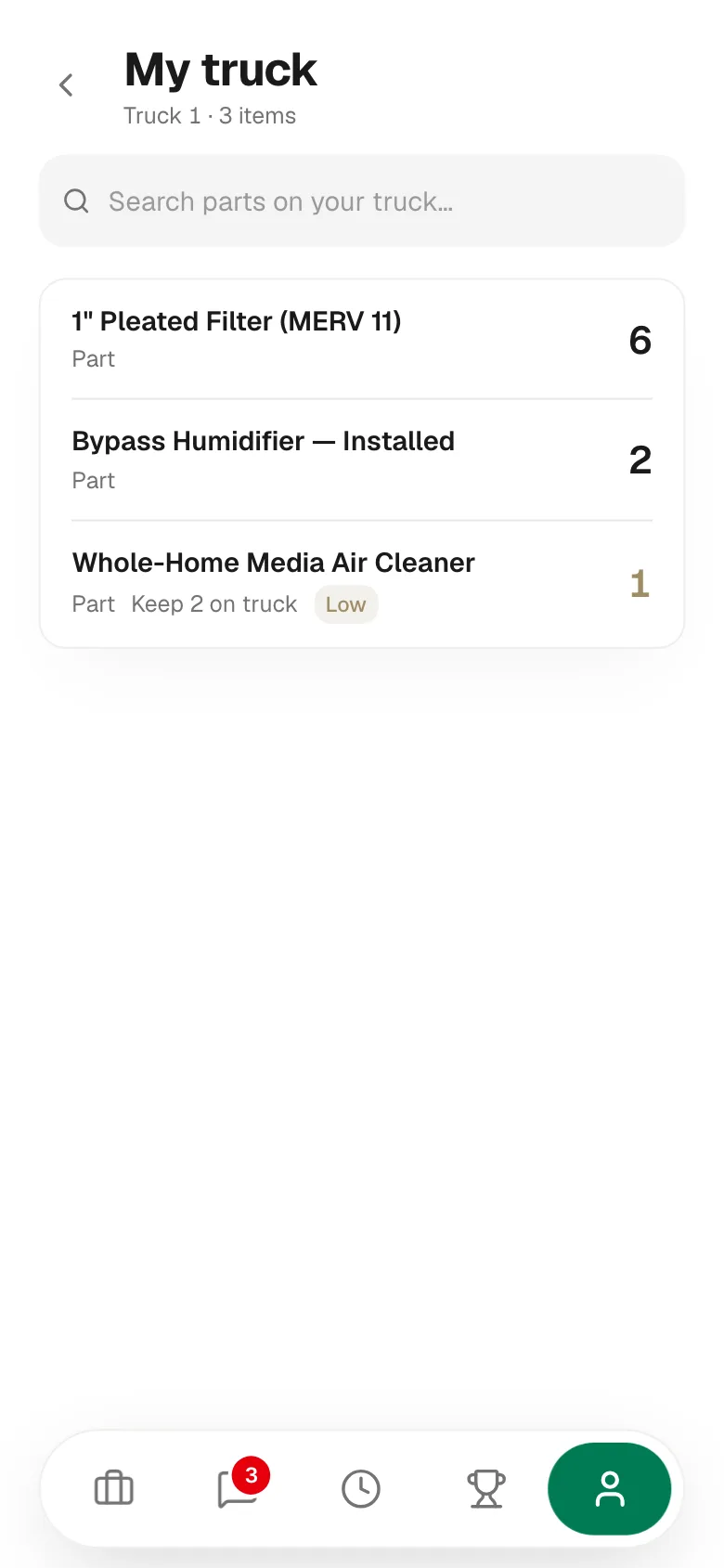
Techs can see what's on their truck without calling the office. In the app, go to Profile and tap My truck (What's on your truck right now.).
- Each part shows its count on the truck and, when a low-stock level is set, Keep 2 on truck. A part at or under its level is marked Low; a negative count is marked Below zero.
- Search parts on your truck… narrows the list.
- A tech with no truck sees No truck assigned: Ask the office to assign you a truck under Inventory → Locations.
- A truck with nothing counted yet sees Nothing on your truck yet: The office loads it with a transfer or a purchase order.
Techs can't adjust or transfer stock from the app; the office does that.
Below-zero counts and how to fix them
A negative number at a location means parts were used from it that were never counted onto it. Usually the warehouse loaded the truck without recording a transfer. To fix it:
- Count what's actually on the truck.
- Open the part on the Inventory page and click Adjust count.
- Under Location, pick the truck.
- Choose Set exact count and type the number in New count at Truck 3. Pick Miscount as the reason and click Record adjustment.
Then record the transfer that should have happened, or move the matching amount out of the warehouse with a transfer so the total stays right. If the warehouse count is also off, set its exact count the same way. See Making a manual stock adjustment.
The Stock locations window shows how many items are below zero at each location, so you can see which truck needs a count.
Archive a truck
When a truck leaves the fleet, archive its location so it disappears from every picker and from the Inventory switcher. Its movement history stays.
- Transfer or adjust everything on it to zero. A location holding stock can't be archived (Transfer or adjust its stock to zero first).
- If it's the default, make another location the default first.
- In Locations, open the … menu on the row and choose Archive.
- Confirm Archive location.
If the tech moves to a new truck, use Change tech instead of archiving.