
Expenses are money already spent: a parts-house run, fuel, a tool, supplies. Log each one with its receipt, link it to a job when it was for one, and that cost shows up in the job's profit right away. Techs can log their own from the mobile app, and receipts can be emailed in.
Who can use Expenses: owners, admins and dispatchers in the office; field techs from the mobile app. Deleting expenses, paying out reimbursements, managing categories and expense settings are for owners and admins.
Where expenses live
Click Expenses in the sidebar. The page has three tabs: Overview (your expenses), Purchase Orders and Vendors.
At the top of Overview, four tiles filter the list:
| Tile | Shows |
|---|---|
| This month | Expenses dated this month, with the total. |
| To reimburse | Expenses paid personally that haven't been paid back yet. |
| Needs review | Expenses nobody has marked reviewed or rejected. |
| Not on a job | Expenses without a job, so you can link the ones that belong to one. |
Below them you can search (merchant, name or notes) and filter by Period, Category, Entered by and Paid with.
Log an expense in the office
-
Click New expense.
-
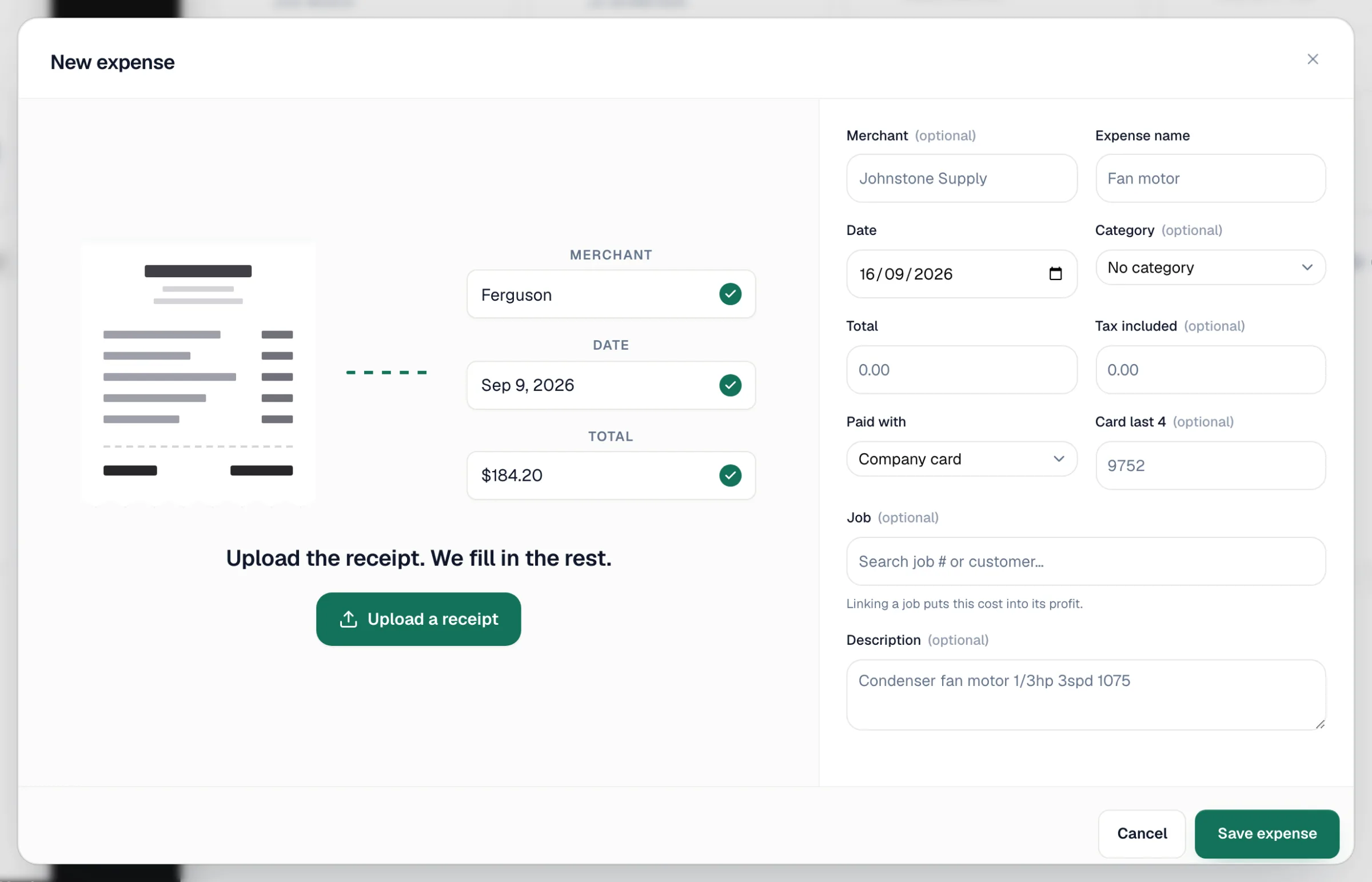
Click Upload a receipt and choose a photo or PDF (or drag it in). Run a Call reads the merchant, date, total and category and fills them in. Fields it wasn't sure about are highlighted; check those.
-
Check or fill in the fields:
Field What to enter Merchant Where you bought it. Expense name What it was, such as Fan motor. A name or merchant is required. Date When you paid. Category Such as Job Supplies, Fuel, Tools. Total and Tax included The amount paid, and the tax within it. Paid with Company card, Cash, Company account, Personal (reimburse) or Other. Card last 4 Optional, for company cards. Reimburse to Appears for Personal (reimburse): the teammate to pay back. Job Search by job number or customer. Linking a job puts this cost into its profit. Description Details, such as part numbers. -
Click Save expense. You'll see Expense logged.
You can add more than one receipt page with Add.
If the document is a supplier invoice you haven't paid yet, track it as a purchase order instead so you can mark it billed when you pay. Run a Call suggests this when it spots one.
Log an expense from the mobile app
Techs can log expenses two ways:
- On a job: open the job and tap Expenses in the This visit list. The expense is linked to that job.
- Not for a job: go to Profile → My expenses for fuel, tools or shop supplies.
Tap Snap the receipt to take a photo; the details fill in from the picture. A PDF can be attached but its details have to be typed in. Logging works offline and uploads when the phone reconnects. When a tech picks Personal (reimburse), it goes to the office's To reimburse list.
A tech can edit or delete their own expense until the office reviews it.
Email receipts in
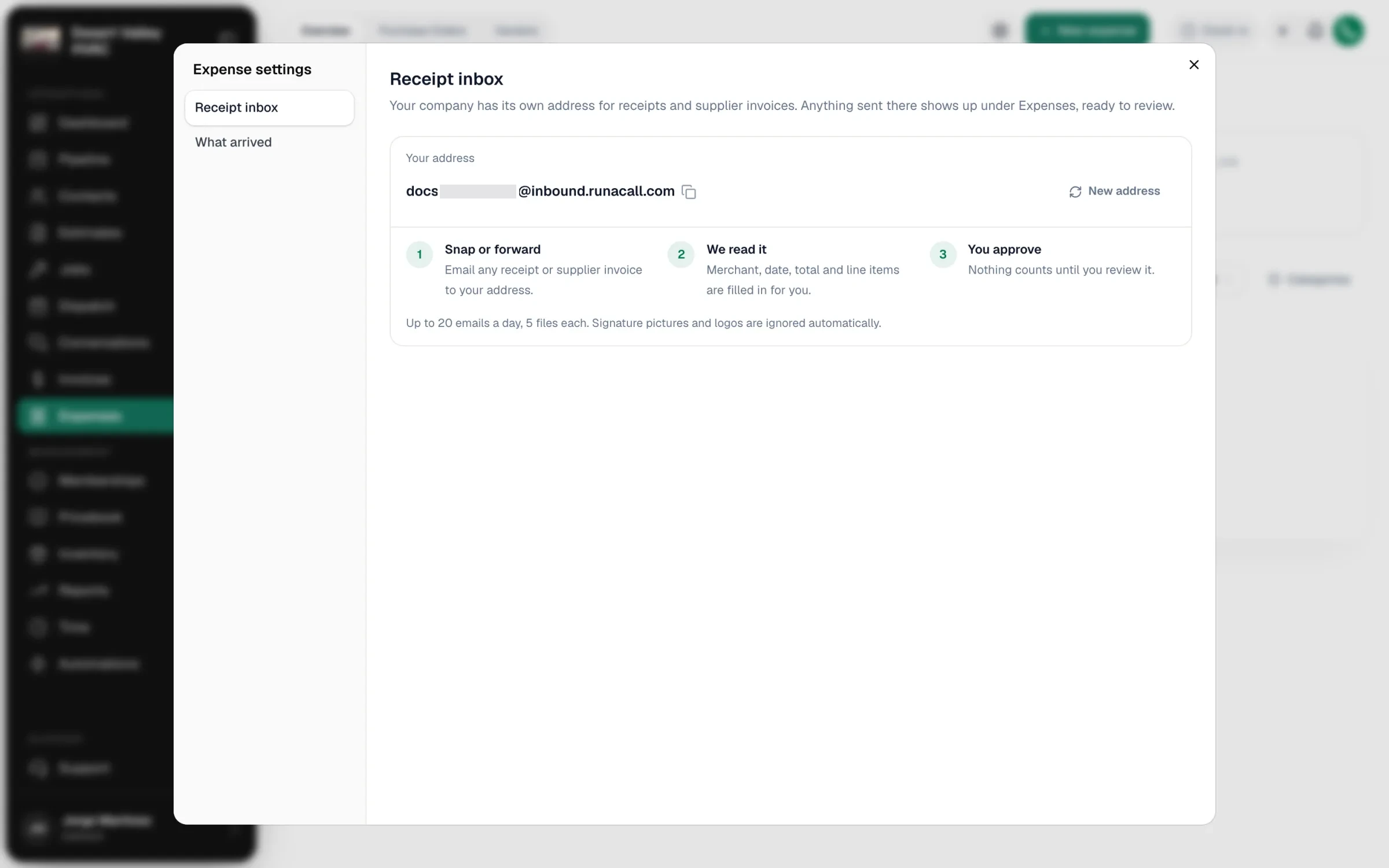
Every company has its own receipt address, shown at the top of Overview (Forward receipts to …). Forward receipts or supplier invoices there, as photos or PDFs:
- Each file becomes an expense waiting in Needs review, filled in from the document, with a note that it arrived by email.
- A supplier invoice that mentions the PO number of an open purchase order is attached to that purchase order instead.
- Up to 20 emails a day, 5 files each. Signature pictures and logos are ignored.
Owners and admins can open the settings gear (Expense settings) to copy the address, create a New address (the old one stops working immediately), or see What arrived in the last 30 days and what happened to each email.
Send receipts to your accountant
Under the same settings gear, Send to accounting emails every receipt your team logs (uploaded, snapped in the app or emailed in) to up to 5 addresses, with the file attached. See Sending receipts to your accountant automatically.
Review, reimburse and correct
Click any expense in the list to open it.
| Button | What it does | Who |
|---|---|---|
| Mark reviewed / Reject | Confirms the expense, or rejects it. Rejected expenses no longer count toward the job's cost. | Owners, admins, dispatchers |
| Mark reimbursed | Records that you paid the teammate back. | Owners, admins |
| Delete | Removes the expense from the job's cost and reports. The receipt file is kept. | Owners, admins |
| Save changes | Saves your edits. | |
| Print (printer icon) | Prints the receipt and the expense details. See Printing an expense receipt. | Anyone who can open the expense |
| More actions (⋯) → Send to accounting / Resend to accounting | Emails the receipt to your accounting addresses. | Owners, admins |
Categories
Owners and admins click Categories next to the filters to add, rename, hide or show categories. New companies start with Job Supplies, Equipment, Fuel, Tools, Vehicle, Software, Meals and Other.
If you sync expenses to QuickBooks Online and track classes there, each category can also carry a QuickBooks class. See Syncing expenses to QuickBooks.
Where expenses show up
- Job page: in the job's costs (expenses count unless rejected).
- Reports → Expenses: spending by vendor and category over time (owners and admins).
- QuickBooks Online: optional. The owner can turn on Expenses (Push expenses as Purchases to QuickBooks) in the QuickBooks sync settings, map the accounts, and choose Only sync reviewed expenses (on by default).