
The dispatch board can show the same schedule several ways. Timeline puts each technician on a row so you can move work between people. Calendar looks like Google Calendar, which is easier for seeing the week or month. Map shows where the jobs and your techs are.
Switch views
- At the top left of Dispatch, click Timeline or Calendar.
- Use the dropdown next to the gear to pick how much time you see: Day, Week or Month (Calendar also has Schedule).
- Click Map to see your jobs and techs on a map, for a day, a week or a month. Click it again to go back to the view you were on.
Run a Call remembers the last view you picked. Each dispatcher keeps their own.
Timeline views
Timeline · Day
One row per technician, with the hours running left to right. This is the view for moving jobs between techs and fixing the day as it happens.
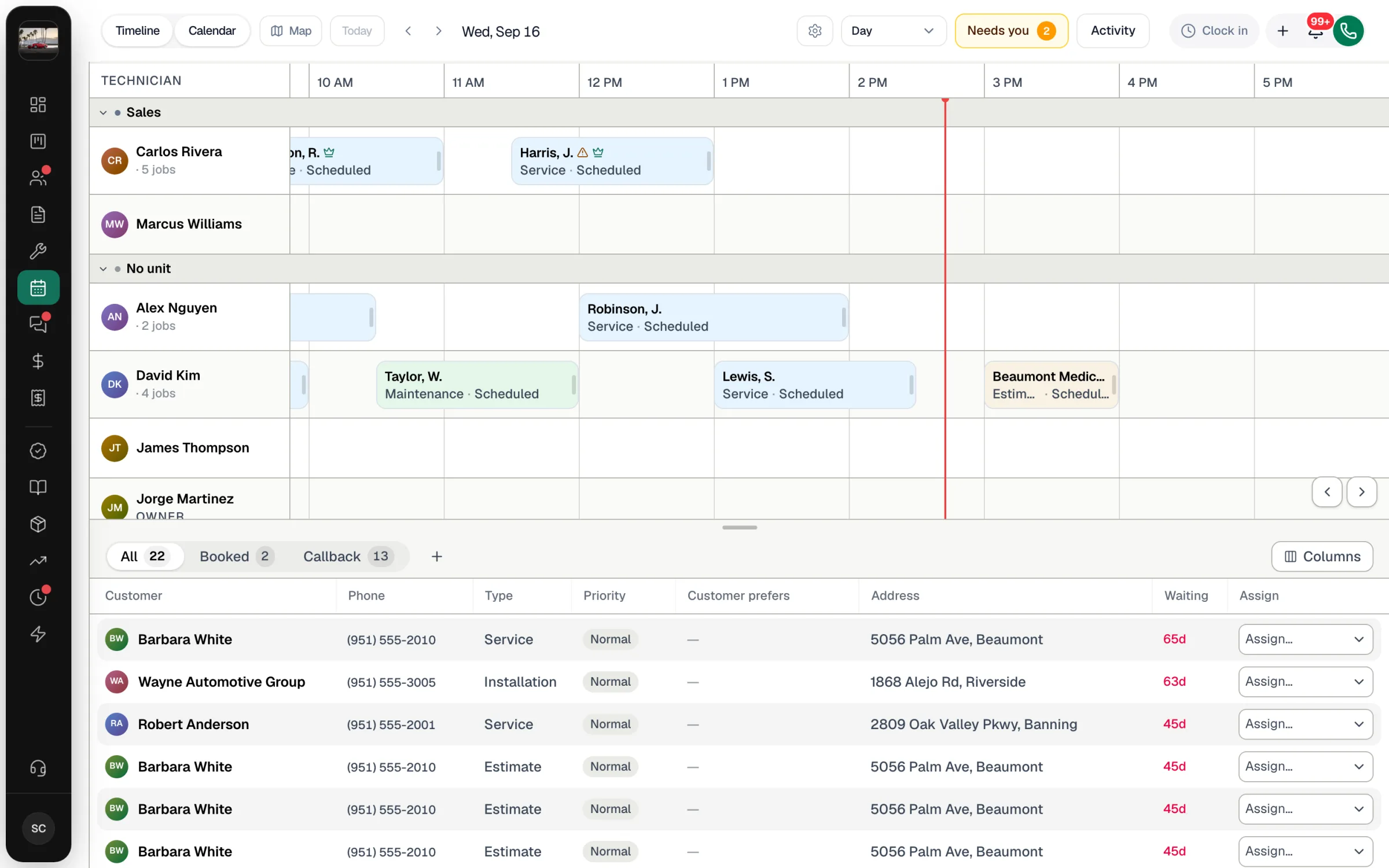
- The time axis runs from an hour before you open to an hour after you close, based on your business hours.
- Time outside a tech's own working hours is striped. A tech with the day off is greyed out and tagged Off.
- A red line marks the current time on today's board.
- With Show drive time between jobs turned on in Board settings, a small car shows the drive between back-to-back jobs. It turns amber when the drive uses most of the gap and red when the tech can't make it in time.
Timeline · Week
Technicians down the side, the seven days across the top. Good for spreading work over the week.
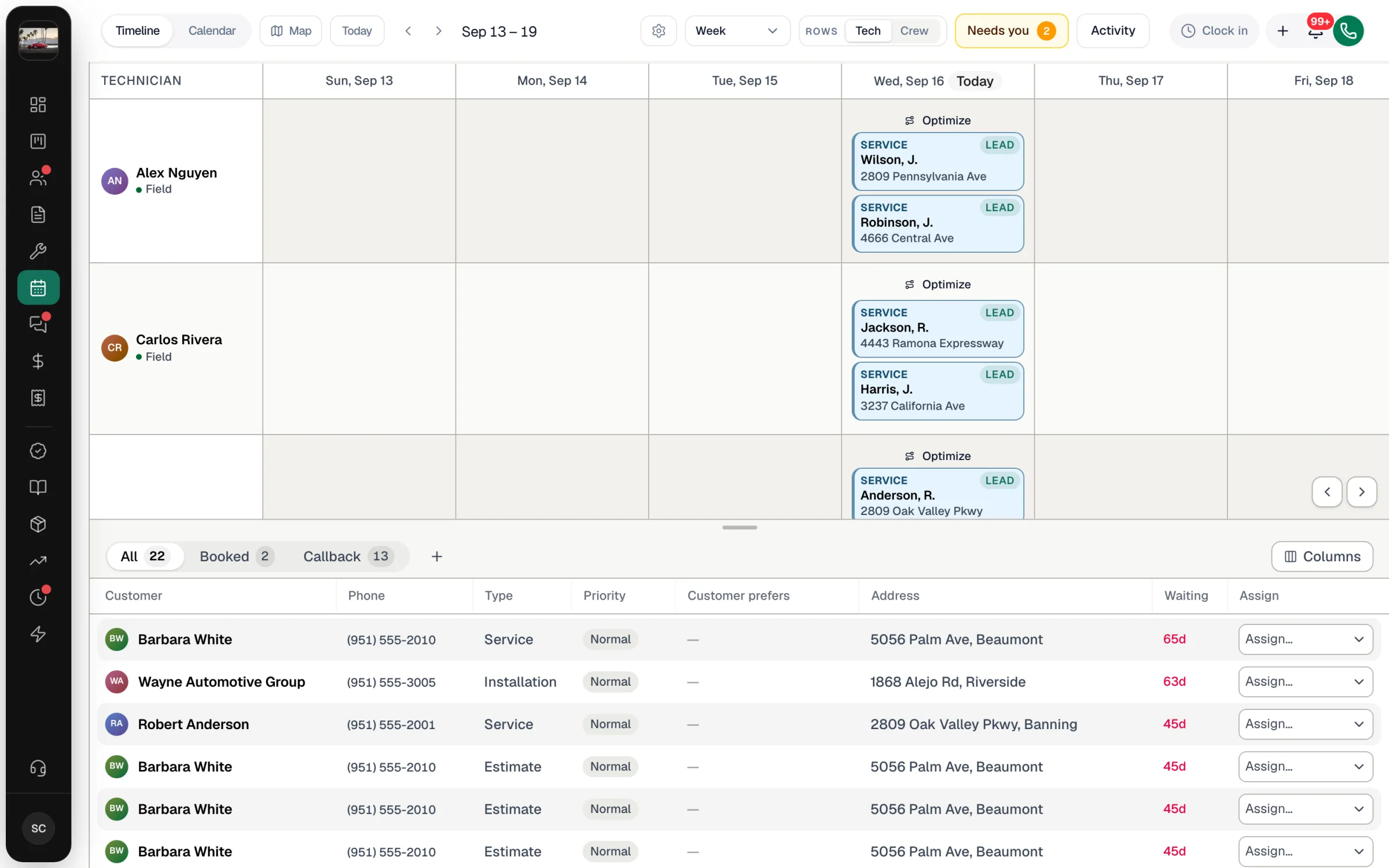
- Rows: Tech / Crew — Tech shows each person's jobs per day. Crew shows multi-day installs as one block per install, so you can schedule and move the whole project. See Planning multi-day jobs.
- Optimize appears on a day where a tech leads two or more jobs. It opens a suggested route order with the stops, total distance and drive time. Apply Route re-times the jobs in that order; Open in Google Maps shows the route.
Timeline · Month
Technicians down the side and every day of the month across. Click a day's header to open that day in Timeline · Day.
Calendar views
| View | What it shows |
|---|---|
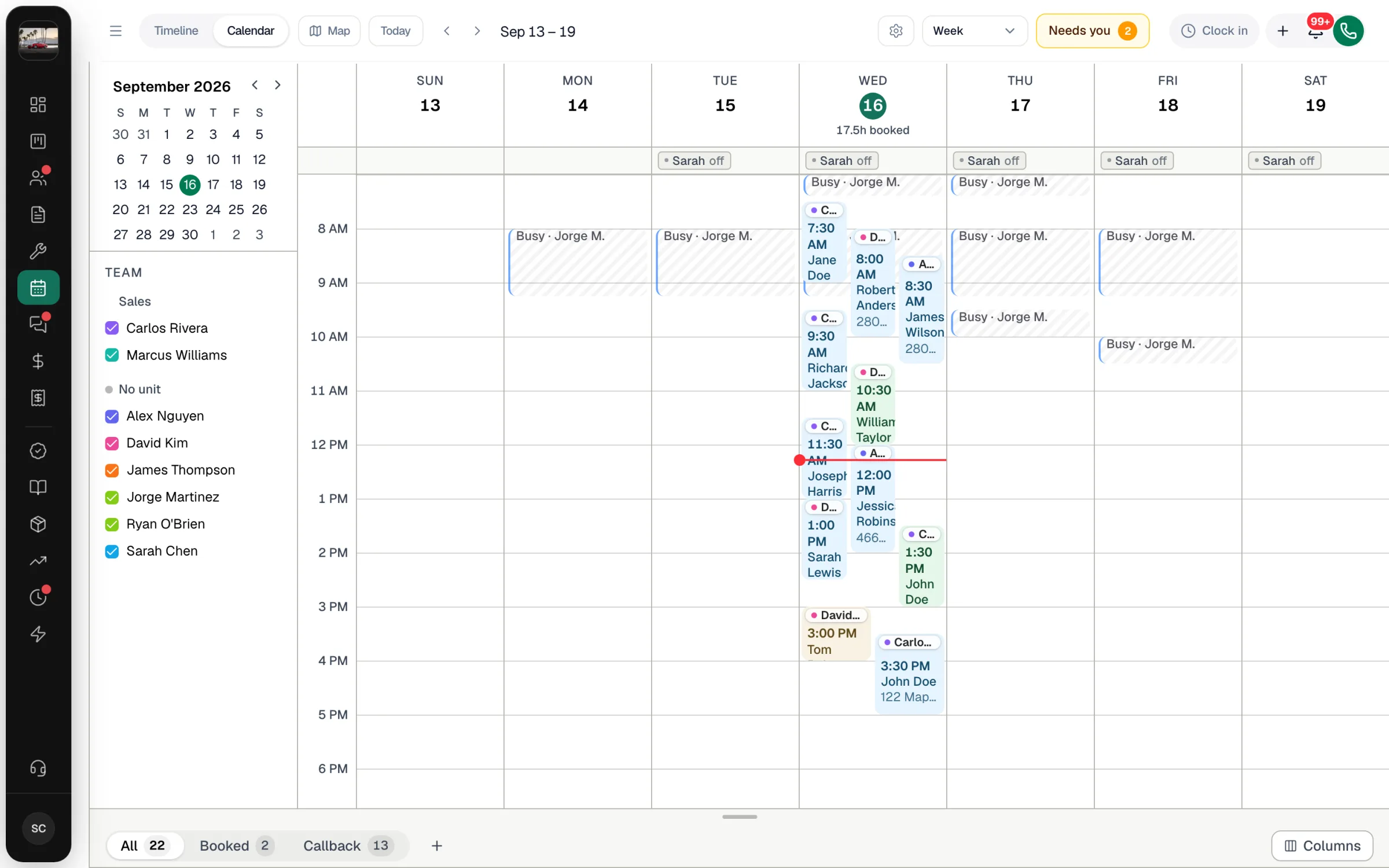
| Day | Hours from top to bottom, every tech's jobs side by side. Each day header shows how many hours are booked — amber when the team is nearly full, red when it's over. |
| Week | The same for seven days. Time off shows as chips under the date (for example Sarah off). |
| Month | A month grid. Busy days show +N more. Click a day to open it in Calendar · Day. |
| Schedule | A plain list of the next 30 days of scheduled jobs, with time, customer, address, type and tech. |
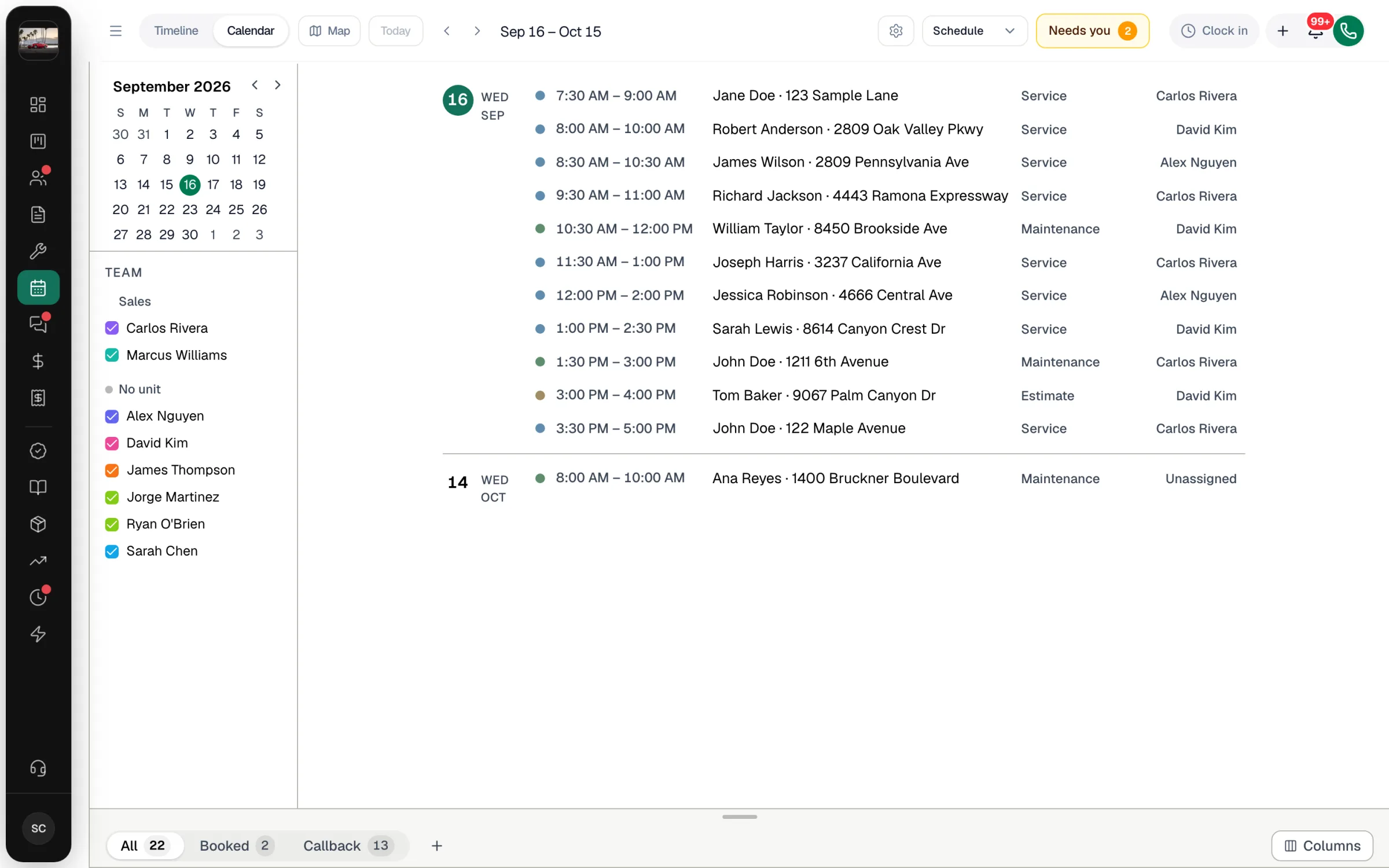
In the Calendar views, the sidebar on the left (open or close it with the menu button at the far left of the toolbar) has a mini calendar for jumping to a date and a Team list. Untick a person to hide their jobs from the calendar on this device.
The Activity button (and Runny inside it) only appears in the Timeline views and on the Map. It's also hidden while the caller panel is open during a call.
Map
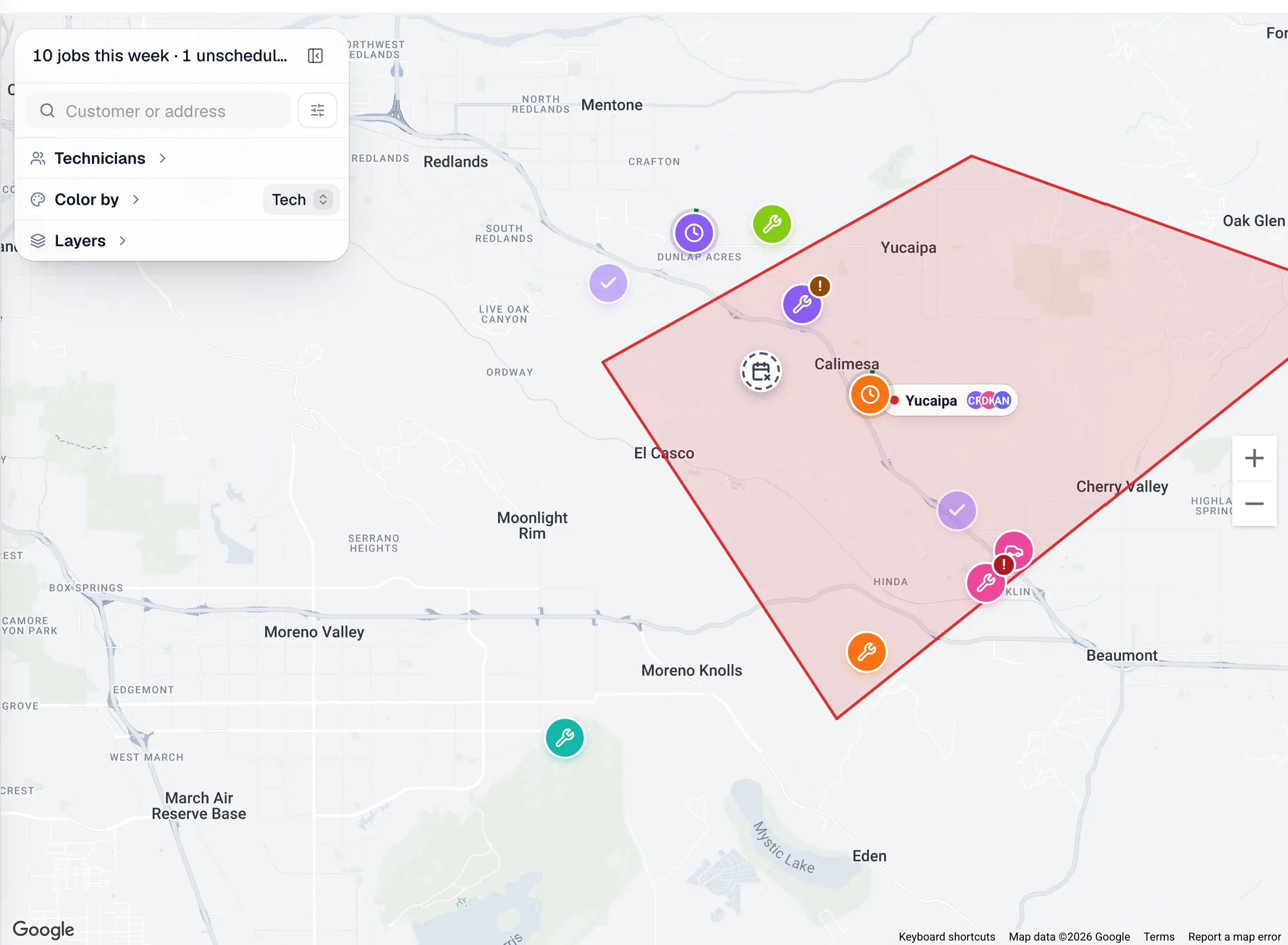
Map puts your jobs on a full-screen map for a Day, Week or Month. The panel on the left sums up the range, lists your technicians, colors the pins and turns layers on and off: routes, live tech locations, service zones and customer addresses. On today's map you also see where each tech is right now.
From the map you can assign a job, or drag a box over several jobs and hand them to one tech, picking the day and time as you go. See Using the dispatch map for all of it.
Which view to use
| You want to… | Use |
|---|---|
| Fix today: reassign, move, fill gaps | Timeline · Day |
| Balance the week across techs | Timeline · Week (Tech rows) |
| Schedule or move a multi-day install | Timeline · Week (Crew rows) |
| Answer "when can you come?" on the phone | Calendar · Week |
| See how full the month is | Calendar · Month |
| Read the upcoming schedule as a list | Calendar · Schedule |
| Check where everyone is right now | Map · Day on today |
| Hand a cluster of nearby jobs to one tech | Map · Week |